Tools
Manage the add-ons installed in Stremio or Nuvio, hide Cinemeta's rows, export, copy or import your library, continue watching and watch history, and back up your whole Stremio account so you can restore it.
On this page
Tools is a set of utilities for the apps you actually watch in: Stremio and Nuvio. It manages the add-ons installed there, quietens Cinemeta, moves your viewing data (library, continue watching, watch history) between apps and files, and backs up your whole Stremio account so you can restore it. None of it changes your StremShare groups or your StremShare add-on; that's what Add-on Setup is for.
Find it at Account → Tools. The tab opens on four cards (Addon Manager, Cinemeta control, Data control, Backup & restore). Picking one replaces the cards, with an All tools link to go back. Each tool also has its own link: /account?tab=tools&tool=addons, &tool=cinemeta, &tool=data or &tool=backups. Backup & restore is covered further down.
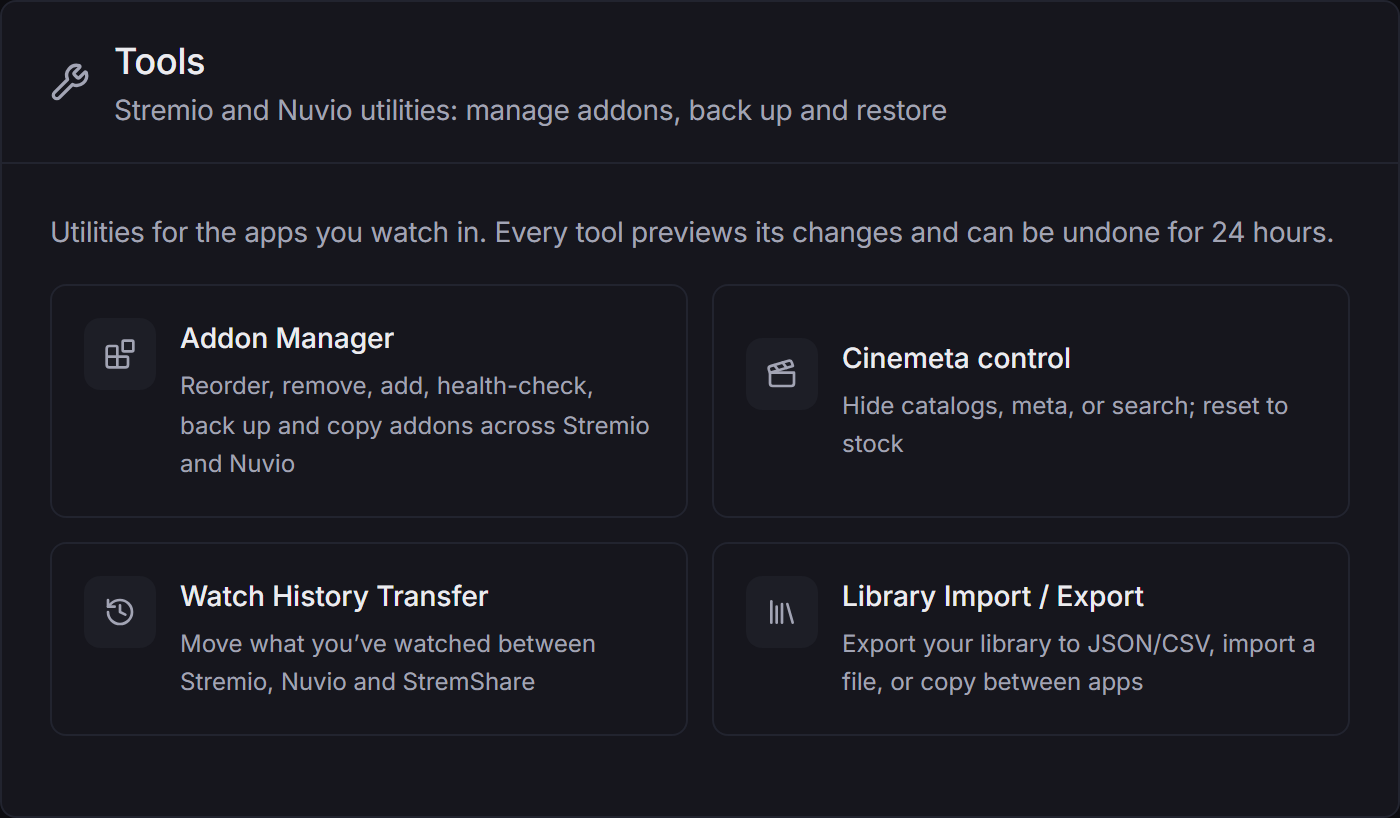
Two rules hold for Addon Manager, Cinemeta control and Data control:
- Nothing is written until you confirm a preview. The tool reads the current state, shows you the difference, and waits.
- Every write can be undone for 24 hours. Before writing, StremShare saves what was there. See Undo points. The one exception is some continue watching copies into Nuvio, and their preview says so before you confirm (see Continue watching).
Backup & restore works differently: Back up now saves straight away (it changes nothing in Stremio), and a restore has its own undo. See Backup & restore.
Which tool do I need?#
| I want to... | Use |
|---|---|
| Reorder, remove or add the add-ons in Stremio or Nuvio | Addon Manager |
| Back up my add-on list, or copy it to another app or profile | Addon Manager (Export JSON, Copy to…) |
| Get rid of Cinemeta's Popular / New / Featured rows | Cinemeta control |
| Move what I've watched from one app to another | Data control, Watch history |
| Pick up where I left off, in another app | Data control, Continue watching |
| Save my library, continue watching or watch history to a CSV or JSON file | Data control |
| Load a Letterboxd, Trakt or IMDb export (or my own export) into Stremio or Nuvio | Data control |
| Save my whole Stremio account (library, add-ons, notifications) so I can put it back | Backup & restore |
| Put my Stremio account back the way it was | Backup & restore (Restore) |
| Get back a StremShare profile I'm not on | Backup & restore (Saved from StremShare profiles) |
Picking an app#
Addon Manager and Cinemeta control start with Which app?, grouped into Stremio account, Stremio profiles and Nuvio profiles. Data control has its own pickers for where data comes from and where it goes (Export from, Copy from, Copy to and Add to), grouped into StremShare groups, StremShare, Stremio and Nuvio. Backup & restore has no picker: it always works on your linked Stremio account.
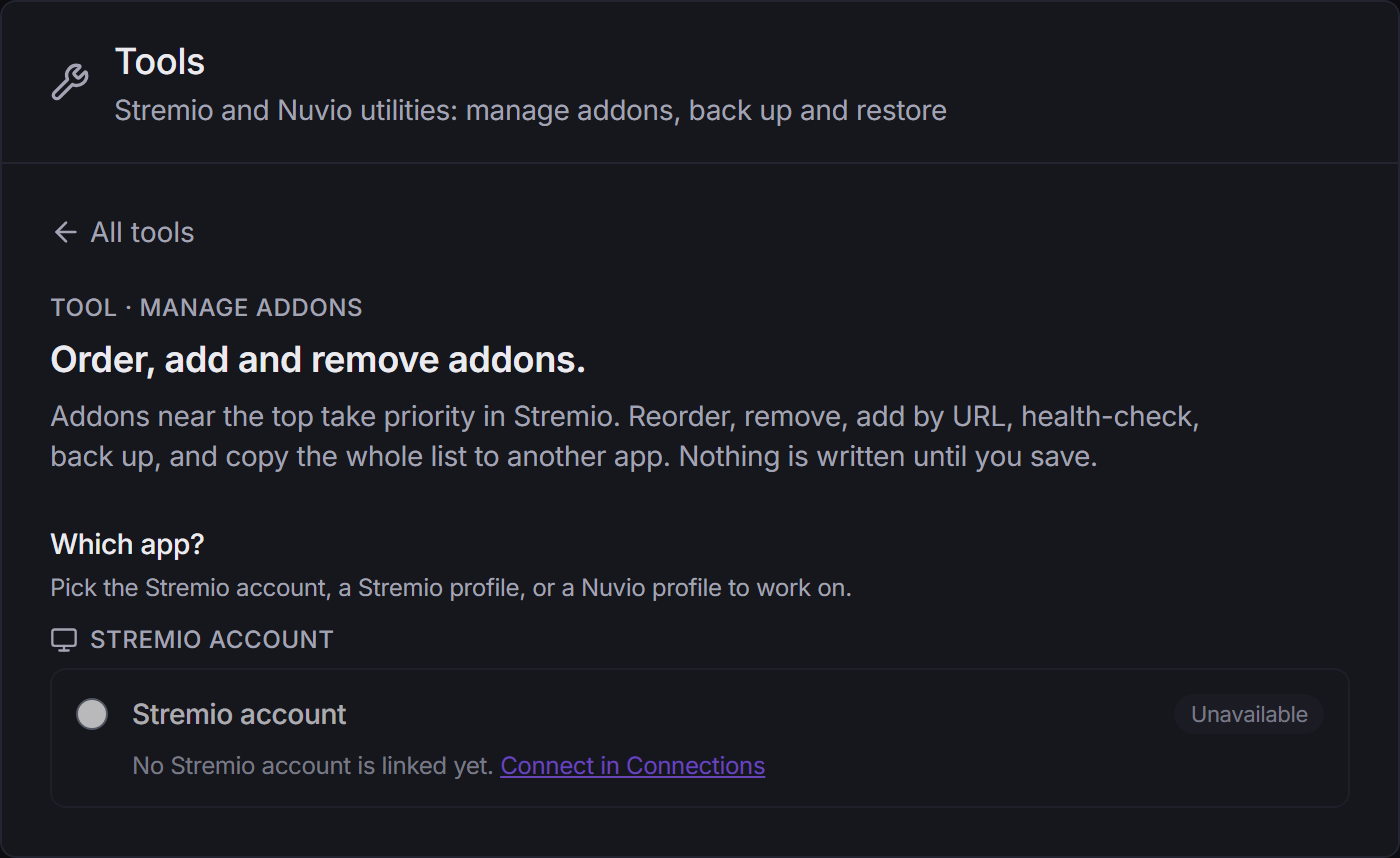
In every picker, apps you can't use right now still appear, greyed out with the reason:
- Not connected yet or No Stremio account is linked yet: link the app under Account → Connections.
- The connection expired. Reconnect it to use this target.: reconnect it under Account → Connections.
- Nuvio is switched off for this account.: Nuvio isn't available to your account right now.
- This profile is linked with a profile key. Reconnect with the main account.: sign in to Stremio on the Connections tab with the main account's details.
- Enter this profile's PIN in App Profiles first: a Stremio profile needs its PIN entered once under Account → App Profiles. See App Profiles & Kids Limits.
A Nuvio profile that shares another profile's add-on list says so (Uses Profile 1 addons), and changes you make there land on the profile that owns the list.
Addon Manager#
Order, add and remove addons. Add-ons near the top take priority in Stremio.
Pick an app and click Load addons. You get the installed list with each add-on's logo, name, id and URL.
Reorder, remove, add#
- Drag a row to reorder it, or use its up and down buttons (handy on a phone or keyboard).
- Remove takes a row out of the list when you save.
- Add an addon by URL: paste the full
https://…/manifest.jsonlink. StremShare checks it's a real add-on and adds it to the end. Links to private or local addresses are refused. - On Nuvio, each row also has an on/off switch. Stremio has no such setting, so the switch only appears for Nuvio.
Two kinds of row are restricted:
- Managed by StremShare: the add-on StremShare maintains for this app. You can reorder it but not remove or edit it (StremShare would just put it back). Change what it shows in Add-on Setup or on App Profiles.
- Protected: Stremio requires it (Cinemeta is the usual one). It can't be removed, but it can be edited, which is how Cinemeta control works.
Edit#
Edit on a row opens the entry as the app stores it. You're editing the app's copy, not the add-on itself.
On Stremio you can change the Name, Description, Logo URL and Background URL, and work through the add-on's Catalogs: rename one, remove one to hide it from Board and Discover, or restore a removed one. A catalog's type and id can't change, and neither can the add-on's URL or id. On Nuvio there's only Name.
Reload from source fetches the add-on's original details again and starts over from those. Edited rows carry an Edited chip until you save, and the save preview lists exactly what changed.
Health check#
Health check contacts every add-on and reports back per row: Healthy with its response time, Unreachable with the error, Renamed when it answers under a different name, or not checked for local and private addresses. It only reads.
Export and import JSON#
Export JSON downloads the list as a file. Import JSON loads one back.
- The export file contains every add-on's URL, and some add-on URLs have your debrid or API keys inside them. Treat the file like a password: don't post it in a forum or chat.
- Importing replaces the whole list. Anything installed that isn't in the file is removed when you save. You see the full difference first, and it's undoable for 24 hours, but it's a replace, not a merge.
StremShare-managed add-ons are left out of the export, and the destination's own managed and protected add-ons are always kept. A Stremio export can be imported into Nuvio and the other way round; any add-on that can't be reached during the conversion is skipped and listed by name.
Copy to…#
Copy to… puts this list straight onto another app or profile. Pick the destination and how to merge:
- Replace: the destination ends up with exactly this list (plus its own managed and protected add-ons).
- Append missing: keeps everything already there and adds only what's missing, matched by URL.
After you save#
On Stremio the confirmation says Restart Stremio to see the changes, and it means it: Stremio only reads its add-on list at startup. Nuvio needs no restart; devices pick up the new list on their next sync.
Cinemeta control#
Suppress Cinemeta surfaces. Cinemeta is Stremio's built-in metadata add-on. It supplies posters, descriptions and episode lists, and it also adds its own catalog rows. This tool turns those rows (and more) off without uninstalling it.
Pick the app first: Cinemeta lives on both Stremio and Nuvio, but works differently on each (see On Nuvio). The status line shows Default · all on, or one chip per change you've made.
Hide from Board / Discover#
Impact: cosmetic. Removes Cinemeta's catalogs from Board and Discover. The main switch covers all three; the sub-switches pick which:
- Popular: stops showing as a row but keeps search working (if you also switch search off, it's removed completely).
- New: removed.
- Featured: removed.
Cinemeta still supplies metadata as before.
Remove meta responses#
Impact: heavy. Stops Cinemeta supplying metadata at all. Only do this with another full metadata add-on installed (TMDB, AIO Metadata). Without one, titles lose their poster, description and episode list, and several StremShare features rely on episode lists. The tool warns you when no other installed add-on provides metadata.
Disable in search#
Impact: light. Stops Cinemeta answering global search.
Reset to stock#
Fetches Cinemeta's original setup and puts everything back exactly. If that fetch fails, the tool says so rather than half-restoring. Try again in a minute.
On Nuvio#
Only catalog hiding exists on Nuvio, where the card reads Hide from Home. Search and meta are greyed out because Nuvio always fetches Cinemeta's setup fresh, so there's nothing for StremShare to change. To silence Cinemeta completely on Nuvio, switch its row off in the Addon Manager.
Hiding on Nuvio only affects that profile's Home screen; Discover and search are unaffected. Nuvio picks the change up on its next sync. Pull to refresh Home if it doesn't show.
Wrapped copies#
If you have a "Cinemeta with Ratings" or similar copy installed, the tool flags it as Wrapped copy installed and leaves it alone. It only ever changes the real Cinemeta, so hiding a row there won't hide the copy's version. Edit or remove the copy in the Addon Manager instead.
Data control#
Your viewing data, wherever you want it. One tool for the three kinds of viewing data an app keeps:
- Library: your saved titles (Stremio's Library tab, Nuvio's library). Not what you've watched.
- Continue watching: titles you're partway through, with the spot to resume from.
- Watch history: what you've watched, one entry per movie or episode.
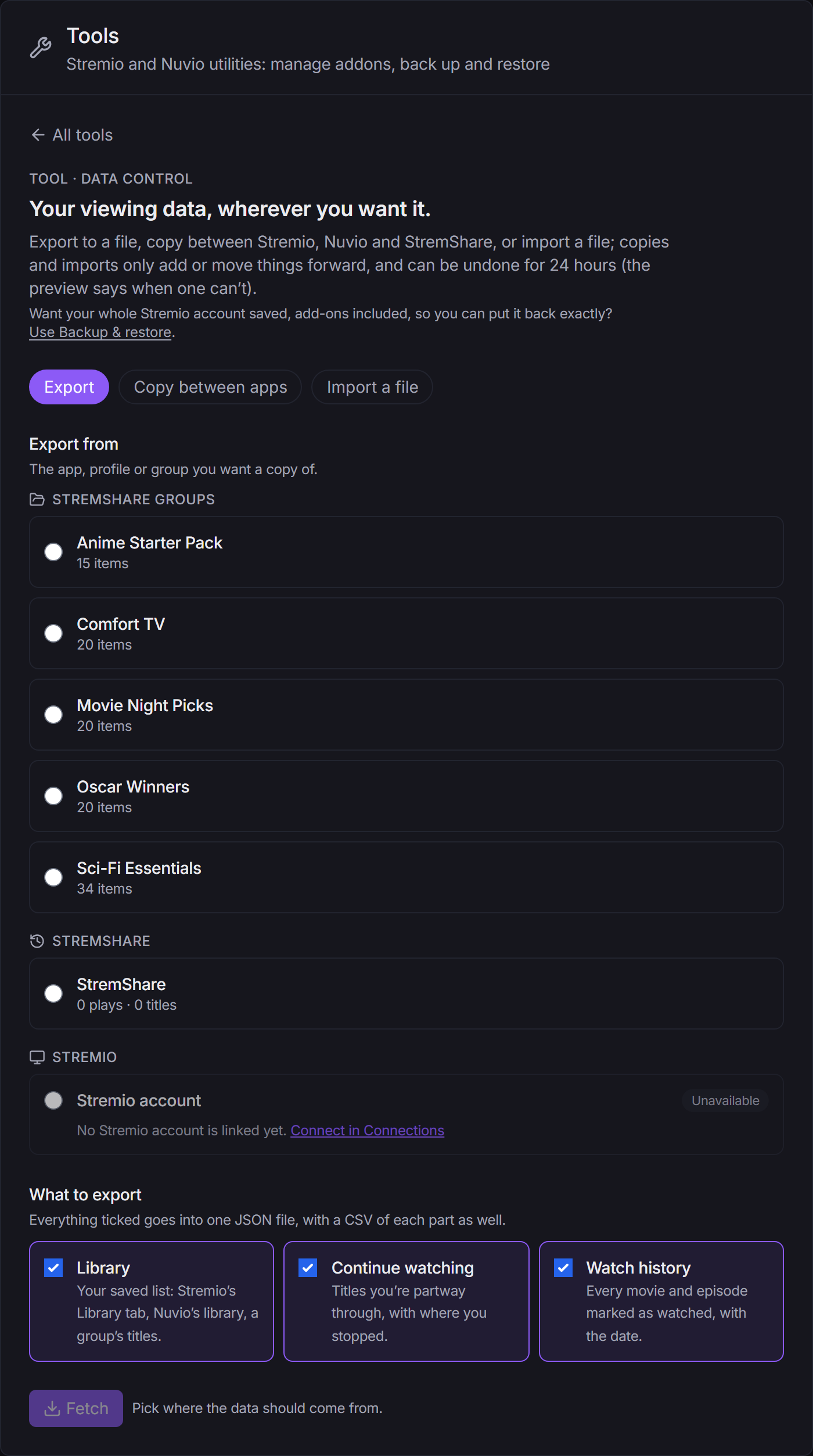
It has three tabs: Export, Copy between apps and Import a file. Copying and importing only add (or, for continue watching, move a title forward): nothing on the destination is ever removed or marked unwatched, which is also why running one again is safe.
Each tab and data type has its own link, for example /account?tab=tools&tool=data&mode=copy&data=history (mode is export, copy or import; data is library, continue or history). Older &tool=watch and &tool=library links still work and open the matching tab.
For a full copy of your Stremio account, add-ons included, that you can put back exactly, use Backup & restore instead. The Use Backup & restore link at the top of Data control goes there.
Export#
Under Export from, pick where the data comes from, tick what you want (Library, Continue watching, Watch history) and click Fetch. A source only offers what it holds:
- A Stremio account or profile, or a Nuvio profile: all three.
- StremShare (your whole history, or one profile's): your watch history, plus a library made of the titles in it. StremShare keeps no continue watching of its own; the app's row is the real one.
- A StremShare group: its list, as a library.
You get a count for each section, a note on anything skipped, and the downloads:
- Download JSON is one file holding every section you fetched. Keep this one: it imports straight back in, under any data type.
- One CSV per section opens in Excel, Numbers or Sheets:
- Library:
Title,Year,Type,imdbID,tmdbID,AddedDate, the shape Letterboxd, Trakt and most importers read. - Continue watching:
Title,Year,Type,imdbID,Season,Episode,PositionSeconds,DurationSeconds,Percent,LastWatched. - Watch history:
Title,Type,imdbID,Season,Episode,WatchedAt, one row per watched movie or episode.
- Library:
If one section fails (an app not answering, say), it shows its error and the others still download.
Copy between apps#
Pick a data type, a source under Copy from and a destination under Copy to (for a library the destination picker is called Add to):
| Data type | Copy from | Copy to |
|---|---|---|
| Library | Stremio, Nuvio, a StremShare group, or the titles in your StremShare watch history | Stremio or Nuvio |
| Continue watching | Stremio or Nuvio | Stremio or Nuvio |
| Watch history | Stremio, Nuvio, or StremShare (your whole history or one profile's; each option shows how many plays it holds) | Stremio or Nuvio |
"Stremio" means your account or any Stremio profile, and "Nuvio" any Nuvio profile. StremShare is never a destination: to bring history into StremShare, use the importers on Account → Connections (see Watch Tracking).
Preview reads both sides and writes nothing. You get the counts (read, already there, to be written, skipped) and the first 50 entries that would be written. Confirm, and the job runs in the background with a progress bar, so you can leave the page; come back and it picks the progress up again. When it finishes you get the written and skipped counts and an Undo button.
If a run stops part-way, it says how many were written before it stopped, and those are covered by its undo point. Click Preview again: a new run only adds what's still missing. After an undo, the result changes to a Rolled back. line saying what was removed (or, for continue watching on Stremio, put back as it was).
On a Stremio destination, restart Stremio to see the changes. Nuvio picks them up on its next sync.
A few things depend on the data type:
- Library from a StremShare group: titles arrive in the group's own order, so "recently added" views in the destination match the group.
- Library into Stremio: a title you removed from your Stremio library in the past is still remembered there, so copying it again makes it reappear in your library. The preview counts those and says so.
- Watch history: if a source holds more history than we could read, the preview says so rather than quietly reading half of it.
- Continue watching has rules of its own; see Continue watching.
Anything skipped is counted under its reason:
- IDs we couldn't map to IMDb: the source names the title in a way we can't match up (a Kitsu-only anime id, for instance).
- No watch date on the source: we won't invent a date for a play that has none.
- Episode list unavailable from Cinemeta: writing watch history into Stremio needs Cinemeta's episode list for that show. Without it, we leave the show alone rather than guess.
- Watched history we couldn't read safely (left untouched): the destination already has progress for that show that we couldn't read reliably, so we don't risk overwriting it.
- Changed in the app while the transfer ran (skipped) (or the copy, or the import): the title was changed in the app mid-run, so we left the app's version.
- Not a movie or series: anything else.
Import a file#
Pick a data type and a destination (Add to for a library, Copy to otherwise), then drop a JSON or CSV file (up to 20 MB) on the drop zone, or tap to browse. Preview, confirm and undo then work exactly as for a copy. Every data type reads:
- StremShare's own export files, including the combined JSON from the Export tab (only the matching section is read).
- Any JSON list, or an object holding the list under the name that data type uses:
itemsfor Library and Continue watching,recordsfor Watch history. - Any CSV with a header row. Column names are matched loosely, so
imdb_id,IMDb IDandimdbIDall work.
What each data type needs from the file:
Library: Letterboxd and Trakt exports work, as does IMDb's
Constcolumn, plus Title/Name, Year, Type, tmdbID and Date/Added/WatchedDate/Date Added. Each row is matched to a title in this order, and the summary shows how many matched at each step:- By IMDb id, when the row has one. This is exact, which is why a column of IMDb ids gives the best result.
- By TMDb id.
- By title and year, the least certain. The year (and the type, if the file gives one) must agree, and anything ambiguous is left out rather than guessed.
Rows that match nothing are reported as skipped, with a few example titles.
Watch history: an IMDb id and a date on every row (
imdbIDandWatchedAt,DateorLastWatched), withSeasonandEpisodefor an episode. Dates can be ISO dates or Unix timestamps.Continue watching: an IMDb id, a position and a date (
imdbID,PositionSecondsandLastWatched), plusDurationSeconds,SeasonandEpisodewhere they apply.PositionandDurationalso work, in seconds or written like1:23:45.Percentis ignored; the seconds are what count.
A row that's missing something it needs is counted as Rows in the file we couldn't read instead of failing the whole file. For watch history and continue watching, each title is also checked against IMDb: a row whose type (movie or series) doesn't match, or a title that turns up as both, is skipped as Type in the file didn't match IMDb (movie or series), or couldn't be checked. A title the destination already holds as the same type is taken as checked. A continue watching export dropped on Watch history (or the other way round) is refused by name, so half-watched titles never get marked as watched.
A big file can take a while to check. The preview checks for up to a minute and the import itself for up to ten; titles not reached in time are skipped, and the tool says how many. Checked titles are remembered, so the import carries on from where the preview stopped, and importing the same file again carries on from where the import stopped (titles already written are counted as already there).
Limits worth knowing:
- A file is read up to 5,000 rows for a library or continue watching, and 50,000 plays for watch history. A bigger file is cut off (the tool says so); split it and import the rest afterwards.
- A watch history or continue watching file can name at most 5,000 different titles; a file with more is refused, and the export warns when it makes one. Split it and import the parts one at a time.
- Library rows with no IMDb or TMDb id are looked up by title, up to 500 lookups per file within about a minute. Rows past that are skipped as Over the 500-title lookup limit for one file (split the file) or Lookup timed out (try again). A file of mostly titles is noticeably slower than one with ids.
Continue watching#
What counts as continue watching:
- Stremio: every movie or series with a resume position, the titles its Continue Watching row shows. A title doesn't have to be in your library.
- Nuvio: every title with a saved position under 90% of its length. At 90% Nuvio counts a title as finished.
Continue watching only moves between Stremio and Nuvio. StremShare's own watch tracking comes from the same playback, so the app's row is the real one.
How a copy decides:
- One entry per title, and the newest wins. For a series that's the episode you were last on. If the destination's copy of the title is newer (including finishing it there), it's left alone and counted as already there.
- Never backwards. A copy only adds titles or moves them forward. It never rewinds progress and never touches watched marks.
- The preview splits what it would write into Add (not in the destination's row yet) and Update (in the row, but further behind).
- On Stremio, copied titles show first in the Continue Watching row, newest first, ahead of what was already there: Stremio orders the row by most recent change, and the copy is the latest one. A title that isn't in your Stremio library joins Continue Watching only, not the Library tab.
- Titles at 90% or more are skipped as Already finished (90% or more), not continue watching on any copy into Nuvio (Nuvio would mark them watched, which undo couldn't take back), and on rows from a file whatever the destination.
Undo works differently on the two apps:
- Stremio: undo puts every title back exactly as it was, and removes the ones the copy added.
- Nuvio: undo removes the titles the copy added, but can't move updated ones back, because Nuvio never accepts older progress over newer. The preview warns when that applies. A title rolled back on Nuvio can't be copied there again until it's watched again somewhere: Nuvio remembers the removal.
- Some Nuvio copies can't be undone at all: one that only moves titles forward (nothing in it is new), or one into a Nuvio profile with 500 or more saved progress entries (one for each movie or episode started there), where StremShare can't tell which titles are new. The preview and the confirm step say so, and no undo point is saved.
- A copy that takes a Nuvio profile to 500 or more entries can be undone, but StremShare reads a profile 500 entries at a time, newest first. Undo removes the copy's titles a batch at a time, working down the list. If some of them end up behind 500 or more newer entries (yours, say, from watching a lot since), it can't reach those: it removes the rest, tells you how many it couldn't check, and keeps the undo point. The preview warns about this before you confirm.
After a copy to Nuvio, StremShare checks what Nuvio actually kept. Anything it turned down is counted as Nuvio kept its own copy (newer progress, a watched mark, or a recent undo). Other continue watching skips:
- Series progress with no episode we could read: usually anime numbered by absolute episode rather than season and episode.
- Changed in the app while the copy ran (skipped): the title moved in Stremio mid-copy, so we left the app's version.
Backup & restore#
Back up your Stremio account. This tool keeps full backups of your Stremio library, add-ons and notifications. You can restore any of them, download a copy, or rebuild your account from a downloaded file. It only covers your linked Stremio account: Nuvio profiles and Stremio's own profiles aren't backed up. Without a Stremio link, the tool says "No Stremio account is linked yet. Backups are for a linked Stremio account." Link it under Account → Connections.
Weekly automatic backups#
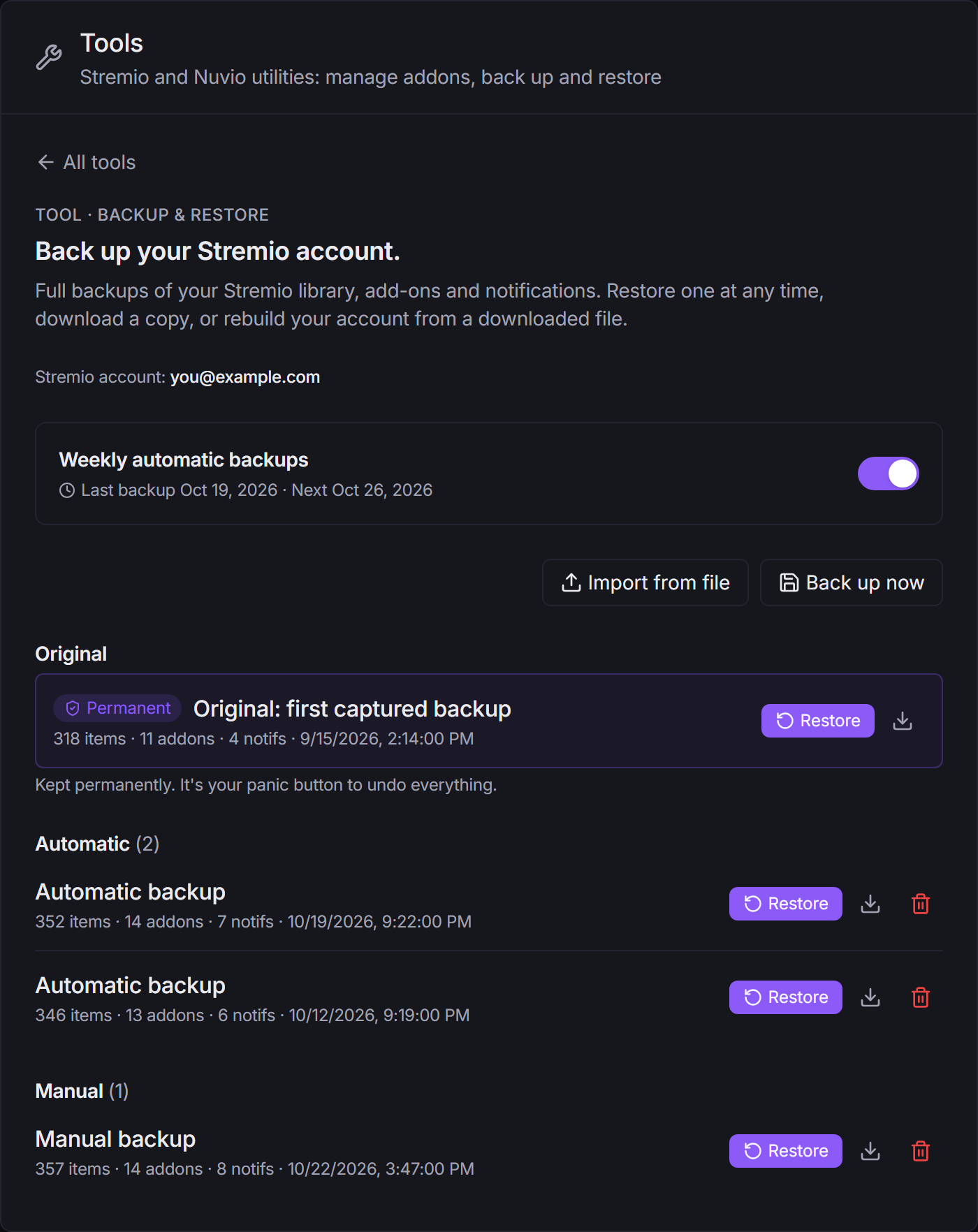
Start weekly backups saves a permanent original of your Stremio account now, then a fresh backup every week. Once your account has an original (your first Back up now makes one too), the card shows a switch instead, along with when the last backup was taken and when the next one is due. Weekly backups stay on until you switch them off, which stops new ones and keeps the ones you have.
If weekly backups are paused on StremShare, the card says so instead, and no automatic backups are taken until they're back. Back up now, restoring, downloading and importing all still work.
Your backups#
Back up now saves a backup straight away. If you don't have an original yet, that first backup becomes it. Backups are listed in groups:
- Original: marked Permanent and kept for good, so you can always get back to how your account was when you started. It can't be deleted.
- Automatic: the weekly backups (the last 7 are kept), plus the undo point saved before each restore or import (the last 3 are kept).
- Manual: backups you made with Back up now, and files you've imported (the last 10 are kept).
If you used StremShare profiles, there's also a Saved from StremShare profiles group (see below).
Each row shows its item, add-on and notification counts and when it was saved, with Restore, a download button and (except for the Original and saved profiles) a delete button. Deleting a backup only removes StremShare's copy; your Stremio account isn't touched.
Restoring a backup#
Restore on a row opens Restore this backup?, which compares your account Now with After restore (library items, add-ons and notifications). Restore now replaces your Stremio library, add-ons and notifications on every device with the backup's.
Your current state is saved first. Straight after a restore, Undo restore puts it back. That saved state also stays under Automatic as an undo point, so you can still restore it later. If a StremShare profile is active, your current state is saved into that profile too, so it keeps your latest changes; after the restore, no StremShare profile is active.
Saved StremShare profiles#
StremShare profiles are being retired (see App Profiles). If you used them, the Saved from StremShare profiles group holds a copy of each profile you're not on, named after the profile. A profile you've just switched away from can take up to a day to appear or be updated here. These copies are kept, and they can't be deleted.
- Restore puts that profile's library, add-ons and notifications on your Stremio account, much like switching to it. Your current state is saved first, as with any restore.
- The download button saves it as a file. Besides keeping it, you can import that file into OpenProfiles, a free add-on that carries on swapping (the retirement notice on Account → App Profiles links to it when it's available).
- A profile saved from a different Stremio account is marked Other account and names the account it came from. You can download it; to restore it, link that Stremio account again.
Download and import#
The download button on a row saves that backup as a JSON file. Import from file rebuilds your account from one: in Import a backup file, click Choose backup file…, check the Now and After import counts, then click Import now. Like a restore, it replaces your library, add-ons and notifications, and saves your current state first so you can undo it.
Heads up
A backup file holds every add-on's URL, and some add-on URLs have your debrid or API keys inside them. Keep it private, and only import files you made yourself. If a file comes from a different Stremio account (or doesn't say which one), the import warns you before anything changes.
Undo points#
Every write in Addon Manager, Cinemeta control and Data control saves the previous state first. Undo points appear inside the tool that made them, and all together on the Tools hub, which is where to look when you don't remember which tool or profile it was. Each one names its app, its tool, when it was saved and what it would restore. Backup & restore keeps its own undo (see Restoring a backup), so restores don't appear in this list.
- 24 hours. After that it expires and the button disappears.
- Up to 25 at a time. When you go past 25, the oldest are dropped first. Anything saved in the last 10 minutes is never dropped, so a copy that's still running keeps its undo.
- One shot. Undo puts back the state as it was at that moment. Anything you changed since (in StremShare or in the app) is replaced, not merged.
- Nothing to undo. A Data control undo leaves alone any title you played, saved or removed in the app since the copy. If that covers everything in the undo point, nothing is put back and the tool says Nothing undone. The undo point stays (delete it with the X when you don't need it). On Nuvio, StremShare also checks afterwards which titles are really gone, and counts only those.
- Partly undone. On a Nuvio profile with 500 or more continue watching entries, an undo can remove some titles and not reach the rest. It says how many it removed and how many are left, and keeps the undo point for those. When it says to click Undo again, the next click carries on from where it stopped.
- What "restore" means depends on the tool. Addon Manager and Cinemeta control put the previous list back. A Data control copy or import removes exactly what it added and leaves everything else. A continue watching copy also moves updated titles back on Stremio, but not on Nuvio, and some Nuvio copies leave no undo point at all (see Continue watching).
- The X deletes one undo point, and with two or more you also get Clear all (N). Deleting only throws away the safety net; it never changes anything in Stremio or Nuvio.
- Rarely, an old undo point can't be read back. The tool says so; if you need that state back, redo the change by hand.
Good to know#
- Only one tool job runs at a time per account, across all tools. A watch history copy and a library import can't run together.
- Leaving a tool with unsaved changes asks first: "You have unsaved changes in this tool. Leave and discard them?" This covers All tools, the Account tabs, switching tabs or data types inside Data control, and leaving the page.
Troubleshooting#
A greyed-out app in the picker, or "That connection isn't available right now. Reconnect it in Connections and try again." Link or reconnect the app under Account → Connections. A Stremio profile that says Enter this profile's PIN in App Profiles first also needs its PIN under Account → App Profiles, which is a separate step from linking the account.
"This list changed somewhere else. Reload before saving." Something else changed that app's add-on list while yours was open: another device, the app itself, or a StremShare sync. Reload, redo your change on the fresh list, and save. The tool refuses rather than overwrite changes you never saw.
"Another tool run is already in progress for your account. Wait for it to finish." One job runs at a time across all tools. Wait for the current copy or import to finish, then start yours.
"That transfer is no longer tracked." (or "That copy…", "That import…") The server restarted during the run. Nothing is half-written: preview again, and a new run only writes what's still missing.
Changes not showing in Stremio. Restart Stremio. It reads its add-on list at startup, and a restart also refreshes library, continue watching and watched changes.
Changes not showing in Nuvio. Nuvio syncs on its own schedule. Pull to refresh Home, or wait for the next sync. Nothing needs reinstalling.
A title won't copy into Nuvio's continue watching. Nuvio keeps its own copy when it already has newer progress for that episode (then there's nothing to fix), has marked it watched since, or had it removed by an undo. For the last two, watch a little more of it in the other app and copy again.
An add-on won't add. Use the full http(s) manifest link, and make sure it answers with a valid Stremio add-on. Links to local or private addresses are refused on purpose.