Add-on Setup, Explained
Install your personal StremShare add-on, then choose which groups Stremio shows, in what order and how.
On this page
Add-on Setup (in the sidebar) is where you install your personal StremShare add-on and decide exactly what it shows in Stremio. Everything on this page changes your add-on only. Other members of your groups have their own settings.
The page at a glance#
The page has two parts:
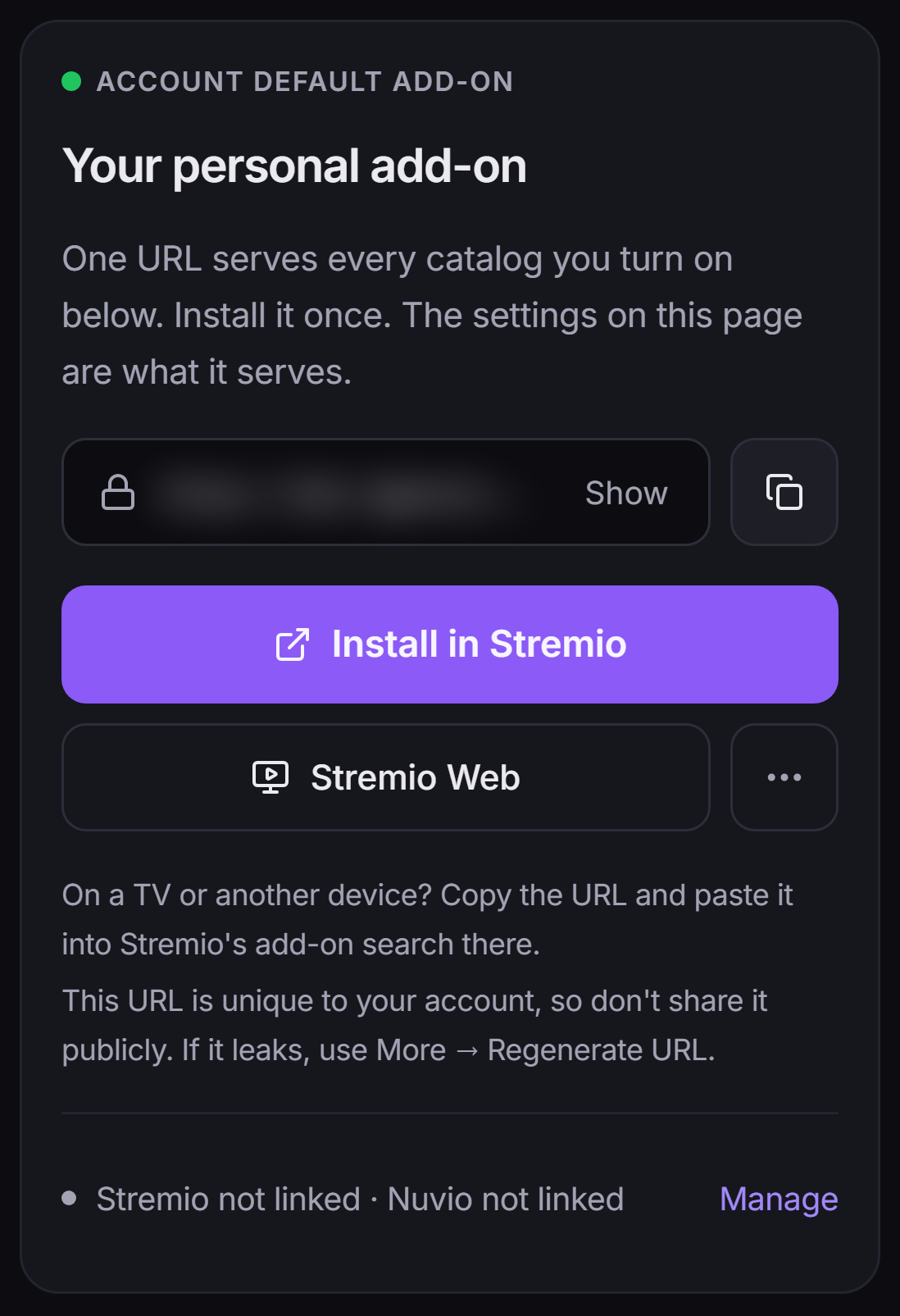
- The install card at the top, titled Your personal add-on. It holds your add-on URL, the install buttons and a quick summary of your setup.
- Three tabs below it:
- Catalogs: which groups appear in Stremio, their order and how each one behaves.
- Watch & recommendations: watch tracking, personalized rows and hiding watched titles.
- Preferences: search inside Stremio, how adding from Stremio is confirmed, and the display language.
The small ? icon next to the page title jumps to the troubleshooting tips at the bottom of the Preferences tab.
Install your personal add-on#
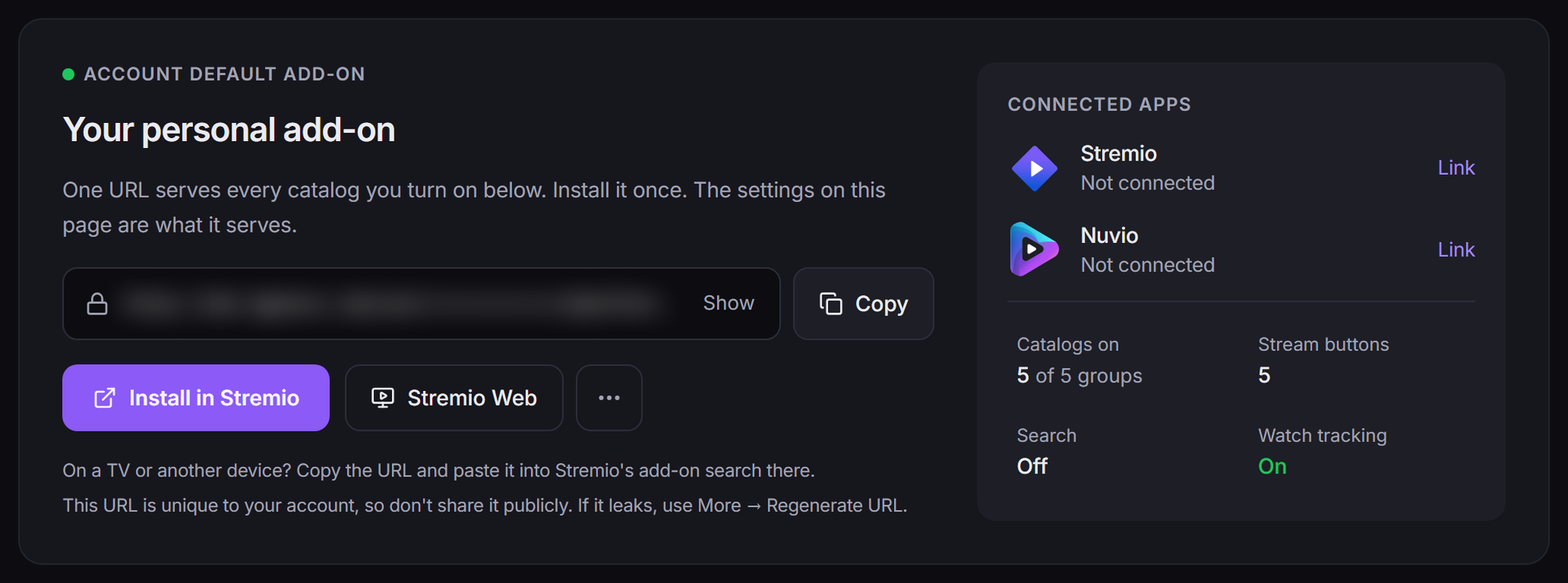
- Open Add-on Setup from the sidebar.
- Click Install in Stremio to open the Stremio app and add it there. Using Stremio in a browser? Click Stremio Web instead.
- On a TV or another device, click Copy next to the URL and paste it into Stremio's add-on search on that device.
The URL ends in manifest.json and is unique to your account, so the middle of it is hidden until you click Show. Treat it like a password: anyone who has it can see your catalogs.
If your URL ever leaks, open the More add-on actions menu (the ··· button next to Stremio Web) and choose Regenerate URL…. The old URL stops working straight away, so reinstall the add-on everywhere you use it.
Once you scroll past the install card, a compact Copy add-on URL and Install pair stays pinned at the top of the page (on wider screens), so the URL is never far away.
Connected apps and the summary cells#
On wider screens the right side of the install card shows:
- Connected apps: whether your Stremio (and Nuvio, where available) account is linked. This panel is read-only. Click Manage or Link to go to Account → Connections, where linking happens. See Account settings.
- Four summary cells under it: Catalogs on, Stream buttons, Search and Watch tracking. Click any of them to jump to the tab that changes it.
On a phone this shrinks to one line at the bottom of the card saying whether Stremio is linked, with a Manage link.
When changes need a reinstall#
Adding or removing titles inside your groups shows up in Stremio on its own. Changes to your row lineup are different: which groups show, their order, their names, their catalog type and the search rows are all part of the add-on's manifest, which Stremio only reads when the add-on is installed.
You have two options:
- Link your Stremio account in Account → Connections. StremShare then pushes lineup changes to Stremio for you, including when a template switches. This is the easiest option.
- Reinstall the add-on (same URL) after changing your lineup.
Nuvio re-reads the add-on by itself from time to time, so lineup changes reach Nuvio without a reinstall.
Editing: your account or a profile#
If you have connected Stremio or Nuvio profiles (see App Profiles), a bar labelled Editing appears above the tabs. It has an Account default chip plus one chip per connected profile, and it stays pinned at the top while you scroll.
Each connected profile has its own add-on with its own URL, so the chip you pick decides what the whole page edits:
- The install card shows that profile's own URL instead of yours, and the account install buttons disappear. A profile's URL is installed and replaced from its row on the App Profiles tab, not here.
- All three tabs edit that profile's add-on. Your account add-on and your other profiles are untouched.
- Settings that are shared by every profile (such as search, the success feedback choice and the account watch tracking switch) carry an All profiles pill so you can tell them apart.
A profile starts out following your account setup. The moment you change something in its view, it keeps its own copy. Use my account's groups hands it back to your account setup.
In a profile view, the Follow a template card lets that profile follow one of your saved templates, so edits to the template reach the profile too. If a schedule rule attaches templates to this profile, a line under the card says what changes next. See Templates.
Catalogs tab: what Stremio shows#
Active template#
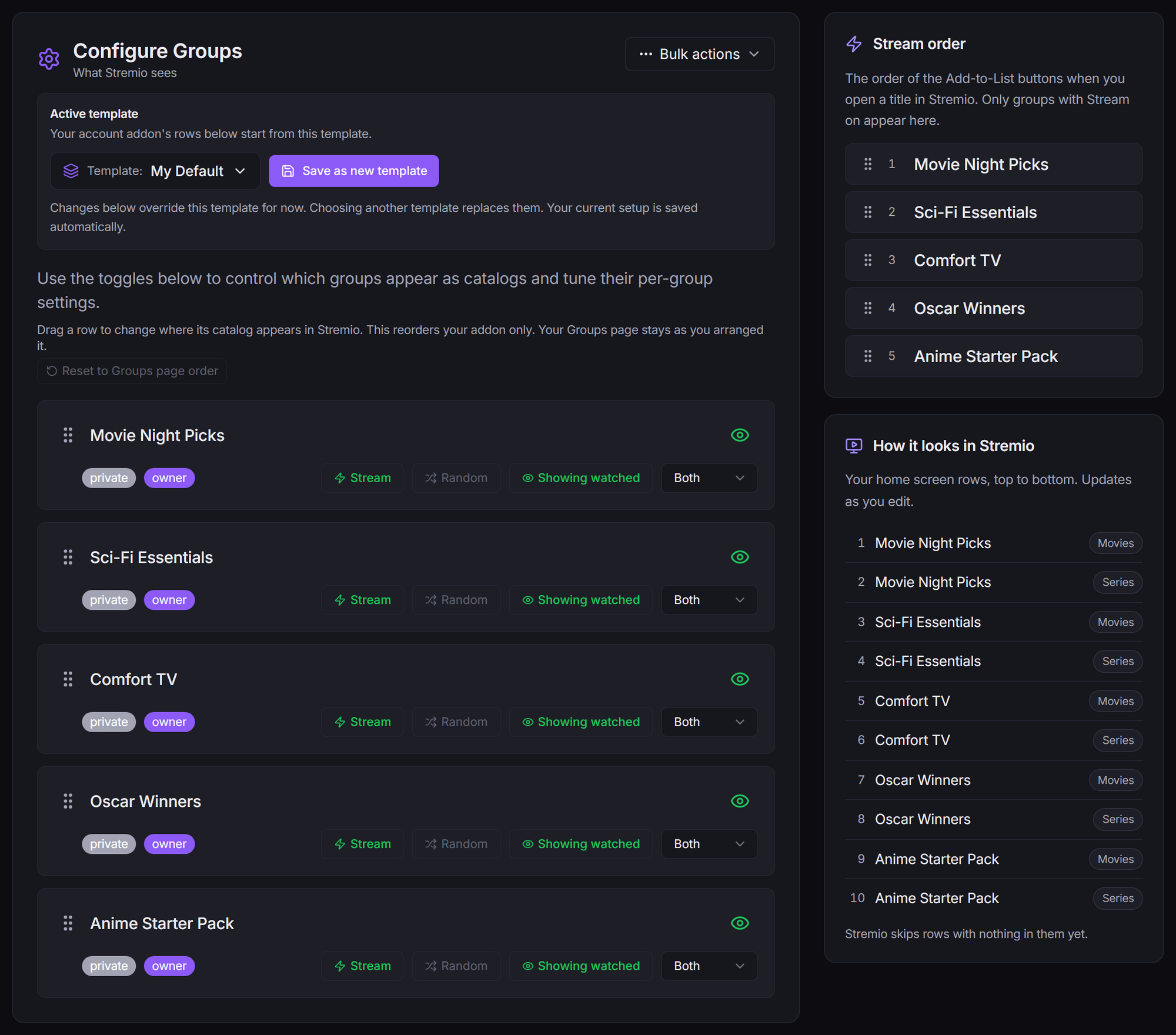
If you have any templates, the Active template card at the top of the Catalogs tab shows which one your account add-on starts from. Use the menu to switch templates, or click Save as new template to snapshot what you have now.
Changes you make on this page override the active template for now. Picking another template replaces them, and your current setup is saved automatically first. See Templates.
If the AI Curator is running your homepage, a note under this card says so, with a What the curator changes list explaining which of your edits it keeps and which it replaces on each refresh. See AI Search & AI Curator.
Configure Groups#
Configure Groups lists every group you belong to. Each row has:
- The eye icon on the right: shows or hides that group in Stremio. Hiding a group doesn't leave or delete it, and its other settings stay as they are.
- Stream: turns on an "Add to List" entry for this group when you open a title in Stremio, so you can save things to the group without leaving the app. Only groups where you're an Owner or Contributor have this button.
- Random: shuffles the row each time Stremio loads it.
- Hiding watched / Showing watched: click to flip whether titles you've watched are hidden in this row. Recommendation rows are locked to Always hiding and the Up Next row to Always showing, because those rows only work one way. Hiding needs watch history (see Watch Tracking).
- Catalog type: Both (a movies row and a series row), Movies Only, Series Only, Combined (one mixed row) or Collection (one row filed under a Collection type in Stremio).
Click a group's name to open that group.
Renaming a row. A pencil next to the name lets you give a row a different name in your Stremio only; the group keeps its real name everywhere else, and Originally: shows it underneath. In your account view the pencil is there for groups where you're a Watcher (Owners can rename the group itself). In a profile view anyone can rename a row, and the name only appears on that profile's add-on. A row named by the AI Curator shows Named by AI Curator instead.
Showing and hiding groups. At least one group has to stay on. If you switch off the last one you'll see Keep at least one group: an add-on with nothing selected shows every group, so it can't be used to show nothing. To take StremShare out of Stremio entirely, uninstall the add-on there.
Bulk actions#
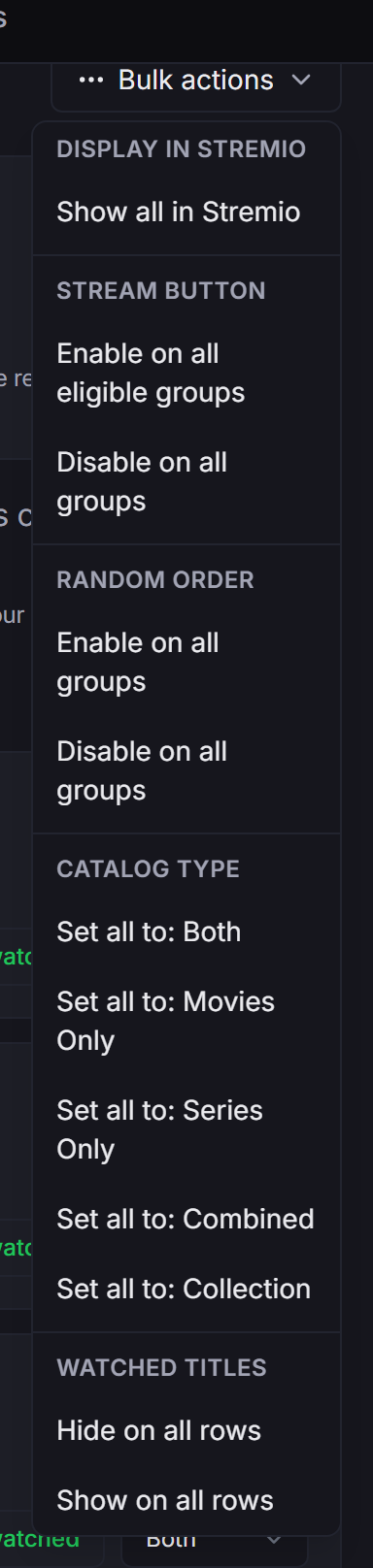
The Bulk actions menu at the top of Configure Groups changes every row at once:
- Display in Stremio: Show all in Stremio.
- Stream button: Enable on all eligible groups or Disable on all groups.
- Random order: Enable on all groups or Disable on all groups.
- Catalog type: Set all to: any of the five types.
- Watched titles: Hide on all rows or Show on all rows. In your account view this also becomes the default for groups you join later. Locked rows (Up Next, recommendations) are left as they are.
Every bulk action asks you to confirm first. There's no "hide all", for the reason explained above.
Changing the order#
Drag a row by its grip (the dotted handle on the left) to move where its catalog appears in Stremio. This reorders your add-on only; your Groups page stays as you arranged it.
Until you drag something here, rows follow your Groups page order. Reset to Groups page order drops your custom order and goes back to it. In a profile view the same button reads Use my account's order.
Stream order and the Stremio preview#
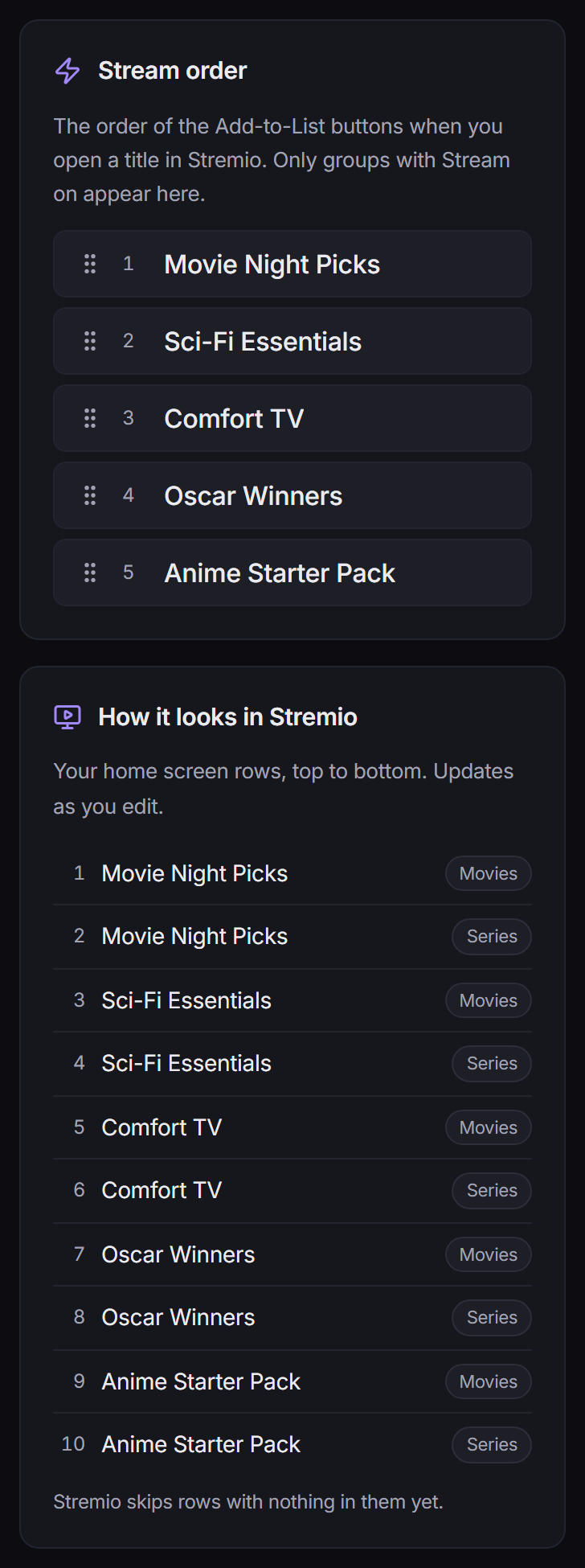
Two cards sit beside the list (below it on smaller screens):
- Stream order: drag to set the order of the Add-to-List buttons when you open a title in Stremio. Only groups with Stream on appear here.
- How it looks in Stremio: a live preview of your home screen rows, top to bottom, using the names Stremio will show. It updates as you edit.
Watch & recommendations tab#
This tab covers everything that depends on what you watch: Watch tracking (recording what you play in Stremio), Personalized catalogs (Recommendations, Up Next and Because You Watched rows), Recommendation ratings and Hide watched titles. It's all explained in Watch Tracking.
Preferences tab#
Search in Stremio#
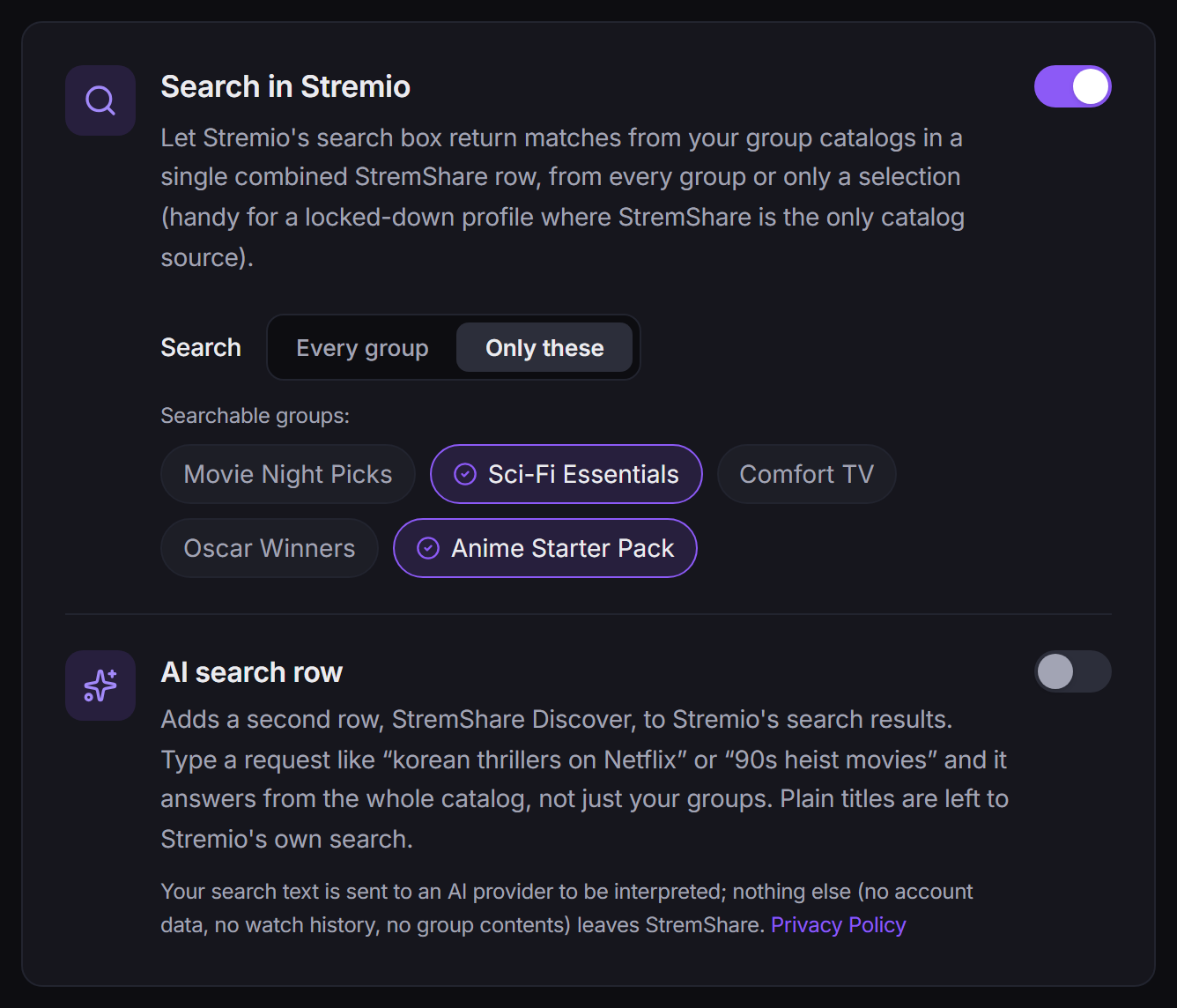
Turn on Search in Stremio and Stremio's search box also returns matches from your group catalogs, in one combined StremShare row.
Under Search, choose Every group or Only these. With Only these, click the groups you want searchable (only groups that are switched on in Catalogs are offered). This is handy for a locked-down profile where StremShare is the only catalog source.
The same card has the AI search row, which adds a second row called StremShare Discover that answers requests like "90s heist movies" from the whole catalog. It's in beta; see AI Search & AI Curator.
After you add something from Stremio#
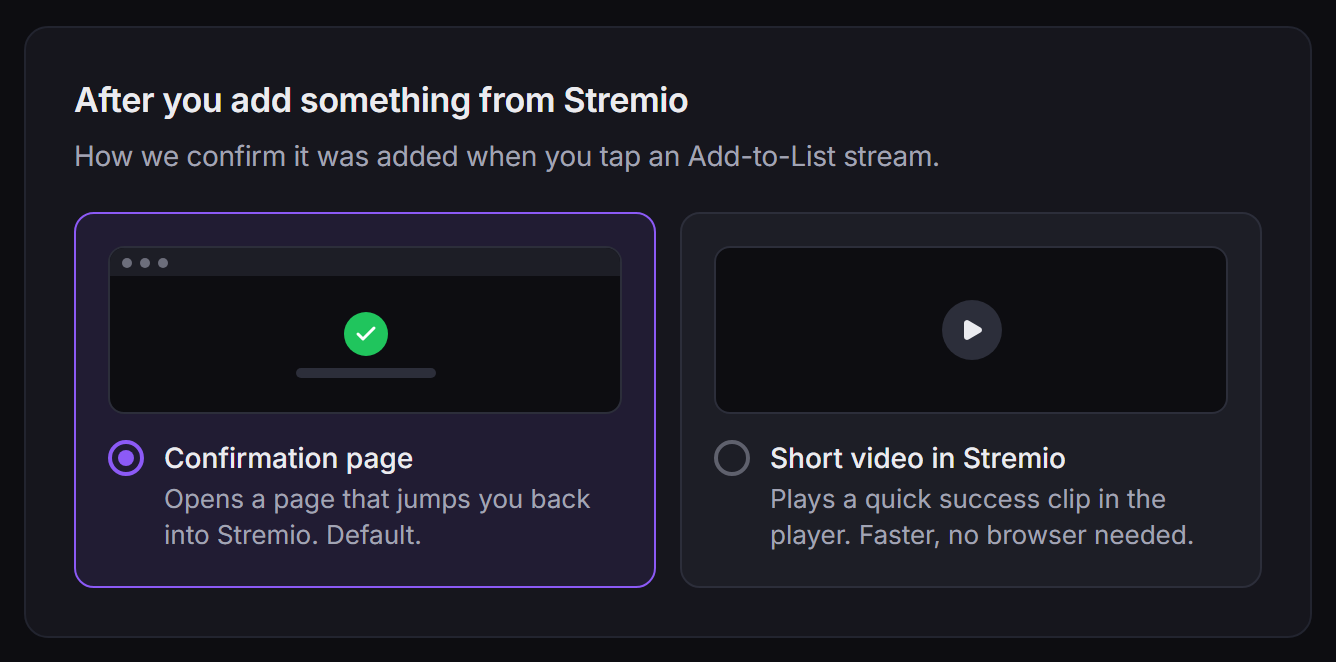
When you add a title to a group from inside Stremio (with a Stream button), StremShare confirms it one of two ways:
- Confirmation page (the default): opens a page that jumps you back into Stremio.
- Short video in Stremio: plays a quick success clip in the player. Faster, and no browser needed.
Display language#
Display language sets the language of the "All" and collection row labels in your add-on. The "Movies" and "Series" labels follow Stremio's own app language instead. It saves automatically.
Troubleshooting#
The ? icon next to the page title takes you here, to the Troubleshooting card on the Preferences tab.
Add-on not showing in Stremio?
- Copy the whole URL, including the
manifest.jsonpart. - Refresh Stremio or restart the app.
- Check that your network can reach StremShare.
Catalogs are empty?
- Turn on at least one group under Catalogs.
- Make sure your groups have movies or series in them.
- Turn the add-on off and on again in Stremio.
Changed your groups but Stremio looks the same? Reinstall the add-on, or link your Stremio account so changes are pushed for you. See When changes need a reinstall.
Think your URL leaked? Use More add-on actions → Regenerate URL… in the account default view, then reinstall. A profile's own URL is replaced from its row on the App Profiles tab.
Related guides#
- Templates: save this whole setup and switch between setups in one click.
- Watch Tracking: the Watch & recommendations tab in detail.
- AI Search & AI Curator: the AI search row and an AI-arranged homepage.
- App Profiles: connected Stremio and Nuvio profiles, each with its own add-on.
- Account settings: linking your Stremio account.