Templates: Saved Add-on Setups
Save your whole add-on setup as a template, switch lineups in one click, schedule switches and share setups with friends.
On this page
A template is a saved add-on setup: which groups appear in Stremio, in what order, and how each one behaves (catalog type, Stream buttons, random order, hiding watched titles). Templates let you swap your whole Stremio lineup in one click: a family setup for the weekend, a horror lineup for October, a short list for weeknights.
Open Templates from the sidebar. When you have more than one template, a template switcher also appears in the top bar so you can change the live one from any page.
The Templates page#
The page has three tabs:
- Templates: what's live right now and all your saved templates.
- AI Curator: let AI build and refresh your lineup (a beta feature, see AI Search & AI Curator).
- Schedule & history: automatic switching rules, pausing, and a log of every switch.
New template (top right) creates a template from any tab, and Starter packs takes you to ready-made lineups.
The Templates tab#
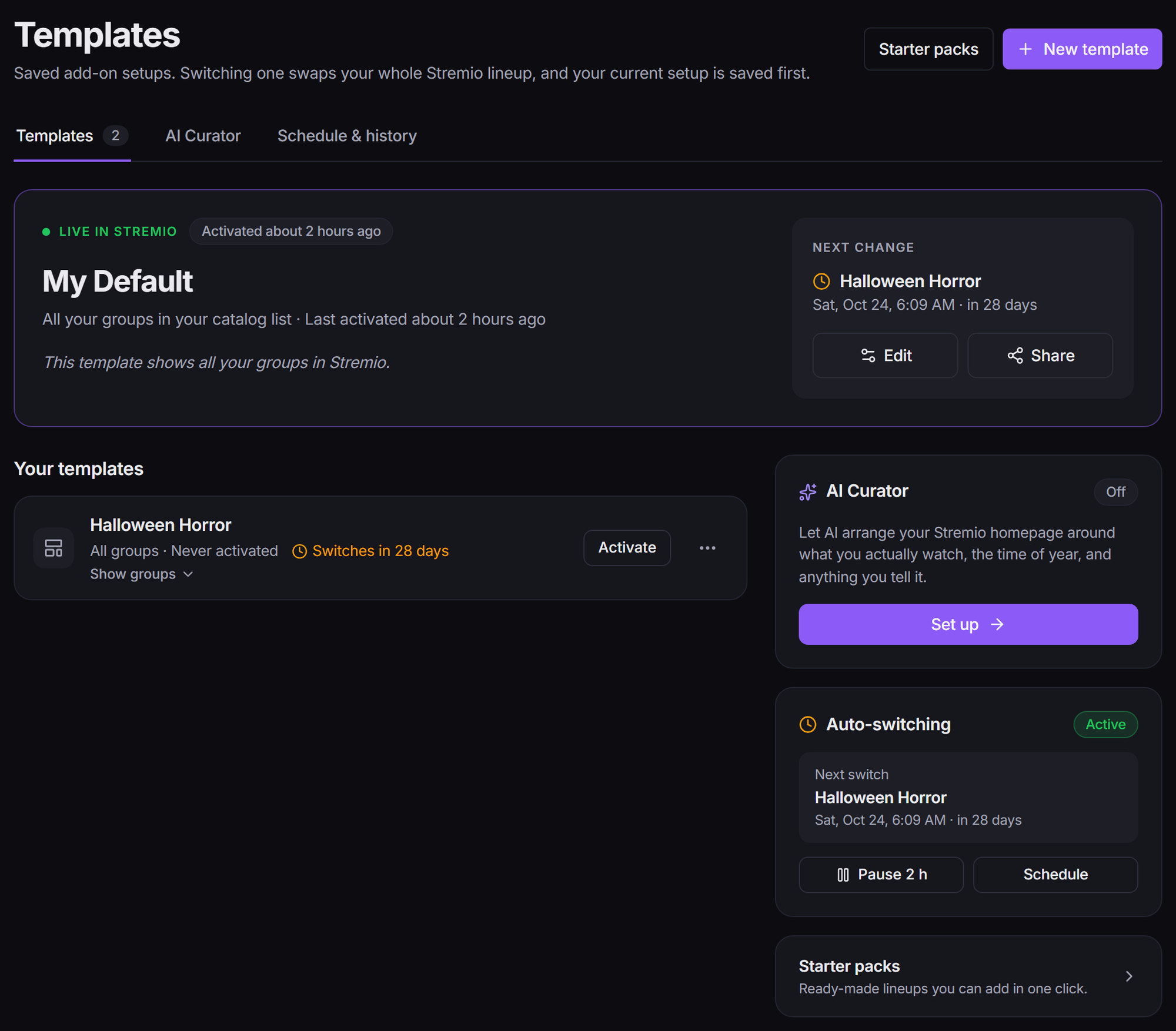
- Live in Stremio: the template your add-on is using now, its groups, and a Next change box saying what switches next (a scheduled rule, an AI Curator refresh, or "Nothing scheduled, so this stays live until you switch"). Use Edit to change it or Share to send it to someone.
- Your templates: every other template, each with an Activate button and a ··· menu. Once you have more than a handful, filter chips (All, Mine, From packs, Shared with me) appear above the list.
- Side cards (on wider screens): an AI Curator summary, an Auto-switching card with the next switch plus Pause 2 h and Schedule buttons, Recent switches, and a Starter packs link.
The ··· menu on a template offers, depending on the template:
- Edit (or View for read-only templates)
- Rename
- Duplicate
- Share link
- Update from original (for a copy you took from someone else, when they've changed it)
- Delete
Switching templates#
Click Activate on any template. It replaces your add-on's catalog list with that template's setup.
Nothing is lost: your current setup is saved automatically first, as a template called Saved configuration, so you can always switch back.
A few things to know:
- Switching by hand pauses auto-switching for 2 hours, so a schedule rule doesn't flip it straight back.
- Tweaks on Add-on Setup override the live template for now. The next switch replaces them (after saving them first, as above). To keep a tweaked setup, use Save as new template on Add-on Setup.
- If your Stremio account is linked, the switch is pushed to Stremio for you. Otherwise reinstall the add-on to see the new lineup. See Add-on Setup.
Creating a template#
- Click New template.
- Pick a starting point:
- Start from my current setup: snapshots the groups, order and stream settings your add-on is using right now.
- Start blank: an empty template. You pick the groups from scratch in the editor.
- Copy an existing template: duplicates another template so you can tweak it without touching the original.
- Give it a name. You land in the editor.
You can also click Save as new template on the Catalogs tab of Add-on Setup to snapshot your current setup in one step.
The template editor#
The editor is split into sections:
- Basics: the name and an optional description. Show on my profile lets anyone who views your profile see and take this template. Only its public groups are shown.
- Catalogs: pick the groups this template shows in Stremio and drag them into order. Each group has the same options as on Add-on Setup: catalog type, Random and hiding watched titles.
- Streams: choose which groups get an Add-to-List button in Stremio, and drag them into order.
- Auto-switching: rules that switch to this template on their own (below). Changes here save immediately.
- Danger zone: delete the template.
Everything except Auto-switching saves when you click Save changes. If the template is live, saving updates your add-on straight away.
Templates from a starter pack are read-only. Click Duplicate to custom template to get an editable copy.
Auto-switching rules#
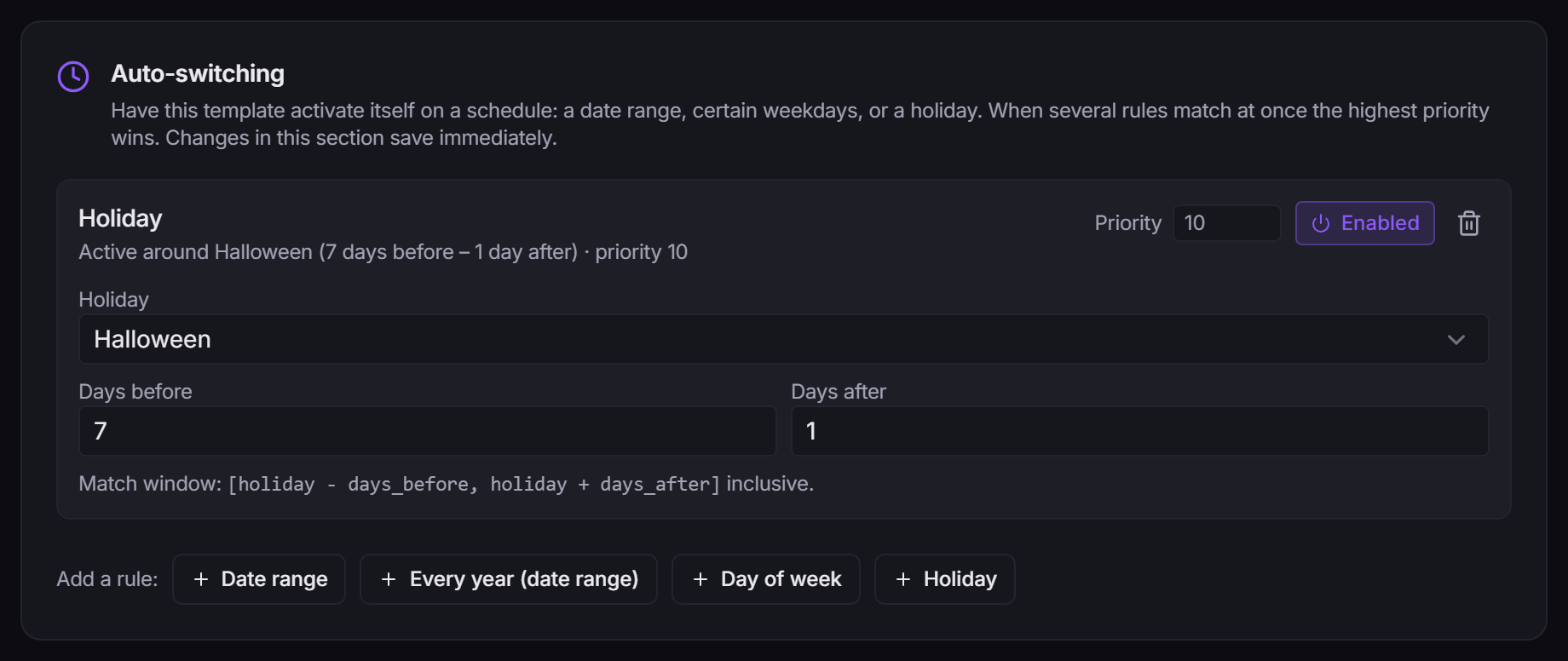
A template can switch itself on with rules. Open the template's editor and, under Auto-switching, click one of the rule types after Add a rule:
- Date range: a one-time window, like a release week.
- Every year (date range): the same window every year, like Oct 1 to Nov 1 for Halloween season.
- Day of week: certain weekdays, like movie-night Fridays.
- Holiday: around a built-in holiday (Halloween, Christmas Eve, Christmas Day, Independence Day and a few more), with Days before and Days after to widen the window.
For the first three types you can also tick Only during a time-of-day window and set start and end times. A window can cross midnight (for example 20:00 to 02:00).
Each rule has a priority number. When several rules match at once, across all your templates, the rule with the higher number wins. Each rule can be switched Enabled or Disabled without deleting it.
Rules run on your time zone, which StremShare picks up from your browser when you open the Dashboard.
Rules for a profile's add-on#
If you have connected profiles, a new rule has an Applies to choice: Your account add-on or one of your profiles. A profile rule attaches the template to that profile's add-on while it matches, and leaves your account add-on alone. See Templates and profiles.
The Schedule & history tab#
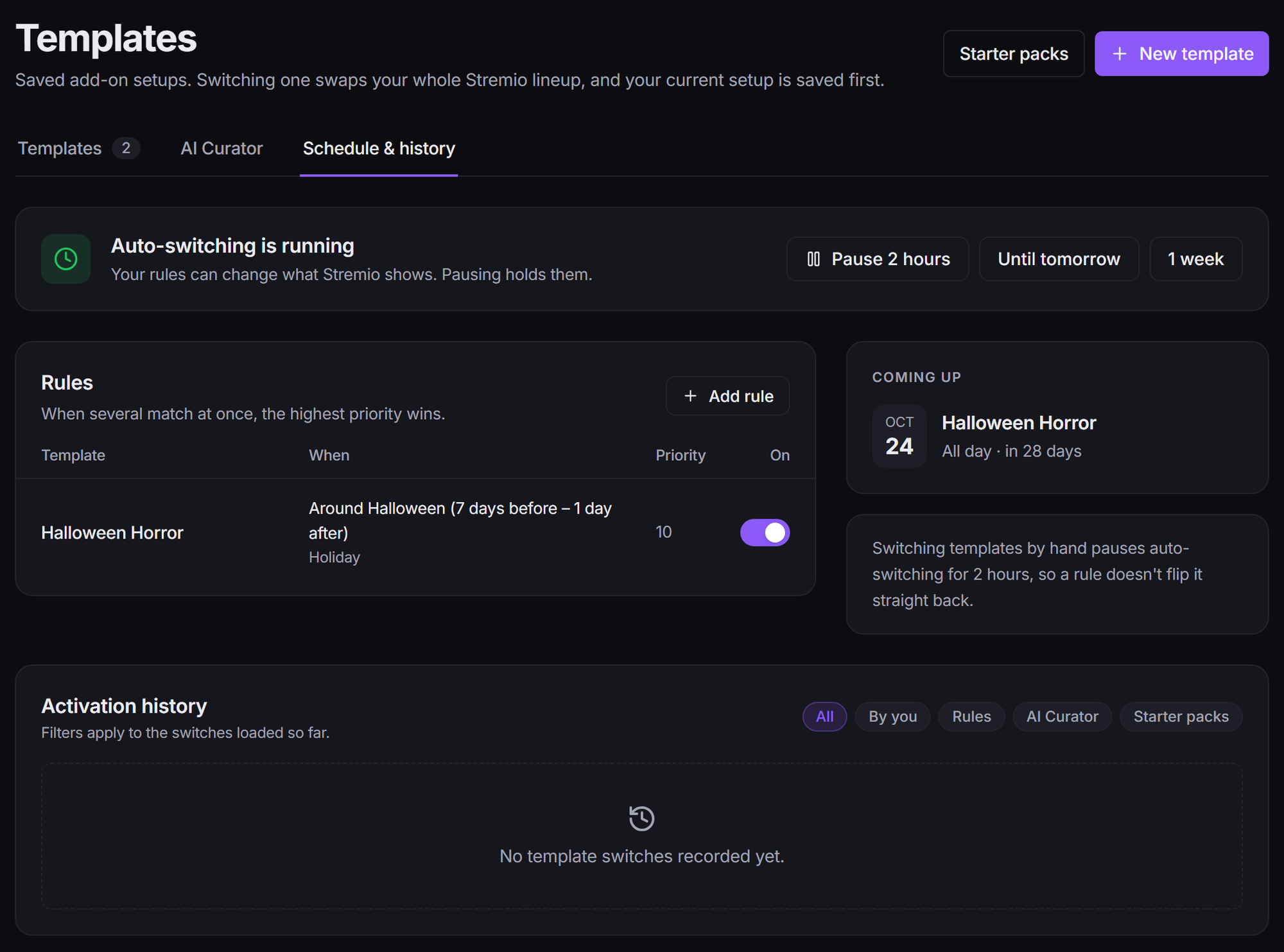
- The pause strip at the top says whether auto-switching is running. Pause it with Pause 2 hours, Until tomorrow (6am) or 1 week, and click Resume now to end a pause early. Pausing also holds the AI Curator. Rules that apply to a profile's add-on aren't held by the pause.
- Rules lists every rule across all your templates, each with an on/off switch. Add rule asks which template the rule should switch to, then opens that template's editor.
- Coming up shows your next switches.
- Activation history lists every switch, newest first. Filter it with All, By you, Rules, AI Curator or Starter packs.
Sharing templates#
You can send a template to a friend as a link.
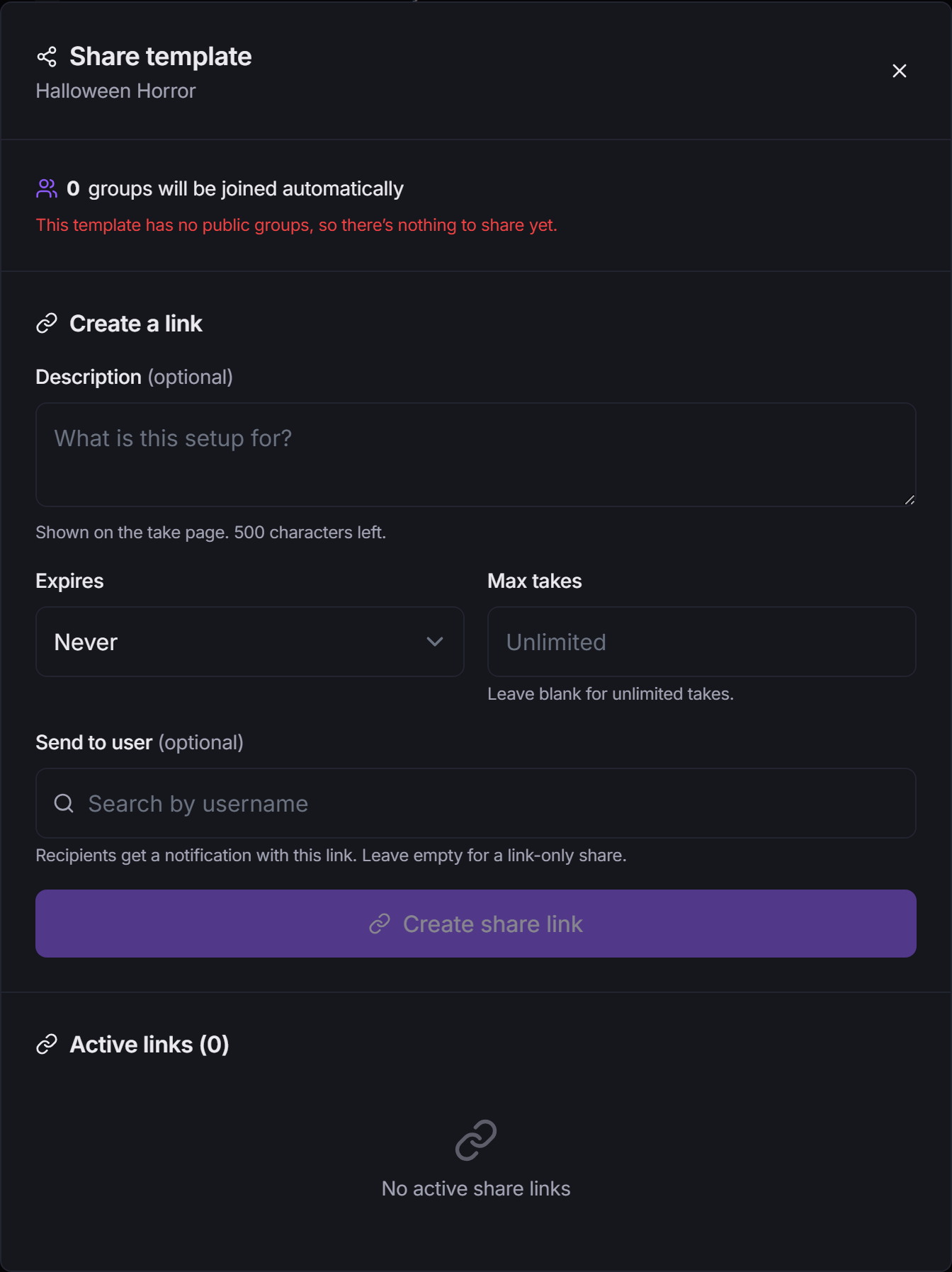
- Click Share on the live template, or Share link in another template's ··· menu.
- The dialog shows which groups come along. Public groups are joined automatically by whoever takes the link (as a Watcher). Private groups can't be shared, so a template with no public groups has nothing to share yet.
- Optionally fill in:
- Description: shown on the take page.
- Expires: Never, 1 day, 7 days, 30 days, 90 days or 365 days.
- Max takes: how many people can use the link. Leave blank for unlimited.
- Send to user: named recipients get a notification with the link. Leave it empty for a link-only share.
- Click Create share link, then copy the link.
Your active links are listed in the same dialog, where you can copy or revoke them.
Taking a shared template#
Opening a share link shows a preview of the template and its groups. Click Take this template (sign in first if needed). You get your own editable copy, you join its public groups, and it becomes your active setup. Your previous setup is saved as Saved configuration, so you can switch back any time. Auto-switch rules on the original aren't copied.
If the creator changes their template later, your copy shows Update from original. Updating replaces your copy with their latest version, so any changes you made to it are overwritten.
Show on my profile (in the editor's Basics) is the no-link way to share: anyone who visits your profile can take the template.
Templates and profiles#
Each connected profile (see App Profiles) has its own add-on. On Add-on Setup, pick the profile in the Editing bar and use Follow a template to have that profile follow one of your templates. Editing the template then updates the profile too. Following a template doesn't change your account's live template.
To change what a profile follows on a schedule, give a rule Applies to that profile (see above).
AI Curator templates#
When the AI Curator is on, it keeps its own template and rewrites it on each refresh. That template is marked as the curator's, and:
- Its name, description and group list can't be edited by hand (per-row settings and Stream buttons still can).
- It can't be duplicated, and it can't be given auto-switch rules.
- Its Manage AI Curator button opens the AI Curator tab.
Scheduled templates take priority: when none is scheduled, the curator's homepage is shown. See AI Search & AI Curator.
Starter packs#
Starter packs are ready-made lineups. Click Starter packs on the Templates page to browse and subscribe; each pack adds its groups and a template in one go. A pack's template is read-only (duplicate it to customize), and to remove it you unsubscribe from the pack rather than deleting the template.
Good to know#
- Deleting a template removes only the saved setup. Your groups, their content and your memberships are untouched.
- You can't delete the live template (activate another first) or your only template.
- Deleting a template you took from a share link offers to leave the groups that link joined you to. Nothing is left automatically.
Related guides#
- Add-on Setup: the settings a template saves.
- AI Search & AI Curator: let AI build your lineup.
- App Profiles: profiles with their own add-on.
- Groups and members: public and private groups, and roles.