Groups, Roles & Invites
Create and organize groups, invite friends, choose who can do what, and publish a group to Discover.
On this page
A group is a named list of movies and series, like "Movie Night" or "Kids' Films". Every group you belong to can show up as its own row in Stremio through your personal add-on. This guide covers creating and organizing groups, inviting people, what each role can do, and the group settings only an owner sees.
Create a group#
- Open My Groups in the sidebar and click Create Group. On a phone, tap the round + button and choose New Group.
- Enter a Group Name (3 to 50 characters) and, if you like, a Description.
- Click Create Group.
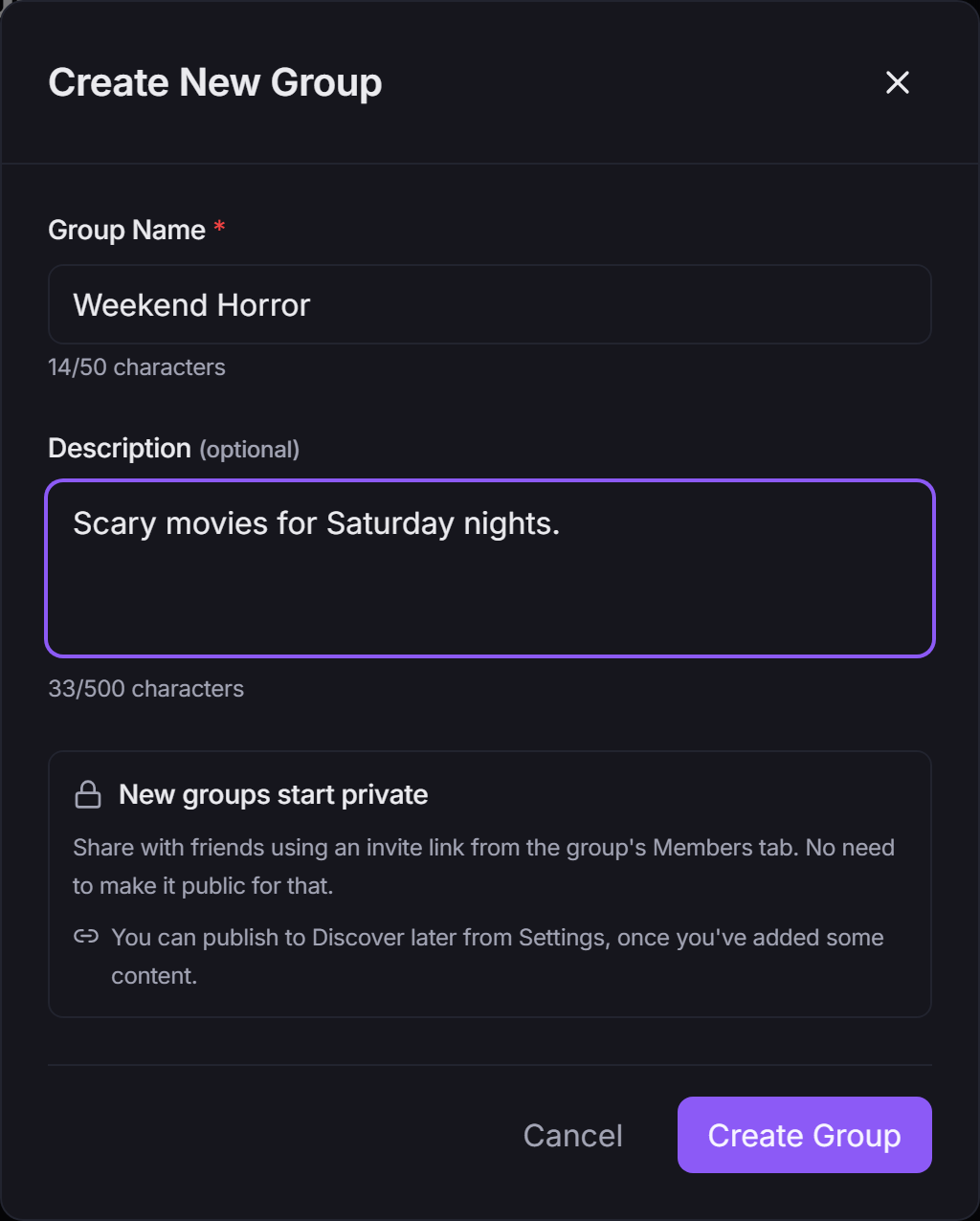
New groups start private: only people you invite can see them. You don't need to make a group public to share it with friends; an invite link from the Members tab is enough. You can publish it to Discover later (see Publish to Discover).
The window also shows how many groups you own, for example "12 of 50 groups". Free accounts can own a limited number of groups. The groups StremShare creates for you automatically (such as recommendation rows) don't count toward it. If you reach the limit, delete a group or hand one over to another member to make room.
Supporter
Supporter will lift the group limit. Supporter isn't available to buy yet.
Organize your Groups page#
My Groups lists every group you own or belong to.
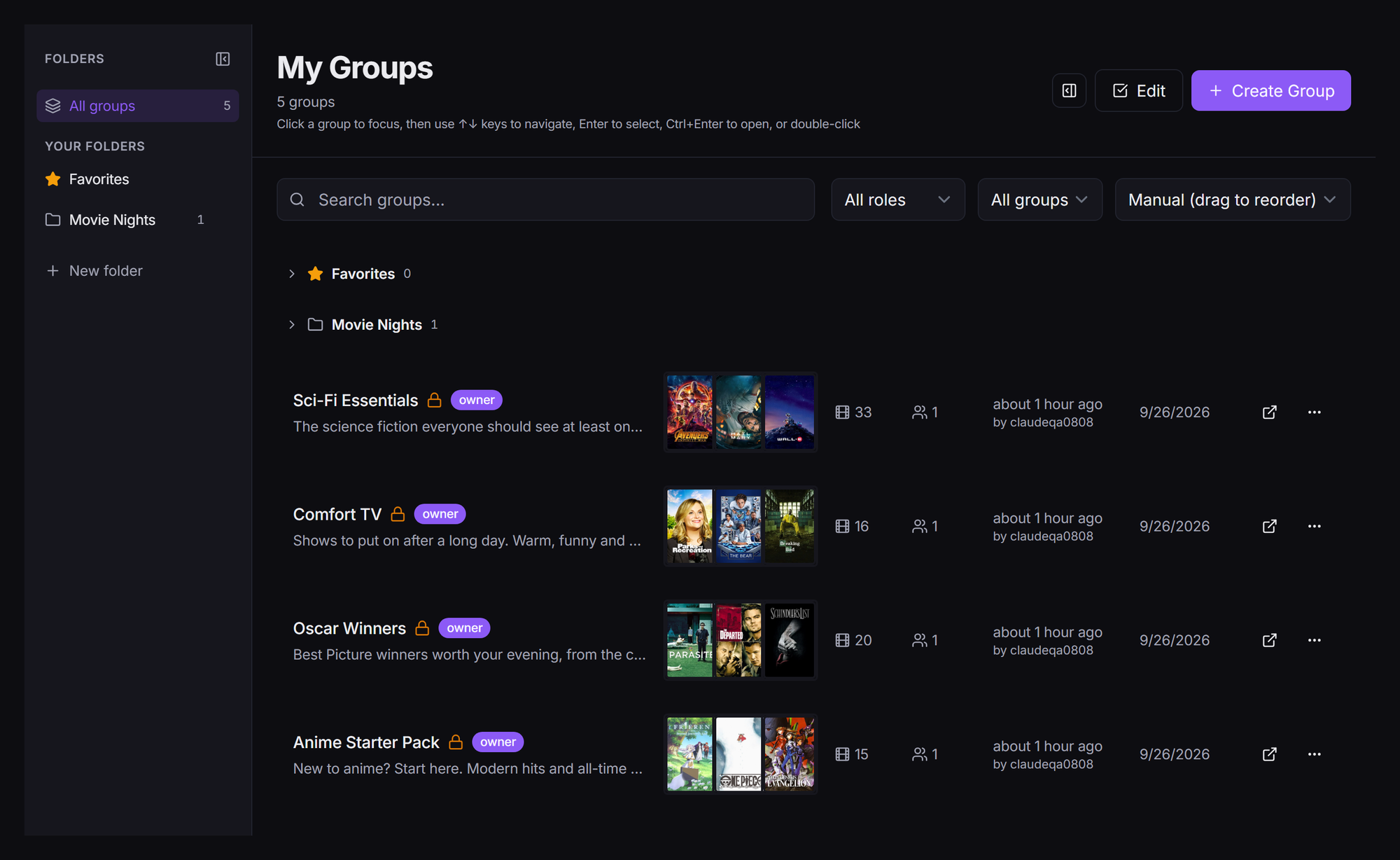
- Search and filter. Use Search groups... and the filters for role (Owner, Contributor, Watcher) and visibility (Private, Public).
- Sort. Pick Manual (drag to reorder), Last Activity, Name, Created, Members or Items. When you're on anything other than Manual, click Save this order to keep that order as your manual one, or Switch to Manual to go back.
- Open a group. Double-click it, or select it and press Ctrl+Enter. On a phone, tap the card to expand it, then open it from there.
Folders#
Folders keep a long list tidy. Stremio has no folders, so your rows still appear there as one list, in the same order as this page (with anything in Favorites first).
- On a wide screen the Folders rail sits on the left. It starts as a narrow strip of icons; click the button at its top (Expand folders) to show the folder names. Click New folder, type a name and press Enter. Hover a folder and use its ⋯ menu to Rename or Delete it (its groups move back out of the folder, they aren't deleted).
- On smaller screens, use the folder button above the list (it shows All groups until you pick a folder). It opens a sheet with your folders and New folder.
- Everyone gets a built-in Favorites folder with a star. It can't be renamed or deleted.
To move groups into a folder, click Edit at the top of the page, tick the groups, then click Move to folder… (or drag the selected groups onto a folder). Click Done when you're finished.
Reordering groups#
Set the sort to Manual (drag to reorder), click Edit, then drag groups by their handle. This order is also the order your rows appear in Stremio, unless you've set a different order in Add-on Setup.
Note
If you use App Profiles, the recommendation groups StremShare makes for each profile appear in their own section under your list, one section per profile. They aren't filed in folders, so they only show when All groups is selected.
Inside a group#
Open a group to see its header and five tabs.
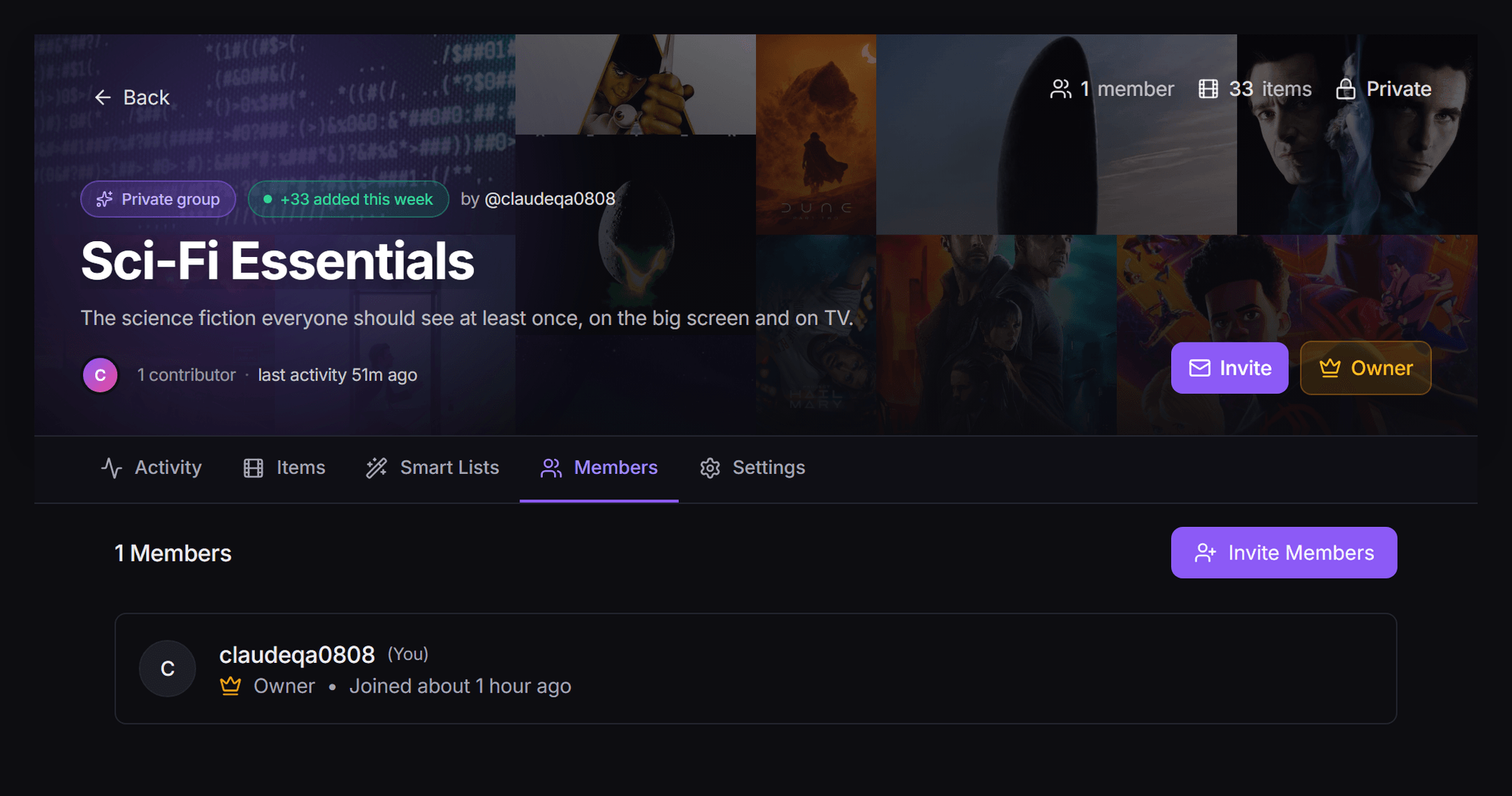
The header shows the group's name, whether it's Public or Private, and your role. Owners and Contributors also get an Invite button, and anyone who isn't the owner gets Leave Group.
| Tab | What's there |
|---|---|
| Activity | What's happened in the group: titles added and removed, ratings and reviews, members joining and role changes. |
| Items | The titles themselves, with search, filters, sorting and the tools to add more. See Adding Movies & Series. |
| Smart Lists | Lists that keep the group topped up automatically. Members only. See Smart Lists. |
| Members | Who's in the group and their roles, plus Invite Members. |
| Settings | Name, description, category, publishing and the Danger Zone. Only the owner can change anything here. |
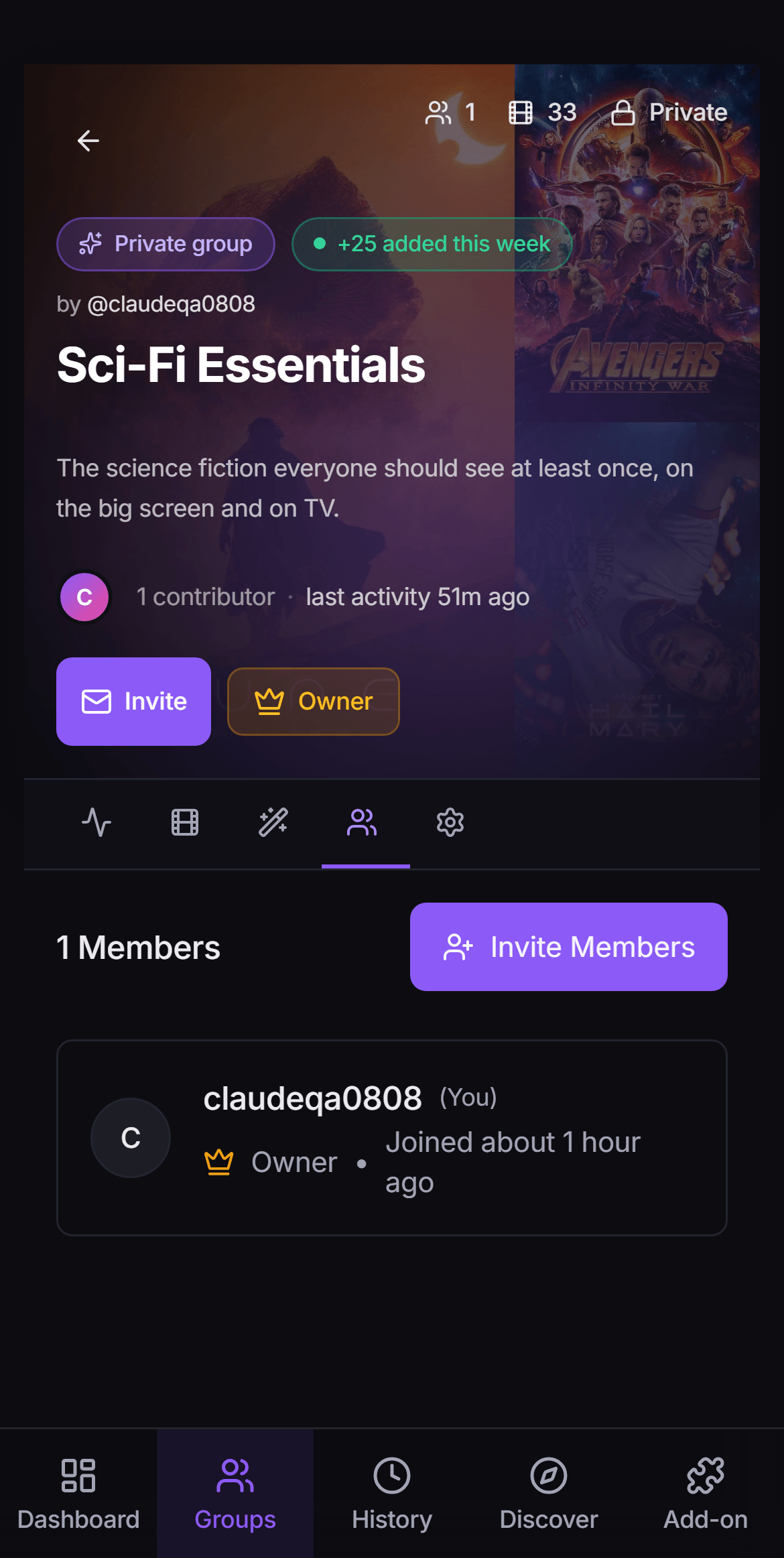
On a phone the tabs show as icons only, in the same order.
Roles: Owner, Contributor and Watcher#
Every member has one of three roles. Each group has one Owner.
| Owner | Contributor | Watcher | |
|---|---|---|---|
| See the group and get it as a row in Stremio | Yes | Yes | Yes |
| Rate and review titles | Yes | Yes | Yes |
| Hide titles just for yourself | Yes | Yes | Yes |
| Add titles (Add Content, Import List, List Builder) | Yes | Yes | No |
| Remove titles | Any title | Titles they added | No |
| Change the order Stremio shows | Drag or pick a sort | Pick a sort | A personal order, just for them |
| Invite people | As Watcher or Contributor | As Watcher | No |
| Remove members | Contributors and Watchers | Watchers only | No |
| Promote or demote members | Yes | No | No |
| Change settings, publish, transfer or delete the group | Yes | No | No |
| Remove other members' reviews | Yes | No | No |
A few details worth knowing:
- Watchers can still personalize. In the Items tab they can click Edit to hide titles or drag them into their own order. That order only changes their own Stremio row; everyone else keeps the shared order.
- Hiding is personal for everyone. A hidden title disappears from your view of the group and from your Stremio row only.
- Contributors can't reorder by hand. They can change the group's sort (for example to Release Year), but dragging titles into a custom order is for the owner.
Invite people#
Owners and Contributors can invite. Open the group, click Invite (or go to the Members tab) and click Invite Members.
Invite by username#
- Under Invite specific users, type in Search by username and click each person to add them (up to 25 at a time).
- Choose a Member Role: Watcher ("Can view content and activities") or Contributor. Only the owner can invite Contributors.
- Pick when the invite Expires In, then click Send invites.
The invite lands in the other person's Dashboard under Invites & requests, where they click Accept (or the bin icon to decline).
Share an invite link#
Use a link when you don't know someone's username, or to invite several people at once.
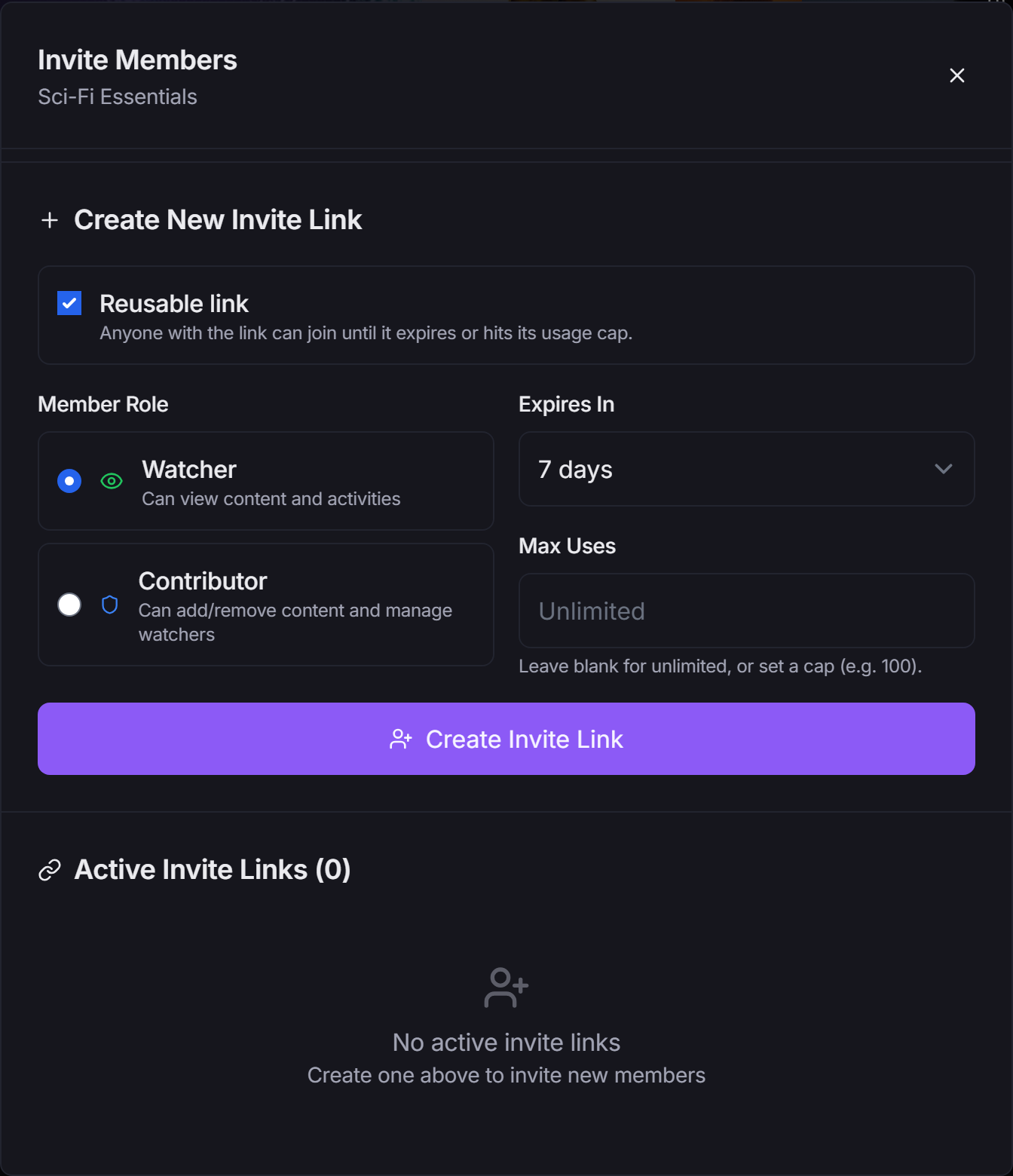
- Under Create New Invite Link, tick Reusable link if more than one person will use it. Without it, the link works once.
- Choose the Member Role and when it Expires In (1 to 365 days). Only the owner can create Contributor links, single-use or reusable.
- For a reusable link you can set Max Uses. Leave it blank for unlimited.
- Click Create Invite Link. The link appears under Active Invite Links; use the copy button to share it.
To stop a link working, click its bin icon (Revoke invite) and confirm with Revoke.
Tip
Treat a reusable link like a key. Anyone who has it can join until it expires or hits its cap, so give it a sensible expiry and revoke it when you're done.
Invite from someone's profile#
On another member's profile, click Invite to group and pick one of your groups. This sends them a Watcher invite that lasts 7 days. Only groups you own or contribute to are listed. See Profiles, Following & Badges.
Accepting an invite#
- From a link: open it. If you're signed in, you join straight away and land on the group. If not, you'll see the group's name and your role, and can sign in or create an account to join.
- From your Dashboard: click Accept next to the invite under Group invites.
Either way, the group is switched on in your add-on right away, so it appears as a row in Stremio. See Add-on Setup if you need to refresh Stremio.
Join public groups#
Public groups can be found on Discover. Open one and click Join Group to join as a Watcher.
Your Dashboard also suggests groups under Groups you might join. Clicking Join there sends a request to the group's owner. The owner sees it on their Dashboard under Invites & requests → Join requests and clicks Approve (you join as a Watcher) or the bin icon to reject it.
Manage members#
The Members tab lists everyone, owner first. Click a name to open their profile.
If you're the owner, each other member has a ⋮ menu:
- Promote to Contributor (for Watchers) or Demote to Watcher (for Contributors).
- Transfer Ownership (for Contributors). See Transfer ownership.
- Remove from Group. The person gets a notification that they were removed.
If you're a Contributor, each Watcher has a ⋮ menu with Remove from Group. Contributors can't remove the owner or other Contributors, and can't change anyone's role.
Each change asks you to confirm first.
Group settings#
Only the owner can change settings. Other members see "Only group owners can manage settings" on this tab.
Name, description and category#
In Settings, click Edit next to Group Information, change the Group Name, Description or Category, and click Save Changes.
The category says what kind of list this is: Genre (pick up to 5 genres), Platform, Decade, Franchise, Curated or Awards. Auto-detect category suggests one from the titles in the group. The category only matters for Discover, so a private group doesn't need one.
Publish to Discover#
Publishing lists your group on Discover, where anyone can find it and join as a Watcher.
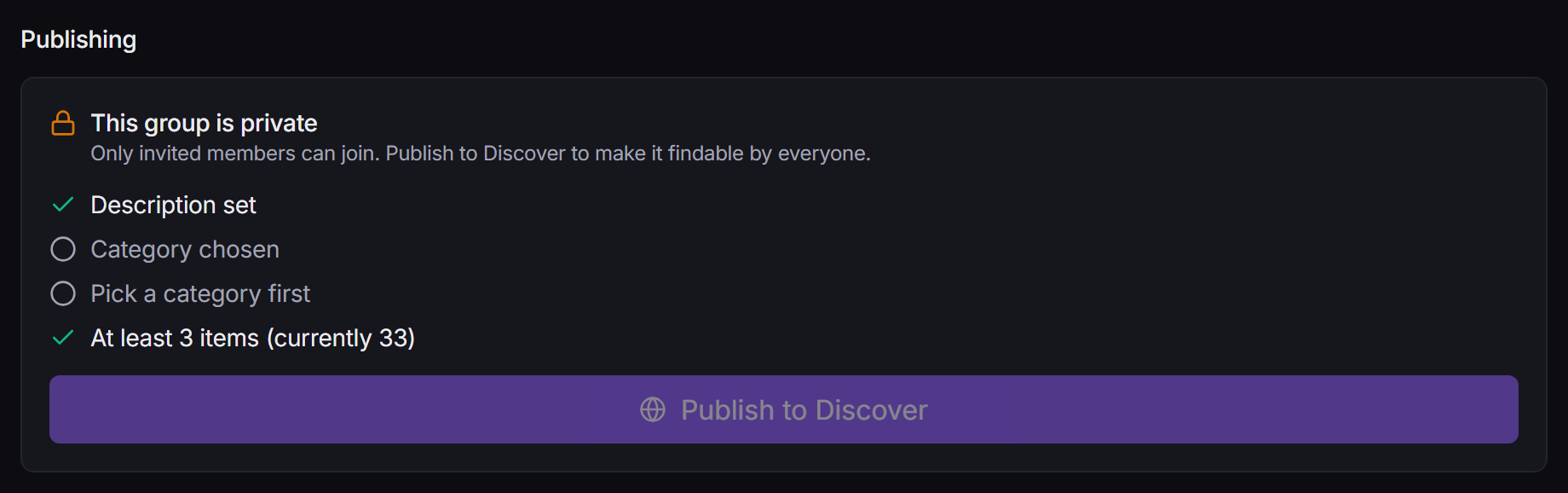
- In Settings, click Edit next to Group Information. (The publish button stays disabled until you do.)
- Work through the checklist under Publishing: Description set, Category chosen, the category's detail (for example at least one genre), and At least 3 items.
- Click Publish to Discover, check the preview, and click Publish.
To take it off Discover, click Make Private under Publishing. Existing members keep their access.
Leave, transfer or delete a group#
Leave a group#
Click Leave Group in the group's header. You're removed straight away and the group's row disappears from your add-on. Owners don't see this button: transfer the group first, or delete it.
Transfer ownership#
Hand the group to another member from Settings → Danger Zone → Transfer Ownership (you can pick any member there), or from a Contributor's ⋮ menu on the Members tab.
- You become a Contributor, and the new owner has full control, including removing you.
- It can't be undone, so the window asks you to tick I understand the consequences.
- If the new owner is at their free group limit, the transfer is refused.
Delete a group#
Settings → Danger Zone → Delete Group removes the group, all its titles and everyone's access, and takes it out of every member's add-on. It can't be recovered.
You can only delete a group when you're its only member. Remove the other members or transfer ownership first.
Good to know#
- Can't see the Invite button? Only Owners and Contributors can invite. Ask the owner to promote you.
- "Invite Full" or "Invite Expired"? The link hit its cap or its expiry date. Ask the owner (or a Contributor) for a new one.
- "Invite Already Used"? A single-use link only works once. If you already joined with it, you're in; check My Groups.
- A new group isn't in Stremio yet? Adding titles never needs a reinstall, but new rows do. See Add-on Setup.