Importing Lists
Bring lists in from Trakt, TMDB, MDBList, Letterboxd, anime trackers, Stremio, Nuvio or a file, once or kept in sync.
On this page
Already keep lists somewhere else? StremShare can pull them into a group from Trakt, TMDB, MDBList, Letterboxd, anime trackers, your Stremio or Nuvio library, or a plain file. Import a list once, or turn on Smart Sync and the group keeps following the source.
Open the import window#
Every import goes into a group, so start from the group you want to fill. You need to be the group's Owner or a Contributor. Any of these opens the same window:
- On a computer: open the group and click Import List on its Items tab (next to Add Content and List Builder).
- On the Groups page: select a group, open the Quick Actions tab in its side panel and click Import List.
- On a phone: tap the round + button at the bottom right of a group and choose Import List. On the Groups page, the same button asks you to Select Group to Import List first.
- From Add Content: paste a list link into the search box. StremShare recognises it as a list ("That's a list link") and Open the Import flow carries the link across for you.
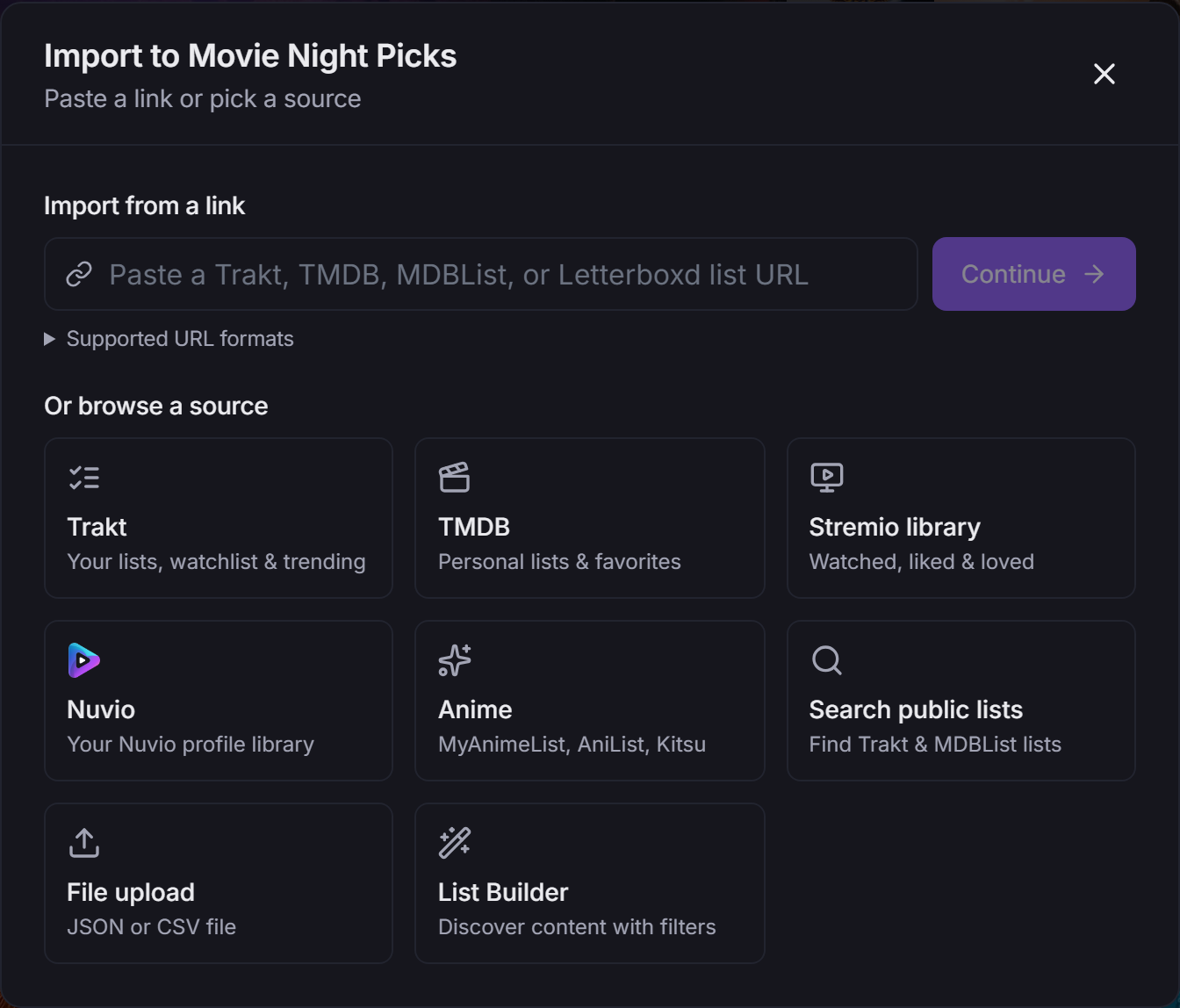
On a phone the window takes the whole screen, and the + menu is how you get there:
Paste a link#
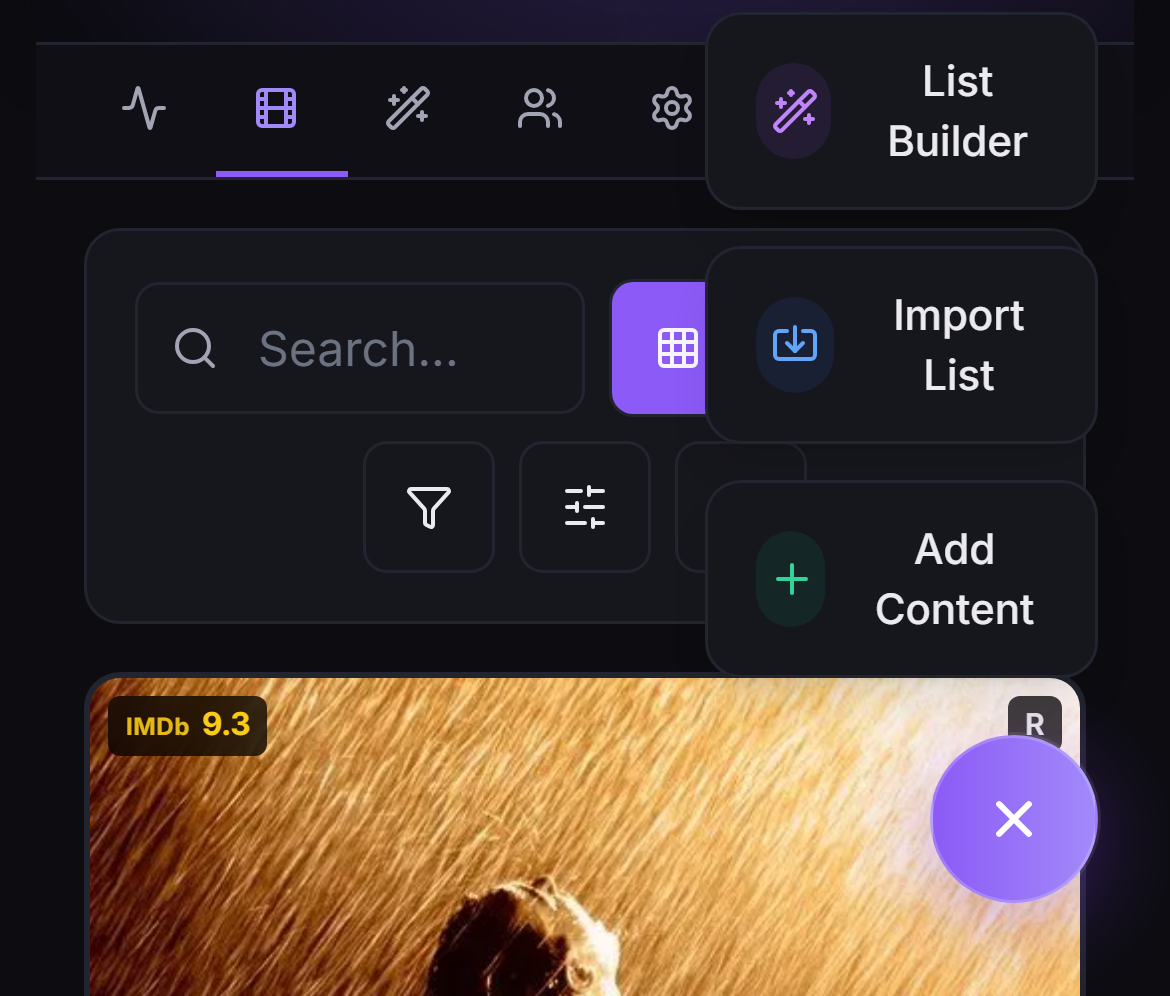
The quickest route when you have a public list URL. Paste it into Import from a link and StremShare tells you what it found ("Detected: TRAKT list by …"). Supported formats (also listed under Supported URL formats in the window):
- Trakt:
https://trakt.tv/users/username/lists/list-slugorhttps://trakt.tv/lists/123456 - TMDB:
https://themoviedb.org/list/123456 - MDBList:
https://mdblist.com/lists/list-name - Letterboxd:
https://letterboxd.com/username/list/list-slug/or a studio page,https://letterboxd.com/studio/studio-name/
Click Continue to see a preview before anything is added. Public lists need no account connection at all.
What about IMDB links?#
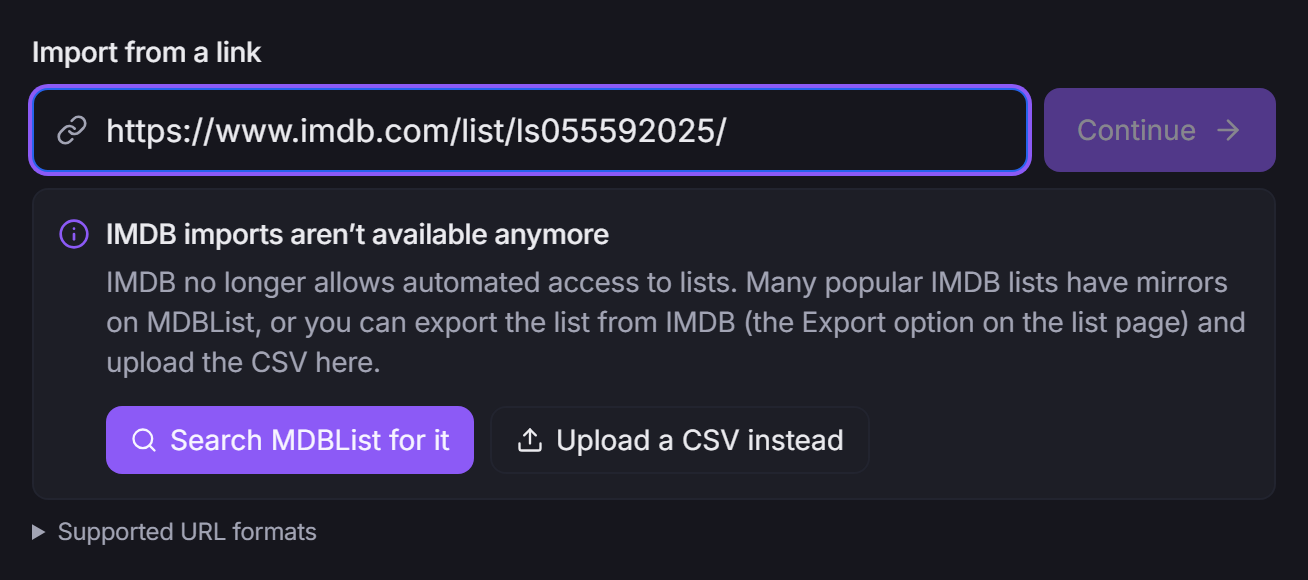
IMDB no longer allows automated access to its lists, so IMDB links can't be imported directly. StremShare still recognises them and points you somewhere useful:
- An IMDB list link shows IMDB imports aren't available anymore with two ways forward: Search MDBList for it (many popular IMDB lists have MDBList mirrors, and MDBList lists can be synced) or Upload a CSV instead (use the Export option on the IMDB list page, then upload that file).
- A single IMDB title link shows That's a single title, not a list. Close the window and paste the same link into the group's Add Content search, which adds single titles directly.
Browse a source#
Under Or browse a source, pick where the list lives. A green Connected badge shows on sources you've already linked.
Trakt#
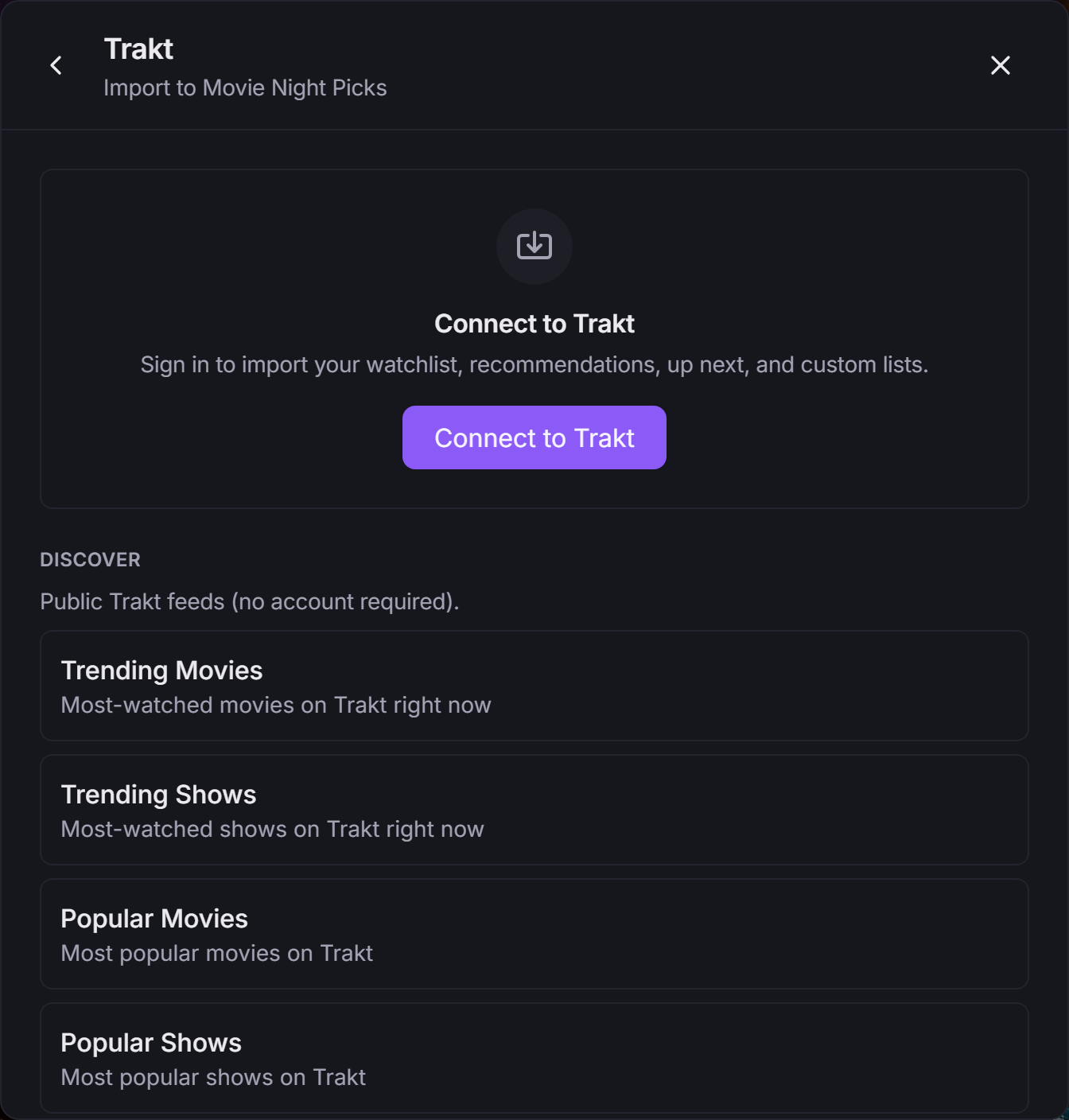
- No account needed: the public Discover feeds, Trending, Popular and Anticipated, each for movies and shows. They make great always-fresh synced lists.
- With your Trakt account: click Connect to Trakt, approve StremShare on Trakt, and your Personal lists appear: your watchlist, favorites, collection, your custom lists, plus Up Next, recommended movies and shows, and your recent watch history as a list.
TMDB#
Click Connect to TMDB to import your personal lists, favorites and watchlists.
Stremio library#
Pick which parts of your Stremio library to import: Watched, Continue Watching, Library (things you added yourself), Liked and Loved. If your Stremio account isn't linked yet, the picker lets you link it right there (email and password, or an auth token), or you can link it under Account → Connections. The same link also keeps your add-on up to date in Stremio automatically (see Add-on Setup).
Nuvio#
Shown only when Nuvio is available on StremShare. Link Nuvio under Account → Connections first (the picker's Go to Connections button takes you there), because linking is also where you choose which Nuvio profile StremShare reads. Then import that profile's library: Everything, Movies or Series.
Anime#
Import from a public username on MyAnimeList, AniList or Kitsu. No account connection is needed. After a scan you choose which statuses to bring in (Watching, Completed, Plan to Watch and so on).
- MyAnimeList: large lists can take 20 to 60 seconds.
- AniList: public lists only; private lists can't be imported.
- Kitsu: usernames can be case-sensitive.
Search public lists#
No URL handy? Search public Trakt or MDBList lists by keyword inside the window. Great for themed community lists ("halloween", "a24", "oscar winners").
File upload#
Upload a JSON or CSV file up to 5MB:
- Simple JSON:
[{"title": "The Matrix", "year": 1999, "type": "movie"}] - CSV: a
Title,Year,Typeheader, then one row per title. - Required fields are title, year and type (
movieorseries). Including an IMDB ID is recommended. - StremShare's own group export files work as they are.
List Builder#
The last card, List Builder, isn't an import: it builds a list from filters you choose (genres, ratings, streaming services and more). See Smart Lists.
Confirm and import#
Every route ends on the same confirm screen: the list's name, item count, source, and a preview of the first 10 titles. If the same list is already synced into this group you'll see This list is already being synced as "…", so you don't set it up twice.
For sources that can keep syncing (Trakt, TMDB, Stremio library, MDBList, Letterboxd and search results), there's a Smart Sync switch:
- Smart Sync off: the titles are added once.
- Smart Sync on: choose how often to re-check (Hourly, Every 6 Hours, Daily, Every 3 Days or Weekly) and a mode: Append (add new) only ever adds, while Replace (mirror source) also removes titles this list added once they leave the source. See Append vs Replace.
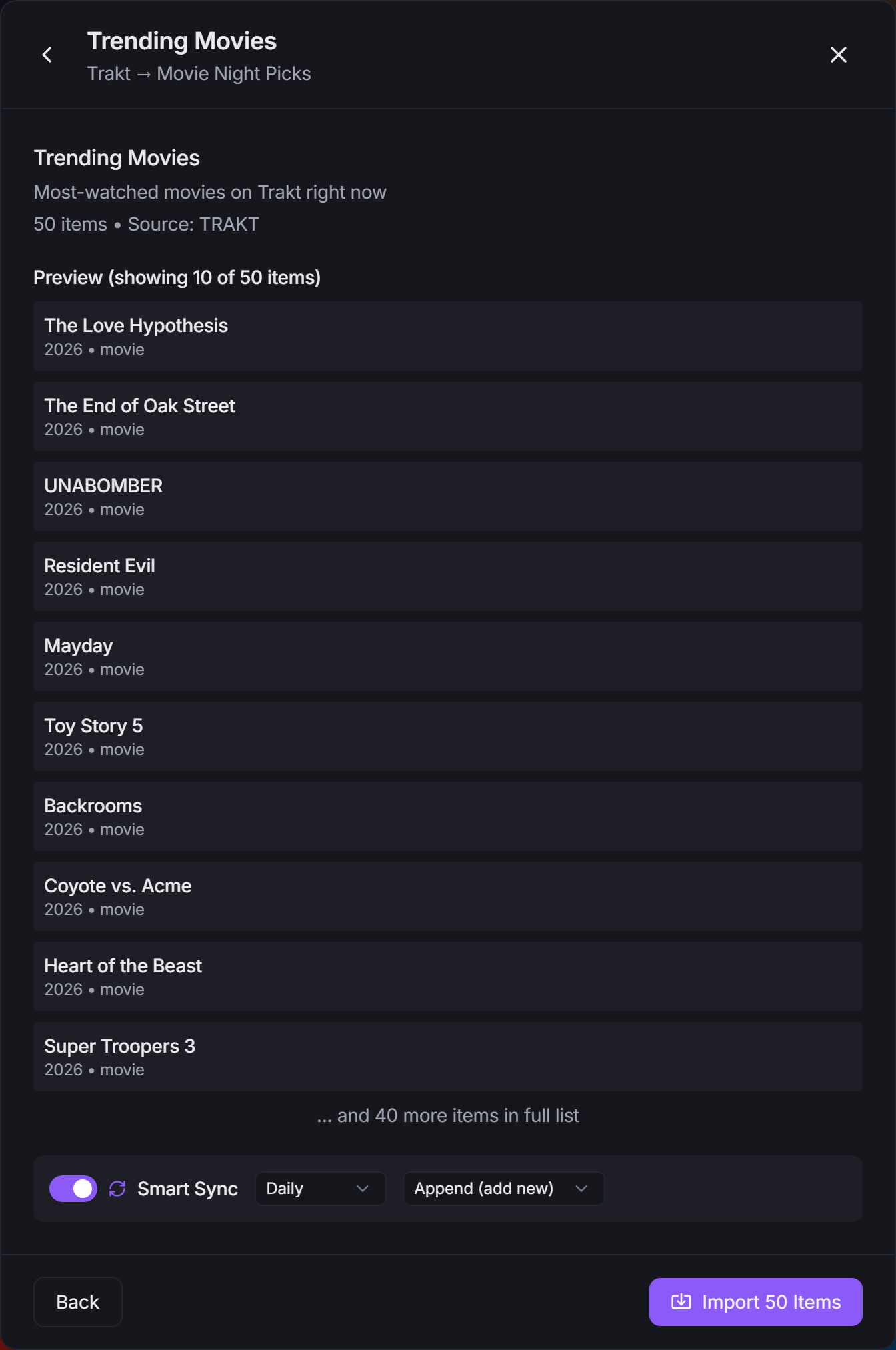
Click Import N Items. A progress bar shows each stage (scanning, enriching with ratings and artwork, adding to the group). Big lists can take a while; if you close the window, the import keeps running on the server and the titles appear in the group when it finishes.
The summary shows how many titles were Imported, how many were Already in group, and any that couldn't be fetched or matched to IMDB. Import Another takes you back to the start; Done closes the window.
After the import#
Open the group's Smart Lists tab to see what you've imported:
- Synced Lists holds imports with Smart Sync on, with their sync controls.
- Past Imports holds one-time imports. For sources that can sync, Enable Smart Sync turns one into a synced list later.
Anime, file and Nuvio imports are always one-time. Smart Lists covers everything on that tab.
Lists vs watch history#
Importing a list puts titles into a group. Importing your watch history (what you've already seen) is separate: it feeds your watch stats, recommendations and hide-watched. Watch-history imports live on the service cards under Account → Connections (Trakt, MDBList, Stremio and Nuvio), not in this window. Anime trackers are list sources only. See Watch Tracking.
Troubleshooting#
- Continue stays greyed out: the link isn't in a supported format. Check Supported URL formats, or use Search public lists to find the list instead.
- "No anime found": the username is wrong or the list is private.
- Some titles weren't imported: the summary lists titles it couldn't match to IMDB. Add those by hand with Add Content.
- A synced Trakt, TMDB or Stremio list shows an error: the connection has probably expired. Reconnect it under Account → Connections.