Smart Lists
Keep a group filled automatically, from a list you follow elsewhere or from filters you set in the List Builder.
On this page
A smart list keeps a group filled for you. You tell StremShare where the titles come from (a list that lives somewhere else, or a search you describe with filters) and it re-checks that source on a schedule, adding new matches as they appear. Your Stremio rows stay fresh without you touching anything.
There are three ways to make one:
- Sync an external list: follow a list on Trakt, TMDB, MDBList, Letterboxd or your Stremio library. Great for lists other people maintain, or ones you curate elsewhere.
- Build one with the List Builder: describe the list with filters ("top rated sci-fi", "ongoing anime with an English dub") and let StremShare find the titles.
- Save an AI search: if you're in the AI beta, an Ask search in Add Content can be saved as a smart list.
All of them end up on the group's Smart Lists tab with the same controls, and all of them feed your Stremio rows the same way.
Sync an external list#
Open the group's Items tab and click Import List, then paste a link or browse a source. The full walkthrough, including every source and the supported link formats, is in Importing Lists.
On the confirm screen, switch on Smart Sync and choose:
- How often to re-check: Hourly, Every 6 Hours, Daily, Every 3 Days or Weekly.
- Append (add new) or Replace (mirror source). See Append vs Replace.
Leave Smart Sync off for a one-time import. You can still switch syncing on later from Past Imports (see Managing smart lists).
Smart Sync is offered for Trakt, TMDB, MDBList, Letterboxd and Stremio library imports. Anime, file and Nuvio imports are always one-time.
Build one with the List Builder#
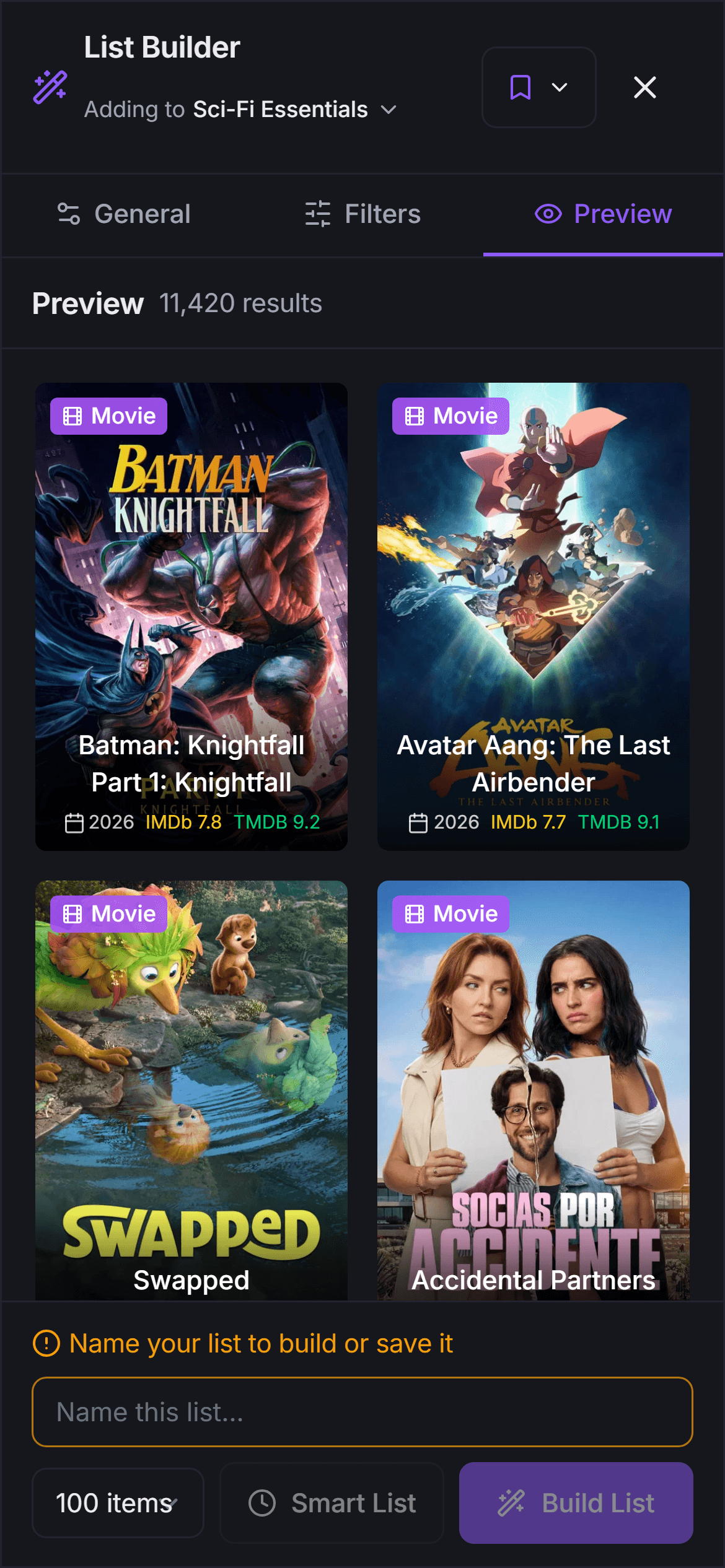
Click List Builder on the group's Items tab (on a phone: the round + button, then List Builder; it's also the last card in the Import window). The builder has three parts: general settings on the left, filter tabs in the middle, and a live Preview of matching titles on the right that updates as you change things. On a phone these become General, Filters and Preview tabs.
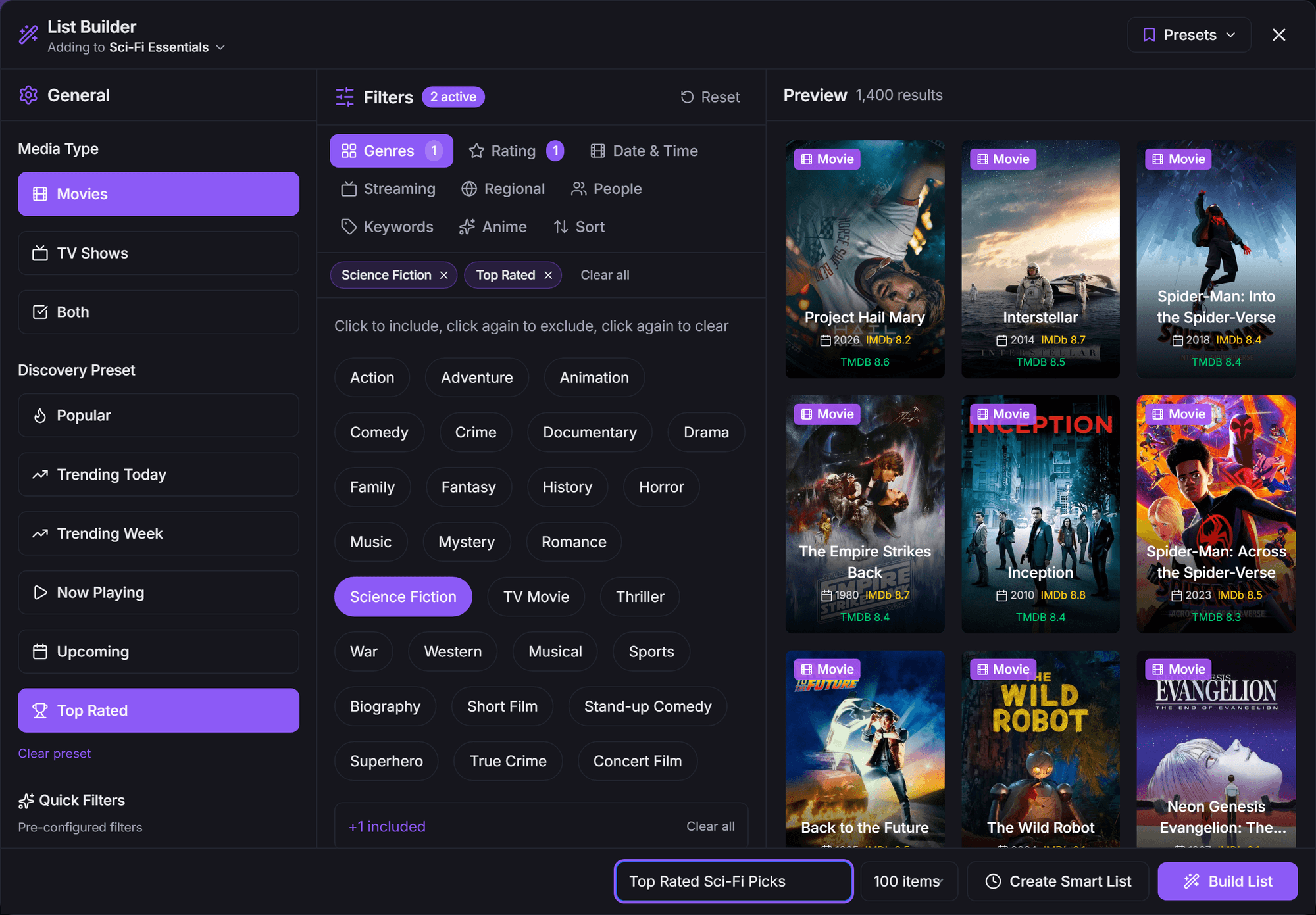
The group the list goes into is shown under the List Builder title; you can switch it there. The Presets menu in the top corner (Save current) keeps your current filters so you can reuse them in another list.
Start from a preset#
- Media Type: Movies, TV Shows, or Both.
- Discovery Preset: a one-click starting point: Popular, Trending Today, Trending Week, Now Playing (in theaters), Upcoming or Top Rated. Now Playing and Upcoming are for movies only.
- Quick Filters: ready-made recipes for Anime, K-Drama, True Crime, Reality TV, Stand-Up, Superhero, Book Adaptations, Cult Classics, British TV, Bollywood, European and 90s Hits.
A preset is only a starting point. Everything it sets can be adjusted with the filters.
Fine-tune with filters#
- Genres: genre chips have three states. Click once to include, again to exclude, again to clear. Besides the standard genres there are extras like Musical, Sports, Biography, Stand-up Comedy, Superhero, True Crime and Concert Film. Exclude uncategorized content hides titles with no genres or keywords at all.
- Rating: minimums for TMDB Rating, a minimum vote count (filters out obscure titles with few ratings), IMDB Rating, and a MAL Rating for anime.
- Date & Time: Release Year range, Runtime (minutes), and Release Type (Theatrical, Digital, Physical, Limited, Premiere, TV), handy for disc-release lists.
- Streaming: three kinds of "where it comes from" in one tab:
- Watch Region, Availability Type (subscription, free, rent, buy and so on) and Streaming Services, from Netflix and Disney Plus to Criterion Channel, MUBI and Shudder.
- TV Networks: shows by their original broadcast network (HBO, MTV, TLC…).
- Production Companies: titles by studio (A24, Pixar, Studio Ghibli…), for movies and TV.
- Regional: Original Language, Origin Country (British TV, Korean dramas…) and Content Rating (age certification, per country).
- People: Cast (Actors) and Crew (Directors, Writers).
- Keywords: include or exclude tags like "based on novel", "superhero" or "coming of age".
- Anime: click Enable Anime Mode (it sets Japanese language and the Animation genre) to unlock Dub Language (only anime with a known dub in that language, using data from MyDubList), Anime Season, Airing Status, Animation Studios, Source Material, and Genres & Tags.
- Sort: how results are ranked (Most Popular, Highest Rated, Newest First, Currently Airing (TV), Highest Revenue, Most Voted, Title A-Z and their reverses). The sort also decides which titles make the cut when there are more matches than your list size.
Pick a size and create it#
At the bottom, name the list (Name this list…, required) and choose how many titles it holds: 20, 60, 100, 200 or 400 items. Then:
- Build List: runs the search once and adds the results to your group. It's recorded under Past Imports, where you can switch Smart Sync on later.
- Create Smart List: opens a last screen where you pick the Sync Frequency (including Manual, which only syncs when you say so) and can turn on Page Progression (each sync looks at a different page of results, cycling through them over time). Click Create Smart List again to save it and fill the group.
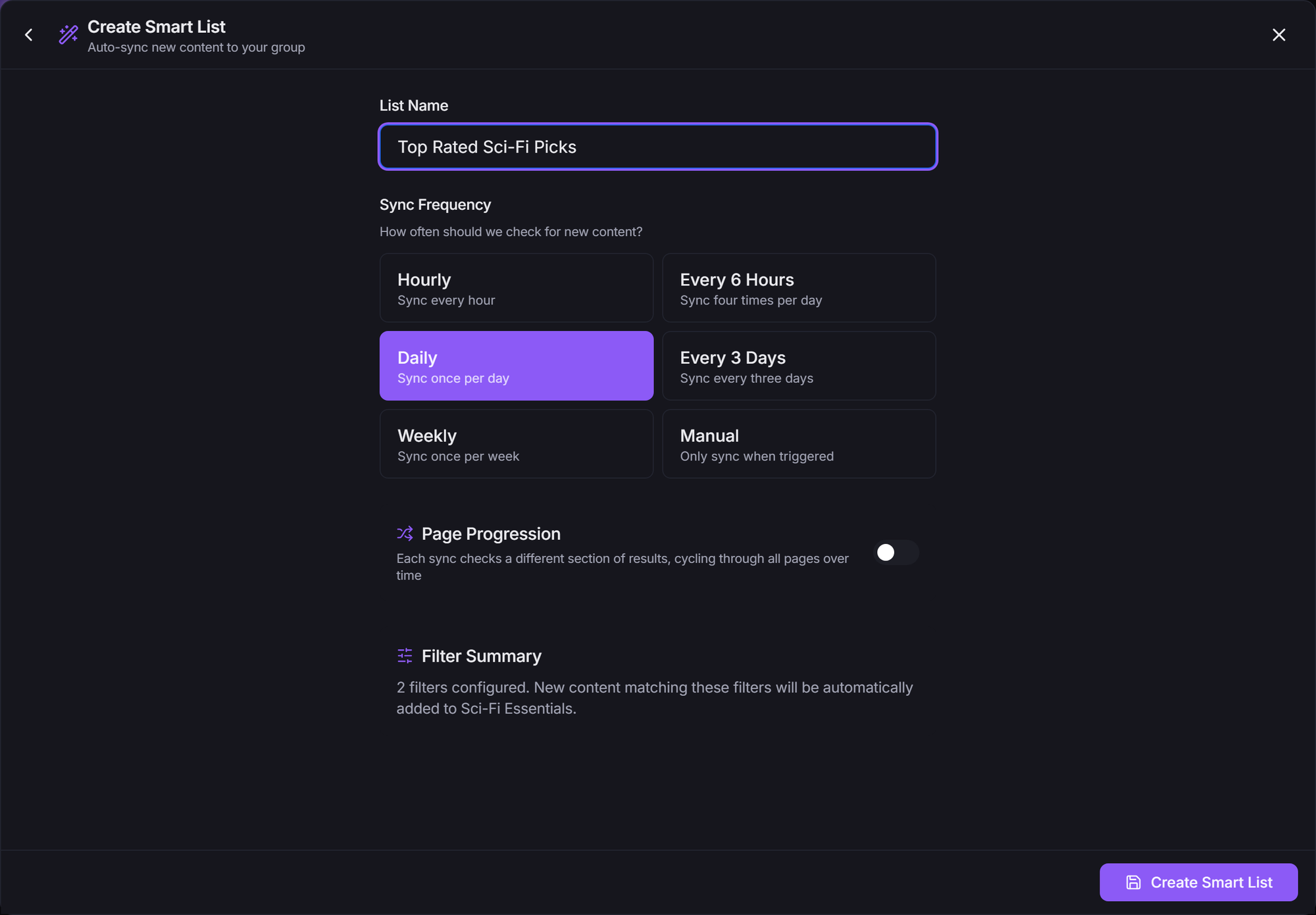
List Builder lists start in Append mode; you can switch one to Replace later from its menu.
On a phone the same builder is split into tabs:
Save an AI search as a smart list#
Beta
This feature is in beta. If it's greyed out with an In beta pill, your account isn't in the beta yet.
In Add Content, switch the search to Ask and describe what you want in plain words. Under the results:
- Save as smart list saves the search as a smart list in the group (or groups) you've selected, which then tops them up weekly.
- Not quite? Refine… opens the List Builder already filled in with the filters the AI worked out, so you can adjust them by hand before building or saving.
Searches that ask for titles "like" a specific movie can't be saved as a smart list yet. See AI Features.
Managing smart lists#
Every smart list lives on its group's Smart Lists tab, in up to three sections:
- Synced Lists: lists that follow an external source.
- List Builder Lists: lists built from filters.
- Past Imports: one-time imports. For sources that can sync, Enable Smart Sync turns one into a synced list (pick a frequency and mode, then Enable).
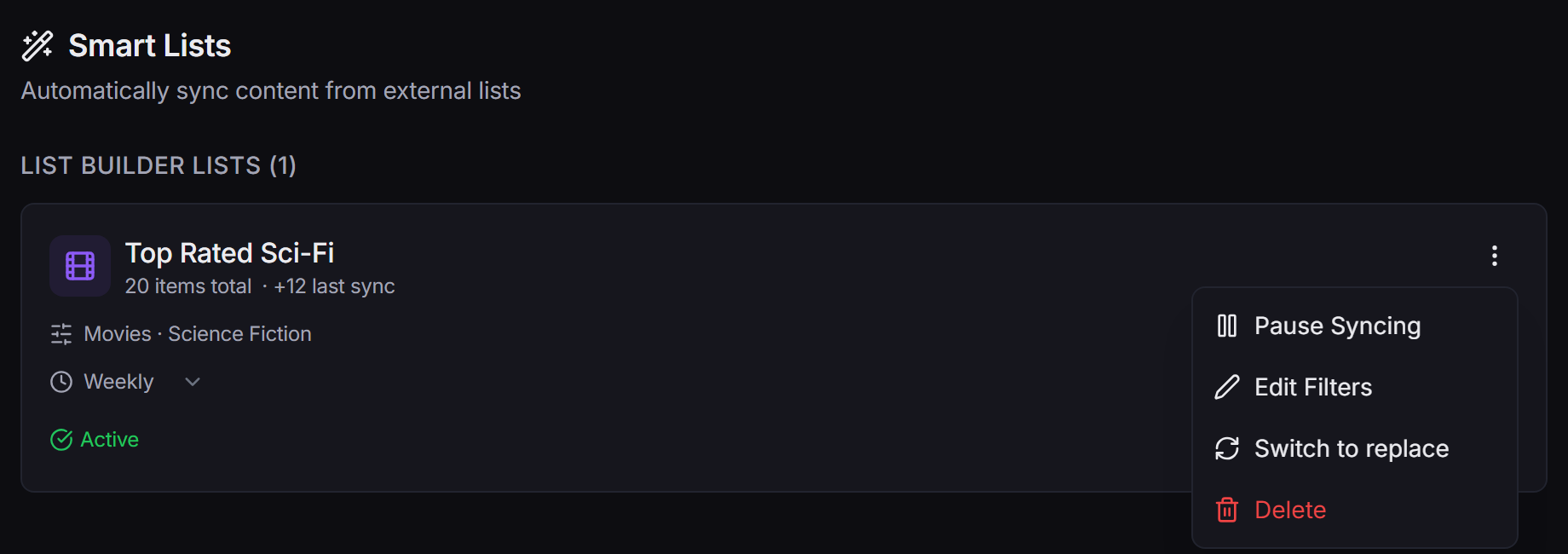
Each card shows the item count, what the last sync did and when it ran. The group's Owner can manage them:
- Sync frequency: change it from the dropdown on the card. Manual means it only syncs when you ask.
- Sync Now: run it immediately. The result breaks down what happened: new items added, items removed (Replace mode), items already in the group, and items skipped because you'd removed them (see below).
- The ⋮ menu:
- Pause Syncing / Resume Syncing (on synced lists, Pause / Resume): stop and restart the schedule without losing anything.
- Edit Filters (List Builder lists): reopens the builder with the list's current filters. Save Changes only updates the filters; it doesn't re-import.
- Switch to replace / Switch to append: change the mode.
- Delete: stops syncing. The titles it added stay in the group.
Contributors can create smart lists, and everyone in the group can see them, but only the Owner sees these controls.
Append vs Replace#
- Append (add new): the default. Syncs only ever add; titles stay even if they drop off the source.
- Replace (mirror source): the list keeps its own slice of the group in step with the source. Titles this list added are removed once they leave the source. Titles you added by hand, or that came from another list, are never touched.
A Replace badge on the card tells you which mode a list is in.
Removed a title? It stays removed#
If you delete a title from a group that has a smart list, syncs won't bring it back. StremShare remembers removals for the whole group (so another list in the same group won't re-add it either), and Sync Now counts them as "skipped (removed by you)". This also applies while a list is paused, so your clean-up sticks when you resume it.
Two things undo that memory:
- Adding the title back yourself (for example with Add Content) tells StremShare you want it after all, and syncs leave it alone from then on.
- Deleting the group's last smart list clears the group's removal memory. If you create a new smart list there later, previously removed titles can come back.
Only removals you make count. Titles a Replace list prunes on its own are not remembered.
Recommendations, Because You Watched and Up Next#
The private catalogs StremShare builds from your watch history (Recommendations, Because You Watched and Up Next) run on the same sync engine, but they're managed from the Add-on page, not from here. They refresh their own contents on their own schedule and don't use the removal memory above, so a title you delete from one can return on a later refresh. You'll see their list on their own group's Smart Lists tab; leave its settings alone and use the Add-on page instead. See Watch Tracking.
Smart lists and Stremio#
Content changes never need an add-on reinstall: as smart lists sync, your Stremio rows update by themselves. Only changes to the set of rows (a new group showing up, for example) need a reinstall or a linked Stremio account. See Add-on Setup.