App Profiles & Kids Limits
Give each person in your household their own catalog, add-on URL, watch history and recommendations, and keep a kid's recommendations age-appropriate.
On this page
If more than one person watches on your account, app profiles let StremShare treat each of them separately. Each profile can have its own catalog of groups, its own add-on URL, its own watch history and its own recommendations, all managed from your one StremShare account.
Note
This guide is about the profiles inside your watching apps. Your public StremShare page (avatar, bio, followers) is covered in Profiles, Following & Badges.
The three kinds of profile#
Open Account → App Profiles. Profiles are grouped by where they come from:
- Nuvio profiles: the profiles on your Nuvio account. They appear once you link Nuvio.
- Stremio profiles: the profiles on your Stremio account, if your Stremio account has them. They appear once you link Stremio.
- StremShare profiles: an older, experimental way of switching one Stremio library between saved states. See StremShare profiles.
Nuvio and Stremio profiles are always available side by side. Nobody has to "switch" to one: each profile's devices simply use that profile's own add-on URL.
Getting your profiles to show up#
App profiles come from the apps you link, so the tab starts empty until you connect one.
- Go to Account → Connections.
- Connect Stremio or Nuvio (see Account, Connections & Notifications).
- Come back to Account → App Profiles. Each profile on that account now has its own row.
If nothing is linked yet, the tab shows No profiles yet with a Go to Connections button.
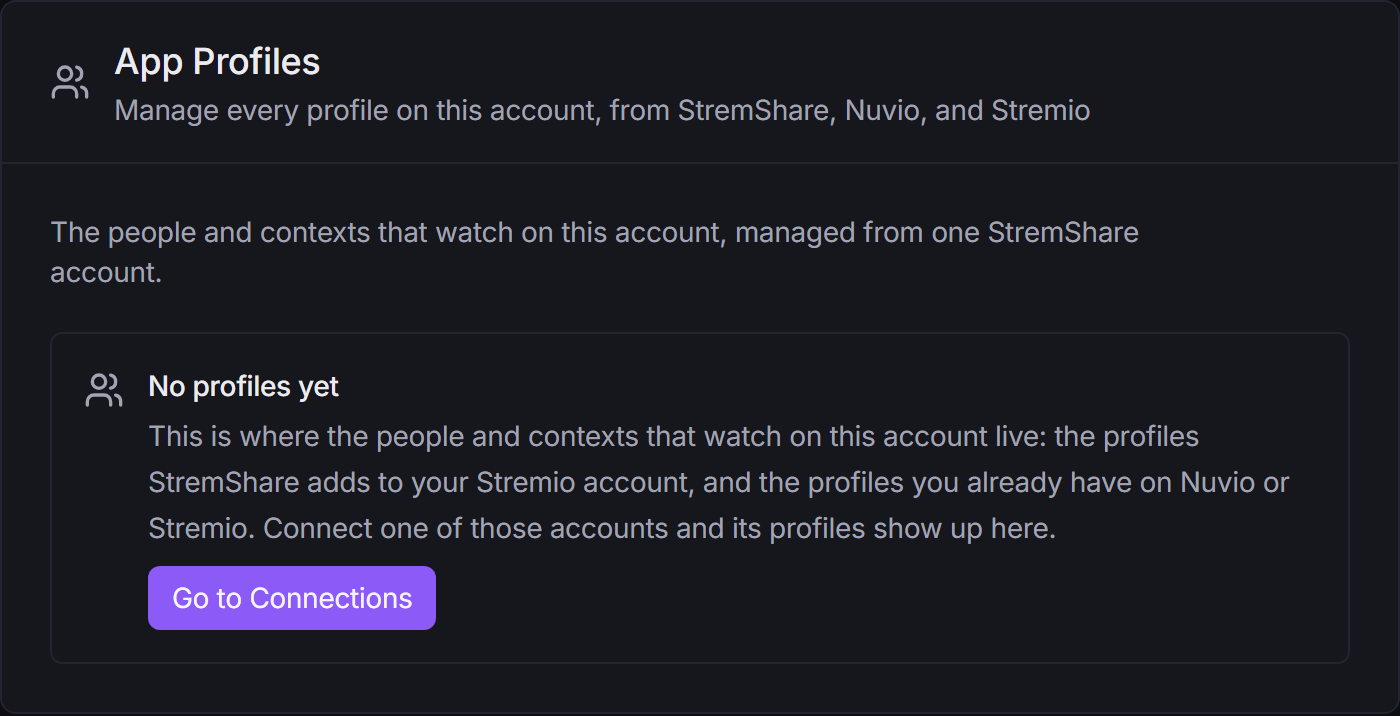
A profile's name and colour come from the app itself. To rename a profile, rename it in Nuvio or Stremio. On the Nuvio card, Refresh picks up profiles you've added or renamed since you linked.
Setting up a profile#
Each profile row shows its name and a status: Connected, or Reconnect needed if the app ended that profile's sign-in. Click the arrow at the end of the row to open its settings.
Stremio profiles: enter the PIN once#
Before StremShare can read a Stremio profile's watch history, you need to unlock it once:
- Open the profile's row and click Authenticate.
- If the profile has a PIN in Stremio, the Enter profile PIN window asks for it. Type it under Profile PIN and click Authenticate.
Your PIN is sent to Stremio to unlock the profile and is never stored. When it works the row reads "Watch history syncs from this profile." If that profile's access ever expires, the row asks you to Re-authenticate; your main Stremio connection is unaffected.
Nuvio profiles don't need this step. Their watch history syncs as soon as Nuvio is linked.
Installing the add-on on a profile#
- Open the profile's row.
- Click Install addon. StremShare adds your catalogs to that profile, with that profile's own recommendation rows.
Once installed, the row shows when the add-on was installed and the button becomes Update addon, which pushes your catalogs onto the profile again. Remove addon takes StremShare out of that one profile's add-on list after you confirm. The profile stays linked, its imported history stays, and your other profiles keep the add-on.
Note
On Nuvio, a profile can share another profile's add-on list. If it does, the row says so, and installing or removing the add-on affects both profiles.
Choosing what a profile shows#
Under Catalog, the row tells you what the profile's add-on shows: "Shows your account's groups." until you customize it, then "Shows N chosen groups." (or the name of a template it follows).
Click Edit catalog → to open the Add-on page for that profile. The Editing bar at the top of the Add-on page shows Account default plus one chip per profile. Whichever chip is selected is what every setting on that page changes, so check it before you edit.
Instead of picking groups one by one, a profile can Follow a template. It then shows that template's whole setup, and later edits to the template show up on the profile too. Stop following takes it back to your account's groups. See Templates.
The profile's add-on URL#
A profile gets its own add-on URL the first time StremShare installs your add-on on it. The row shows it under Addon URL for this profile, with a Copy button.
This URL changes what the profile shows, not what a device on it can reach. Treat it like a password: anyone who has it sees your account's catalogs and can add to your groups.
Rotating a profile's add-on URL#
If a profile's URL has leaked, click Rotate URL and confirm. The old URL stops working straight away on every device that has it. StremShare pushes the new one to the apps linked to that profile in the background; if one of them keeps failing, reinstall the add-on there. Your account URL and your other profiles' URLs don't change.
Removing a profile's imported history#
Remove imported plays deletes only the plays StremShare imported from that one profile. Your other profiles' history, the plays StremShare tracked itself, and the history inside the app are left alone.
It doesn't stop future imports: the next sync imports that profile again from scratch. To stop recording a profile, set its watch tracking to Off on its Add-on page (Watch & recommendations tab, with that profile selected in the Editing bar).
Recommendations for each profile#
Once watch tracking is on, each profile builds its own recommendation, "Because you watched" and Up Next rows from its own watch history. Your partner's horror marathon won't fill your kid's recommendations.
These rows are ordinary rows in the profile's catalog, so you can turn them off there like any other. On the Groups page (with All groups selected), each profile's automatic groups appear in their own section below your list.
On the Dashboard, the Continue watching rail has a Showing menu. Pick Everyone or a single profile to filter that rail. It only changes what the rail shows; it never switches a profile.
For how tracking and recommendations work in general, see Watch Tracking.
Recommendation ratings (kids limits)#
Recommendation ratings decides how mature the titles StremShare recommends can be.
- Open the Add-on page and go to the Watch & recommendations tab.
- In the Editing bar, pick the profile (or Account default for your whole account).
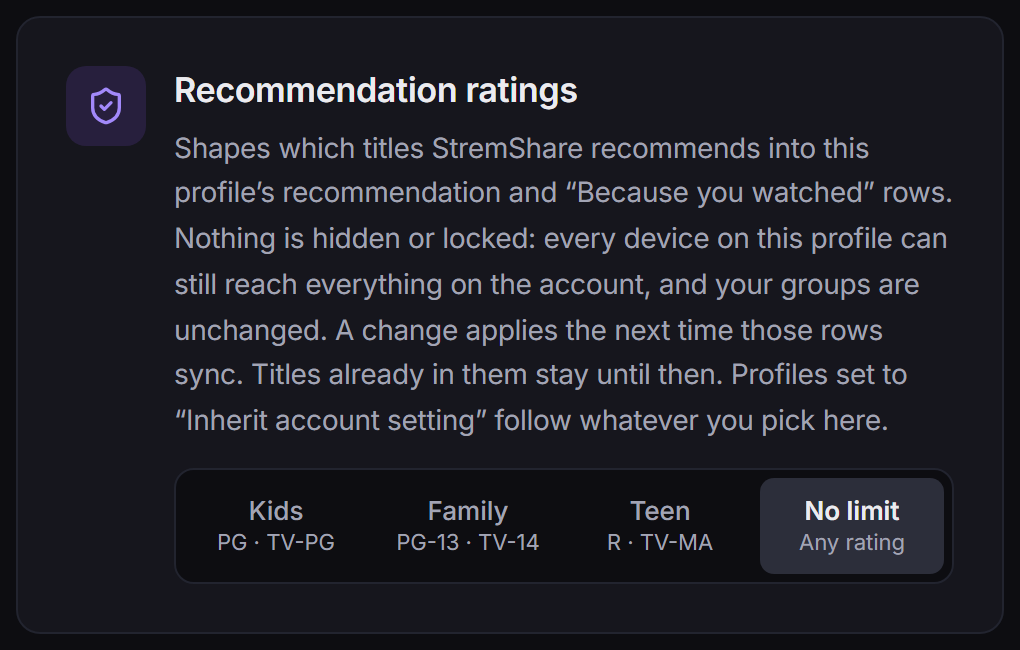
- Under Recommendation ratings, choose a level:
| Level | Recommends up to |
|---|---|
| Inherit account setting | Whatever your account is set to, following it if it changes (profiles only) |
| Kids | PG and TV-PG |
| Family | PG-13 and TV-14 |
| Teen | R and TV-MA |
| No limit | Any rating, including NC-17 and titles with no US rating |
Kids, Family and Teen also skip titles that have no US rating, because there is no rating to check them against.
A named level stays fixed for that profile: No limit keeps its rows unfiltered even if your account caps its own, and Kids caps them even if your account doesn't. A change applies the next time those rows sync, so titles already in them stay until then.
Heads up
This is not parental control. It shapes which titles StremShare recommends into a profile's recommendation and "Because you watched" rows. Nothing is hidden or locked: every device on the profile can still reach everything on your account, and your groups are unchanged.
The account-wide Recommendation ratings setting replaces the old Kids Mode switch. The card only appears once recommendations are set up for your account (or, for a profile, once that profile's watch tracking is on).
StremShare profiles (experimental)#
StremShare profiles are a different, older idea: one Stremio account, with its whole library swapped between saved states. Only one is active at a time.
Heads up
Experimental: switching rewrites your Stremio library on every device. It can replace your library, watch history, continue-watching positions and installed add-ons on everything signed in to your Stremio account. Try it on a spare Stremio account first. StremShare saves the state you're leaving before each switch, so switching back restores it.
To start, link Stremio, open the StremShare profiles section on Account → App Profiles and click Set up profiles. This saves your current Stremio state as one profile and creates a fresh second one (your add-ons carry over; the library and watch history start empty). With two or more, a Profile: menu appears in the top bar for switching. The Account backups & safety section in the same place keeps full backups of your Stremio account that you can restore.
If your Stremio account has its own profiles, StremShare profiles are no longer offered, because Stremio's own profiles do the job with real separation. Any you already made keep working until you remove them.
Troubleshooting#
My profiles aren't listed. Link the app first under Account → Connections. For Nuvio, click Refresh on the Nuvio card if you added a profile recently.
A Stremio profile says "Not syncing yet". Open its row and click Authenticate (with its PIN if it has one).
A profile says "Reconnect needed". Open its row and click Re-authenticate.
A profile shows the same catalog as my account. That's the default. Click Edit catalog → and choose groups for that profile, or have it follow a template.
Recommendation ratings isn't on the Watch & recommendations tab. Turn on watch tracking for that profile (or set up recommendations for your account) first.