Watch Tracking, History & Personalized Catalogs
Record what you watch, import your past history, and get private recommendation, Because You Watched and Up Next rows.
On this page
Watch tracking is what turns StremShare from a catalog manager into something that knows what you watch. With it on, what you play in Stremio lands in your watch history automatically. That history powers your stats, a continue-watching row, hide-watched, and private catalogs that build themselves.
Turning it on#
- Open Add-on Setup from the sidebar.
- Switch to the Watch & recommendations tab.
- Turn on the switch in the Watch tracking card.
Once it's on, the card confirms Plays sync to your Watch History, and the Personalized catalogs section appears below it. (If you open the Watch History page with tracking off and no history yet, its Enable Watch Tracking button does the same thing.)

StremShare tracks your progress and marks a title watched when you finish it. Turning tracking off stops new plays being recorded; nothing already in your history is deleted.
Note
About iPhone and iPad: tracking works by noticing the subtitle requests Stremio makes while you play something, and the iOS app makes those unreliably, so live tracking can miss plays there. They usually turn up later through the Stremio library import (see below). The TV and desktop apps track reliably. This is how Stremio's iOS app behaves, not something StremShare can fix.
If you use profiles#
At the top of Add-on Setup, the Editing selector switches between your account and each of your profiles (see App Profiles). With a profile selected, the Watch tracking card shows two things:
- Watch tracking for your account: the account-wide switch, marked as applying to all profiles.
- Watch tracking for "Profile name": a choice for just that profile. Under Follow your account it simply inherits the account switch. Under Set for this profile you can pick On (keeps recording this profile even while the account switch is off) or Off (records nothing new for this profile and pauses its history imports).
The personalized catalogs#
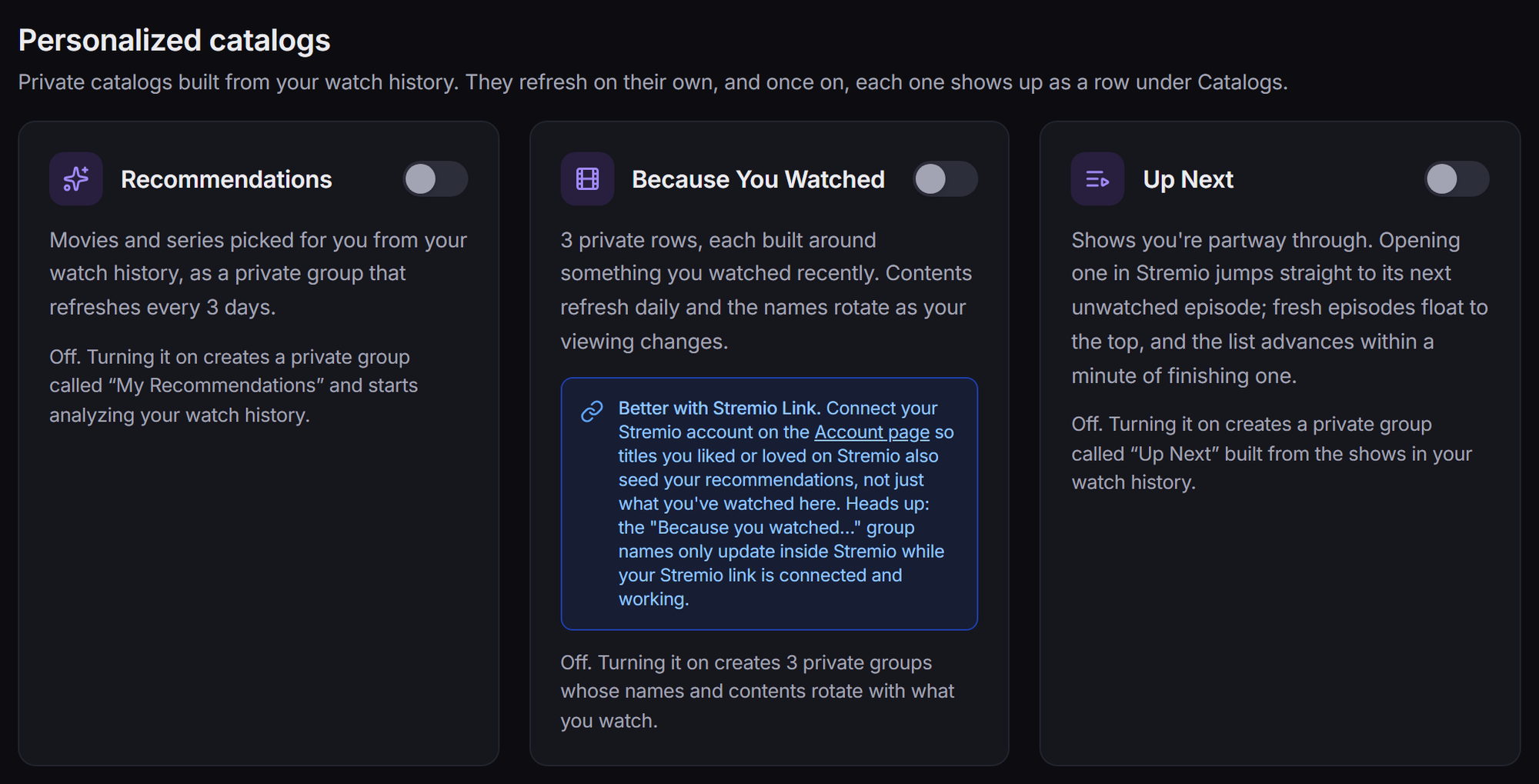
With tracking on, three private catalogs become available. Only you see them, they refresh on their own, and each one you turn on shows up as a row in your Stremio add-on (and in the list on the Catalogs tab). Each has a tile with its own switch under Personalized catalogs:
Recommendations#
Movies and series picked for you from your watch history, kept in a private group called "My Recommendations" that refreshes every 3 days. Once it's on, the tile shows how many items it holds and when it last and next syncs. Sync now fetches fresh picks, and Open group → takes you to the group. Turning it off keeps the group; it just stops updating.
Because You Watched#
A set of private rows (usually three), each built around something you watched recently. The contents refresh daily, and each row is renamed after its current anchor title ("Because you watched …"), so the rows follow your viewing. The tile lists each row with its item count; click one to open it.
If your Stremio account isn't linked, the tile suggests linking it: titles you liked or loved in Stremio then help seed your recommendations too, and the "Because you watched…" names only update inside Stremio while that link is connected and working.
Up Next#
The shows you're partway through. Opening one in Stremio jumps straight to its next unwatched episode, shows with fresh episodes float to the top, and the list moves on within a minute of you finishing an episode (plus a daily check for new episodes). Your dashboard's Continue watching row uses the same progress.
Profiles and personalized catalogs#
Turning a catalog on or off is account-wide, but each profile gets its own rows built from its own history. Each profile decides whether to show them in Configure Groups on the Catalogs tab. On the Groups page, a profile's own recommendation rows appear in a section for that profile.
Recommendation ratings#
Once Recommendations is on, a Recommendation ratings card appears next to Watch tracking. Pick the highest rating StremShare should recommend:
- Kids (PG, TV-PG)
- Family (PG-13, TV-14)
- Teen (R, TV-MA)
- No limit (any rating, including NC-17 and titles with no US rating)
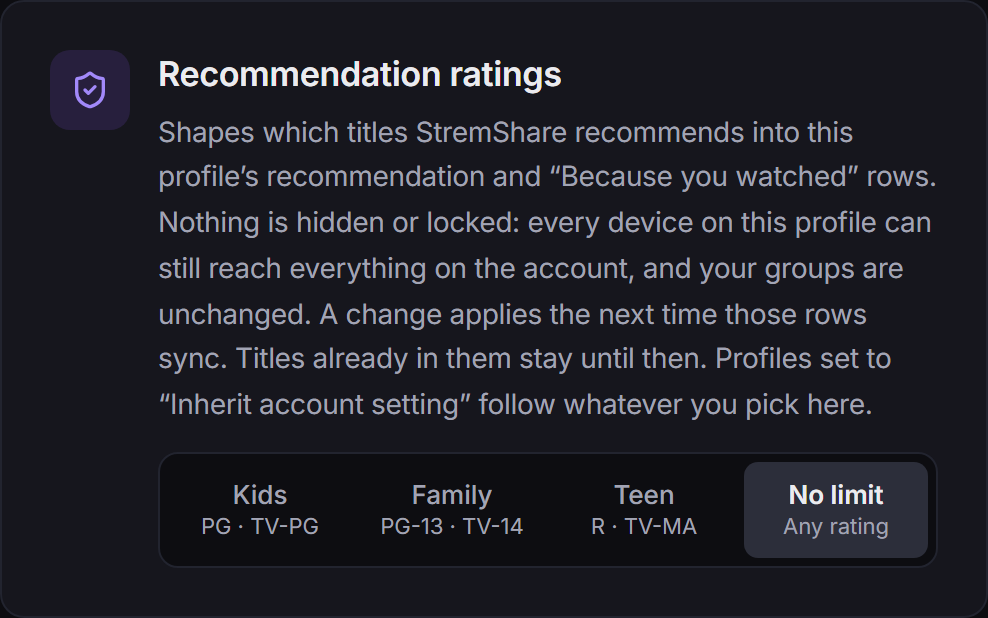
This only shapes what goes into your Recommendations and Because You Watched rows. Nothing is hidden or locked: every device can still reach everything on the account, and your groups are unchanged. A change applies the next time those rows sync; titles already in them stay until then.
With a profile selected in Editing, the card sets that profile's own level. Inherit account setting follows whatever the account picks, while the named levels stay fixed for that profile.
Hide watched titles#
Once you have watch history, you can keep your catalogs focused on what's left. Watched movies and fully finished series drop out of your Stremio rows; series you're partway through always stay visible.
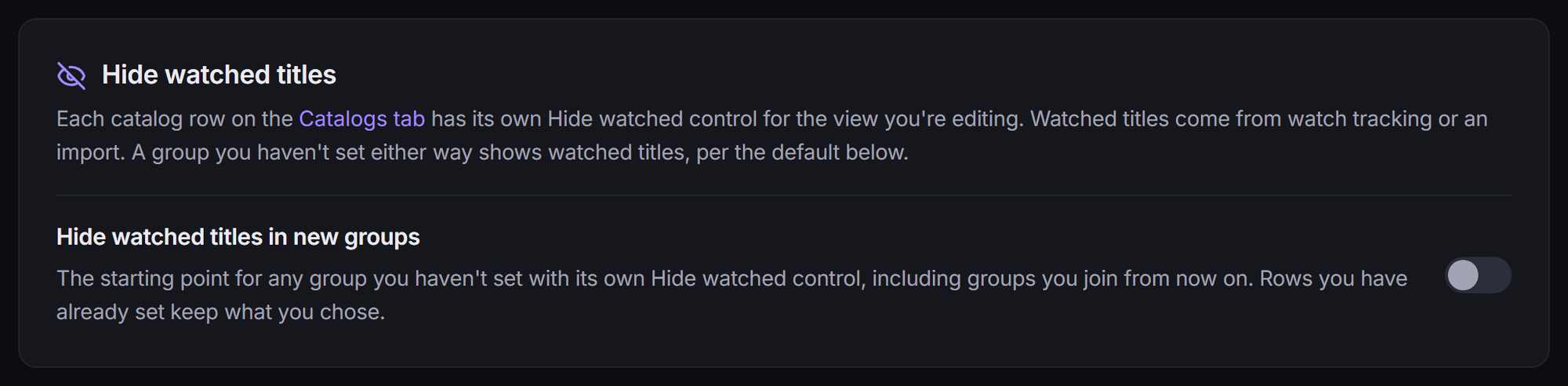
It works per row:
- On the Catalogs tab, every catalog row has its own chip: Hiding watched or Showing watched. Click it to flip that row. Recommendation rows are locked to Always hiding (recommending something you've finished defeats the point), and Up Next is locked to Always showing.
- To change every row at once, use Bulk actions → Hide on all rows (or Show on all rows) on the Catalogs tab.
- Hide watched titles in new groups (on the Watch & recommendations tab) sets the starting point for any group you haven't set yourself, including groups you join later. Rows you've already set keep your choice.
It only hides titles you have history for, so keep tracking on (or import your history) for it to keep up.
With profiles: a profile's own add-on only hides what that profile watched. For your account add-on, Hide based on (shown once you have a profile) decides what counts: All profiles' history (the default: every profile's plays plus your account's) or Account history only (handy when a profile's imported history isn't shared viewing).
The Watch History page#
Watch History in the sidebar has two tabs. Watching Now shows live viewing sessions as they happen. Watched is the archive, starting with the headline numbers:

Below that, the page turns your history into a picture of how you watch (each card appears once there's enough history for it):
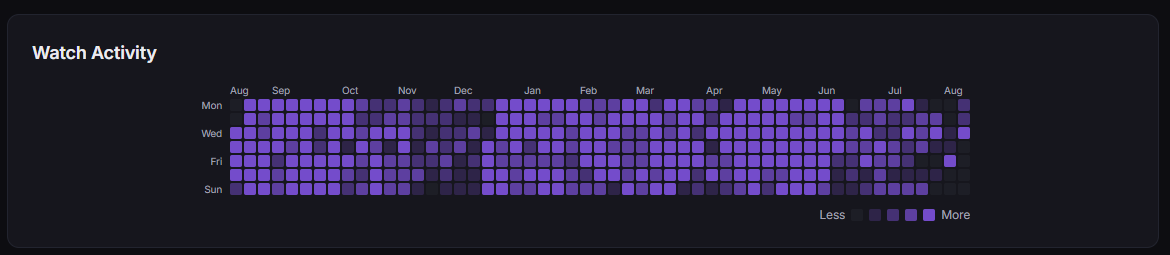
Watch Activity: a calendar heatmap of your viewing across the year.
Watch Activity Genre Breakdown and When You Watch: what you watch, and at which hours.
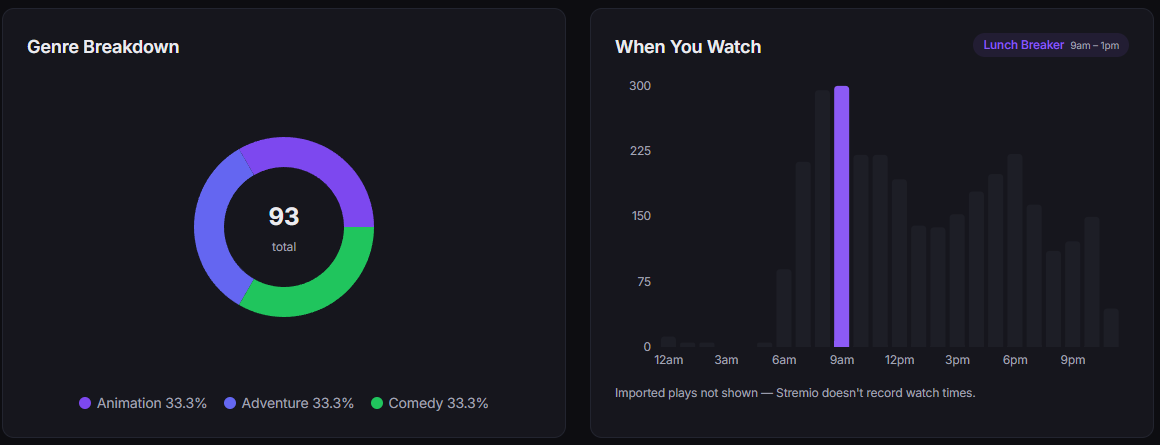
Genre Breakdown and When You Watch Watching Pace: your daily average, recent totals and a year-end projection.
Genre Streaks: genres you've kept coming back to on consecutive days.
On This Day, Rewatch Favorites and Binge Sessions: anniversaries, your heavy rotation, and marathon days. Your most-watched movie and series get their own cards too.
At the bottom, Your Watch History lists every entry grouped by day, with a badge showing where it came from: Watch tracking, Manual, Trakt, MDBList, Stremio import or Nuvio import. Search, type and sort controls sit above it.
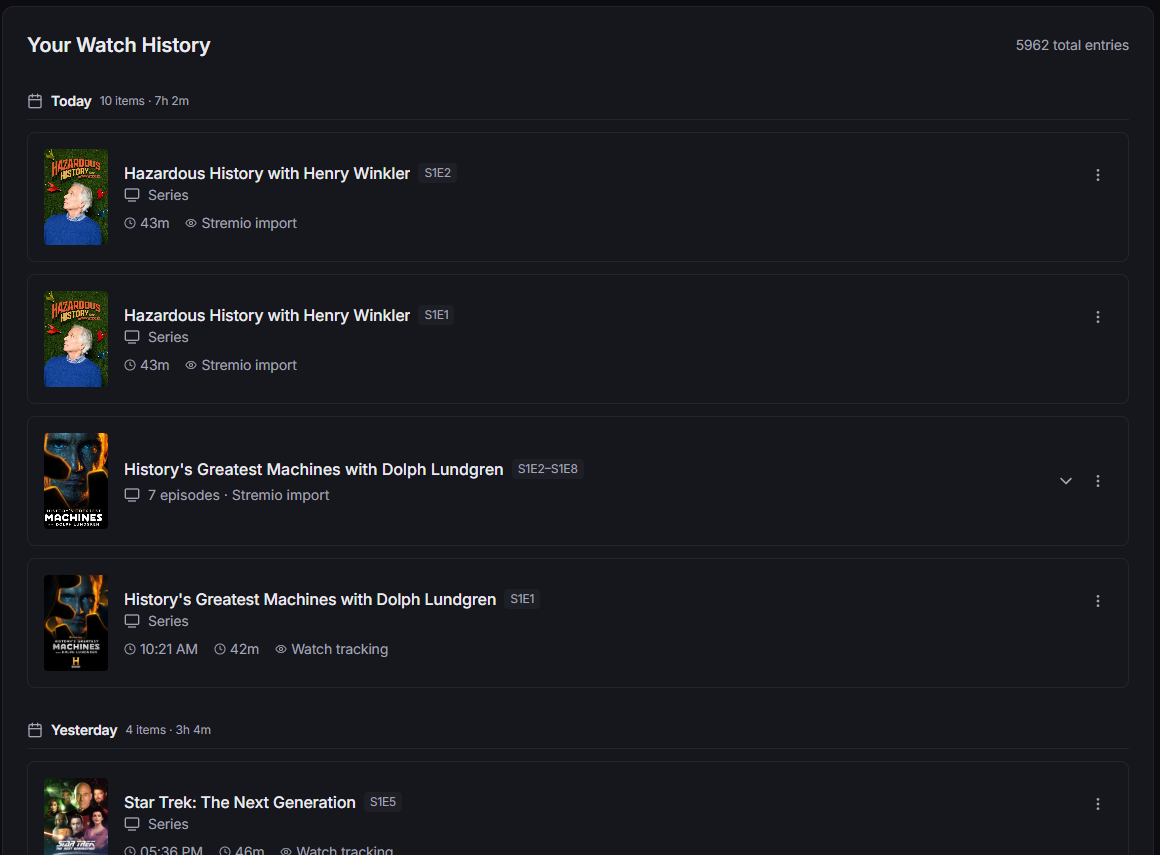
If you use profiles, entries recorded for a profile carry that profile's chip (its name, plus the app for connected profiles, like "Dad · Nuvio"), and a Profile filter narrows the list to one profile, to No Profile, or back to All Profiles. On the dashboard, the Continue watching row has a Showing menu to choose whose progress it shows: Follow the active profile, Everyone, or just one profile. It only filters that row; it never switches your Stremio profile.
Importing history you already have#
Tracking only knows what you watch from now on. To fill in the past, import your existing history from the service cards under Account → Connections. Once a service is connected, its card has a Watch history panel with Import watch history and a Keep in sync automatically checkbox that checks for new plays periodically.
- Trakt: your Trakt plays. Very large histories are imported newest first, and later syncs work back through the rest.
- MDBList: your MDBList watch history.
- Stremio: the history in your Stremio account library. If your Stremio account has profiles you've authenticated, the card shows two panels: Watch history: Stremio profiles (imports every authenticated profile in one run, each keeping its own plays) and Watch history: account library.
- Nuvio: imports the history of every linked Nuvio profile in one run, each kept on its own profile.
Imported entries carry their source badge in the history list. Anime trackers (MyAnimeList, AniList, Kitsu) are list sources only; they don't import watch history.
Removing imported history#
Each panel has a red button that deletes what that import brought in. Plays tracked by StremShare itself, and your history inside the other app, are never touched. Removing an import also switches its Keep in sync automatically off, so it doesn't come straight back.
- Trakt and MDBList: Remove imported history removes everything that import added.
- Stremio account library: Remove account library history.
- Stremio profiles and Nuvio: Remove all profiles' history removes the imported plays of every profile at once.
- One profile only: go to Account → App Profiles and use Remove imported plays on that profile's row.
Privacy: who can see what you watch#
Your full watch history, stats and the Watch History page are visible only to you. Other people can see parts of your viewing in these places:
- Group activity feeds. If you switch on Show currently watching under Account → Profile, your plays of a group's titles show up in that group's Activity feed as a "watching" or "watched" event with your username. This only happens in groups where you're an Owner or Contributor, and everyone who can see the group sees these events: its members, and anyone viewing it if the group is public. Plays by Watchers never appear.
- Your public profile. Your watch stats and a currently-watching strip appear on your profile only if you switch on Show watch stats or Show currently watching under Account → Profile. Show currently watching also decides whether watch events appear in your profile's activity. See Profiles.
Show currently watching is off by default, so nobody else sees your plays in group feeds or on your profile until you turn it on. If your profile is set to private, your plays stay hidden from others even with the switch on. You always see your own plays in the feeds of your groups.
Troubleshooting#
- Nothing is being recorded: check the Watch tracking switch is on. If you use profiles, check the profile's own setting isn't Off.
- The personalized catalogs aren't in Stremio: check each one is switched on here, then check its row is switched on in Configure Groups on the Catalogs tab (for a profile, with that profile selected in Editing).
- A tile says "Watch tracking is disabled": its group still exists and keeps working in Stremio, but it won't update until you turn tracking back on.
- A tile says the group was deleted: use its Re-enable button to create a fresh one.