Getting Started with StremShare
On this page
Create an account, make your first group and see it in Stremio in about five minutes. Each step below is short, with a link to the full guide when you want the details.
How StremShare works#
You collect movies and series into groups on this website: a group is just a named list, like "Movie Night" or "Kids' Films". One personal add-on serves every group you turn on, and each group shows up as a row of titles in Stremio (or Nuvio). Share a group with friends and everyone sees the same list, kept in sync as anyone adds to it.
So the path is: groups → your personal add-on → rows in Stremio. The steps below follow it in order.
1. Create your account#
- On the StremShare home page, click Create a Free Account (on a phone the button reads Sign up free).
- Choose a Username, enter your Email, then pick a password: at least 8 characters with an uppercase letter, a lowercase letter and a number.
- Click Create Account.
Your username is how other members see you. Already have an account? Click Sign in instead. Forgot your password? See the FAQ.
2. Pick a Quick Start (optional)#
Right after signing up you land on Pick a Quick Start. Every card is a starter pack: a ready-made bundle of public groups (anime, comedies, what's new on a streaming service, and so on).
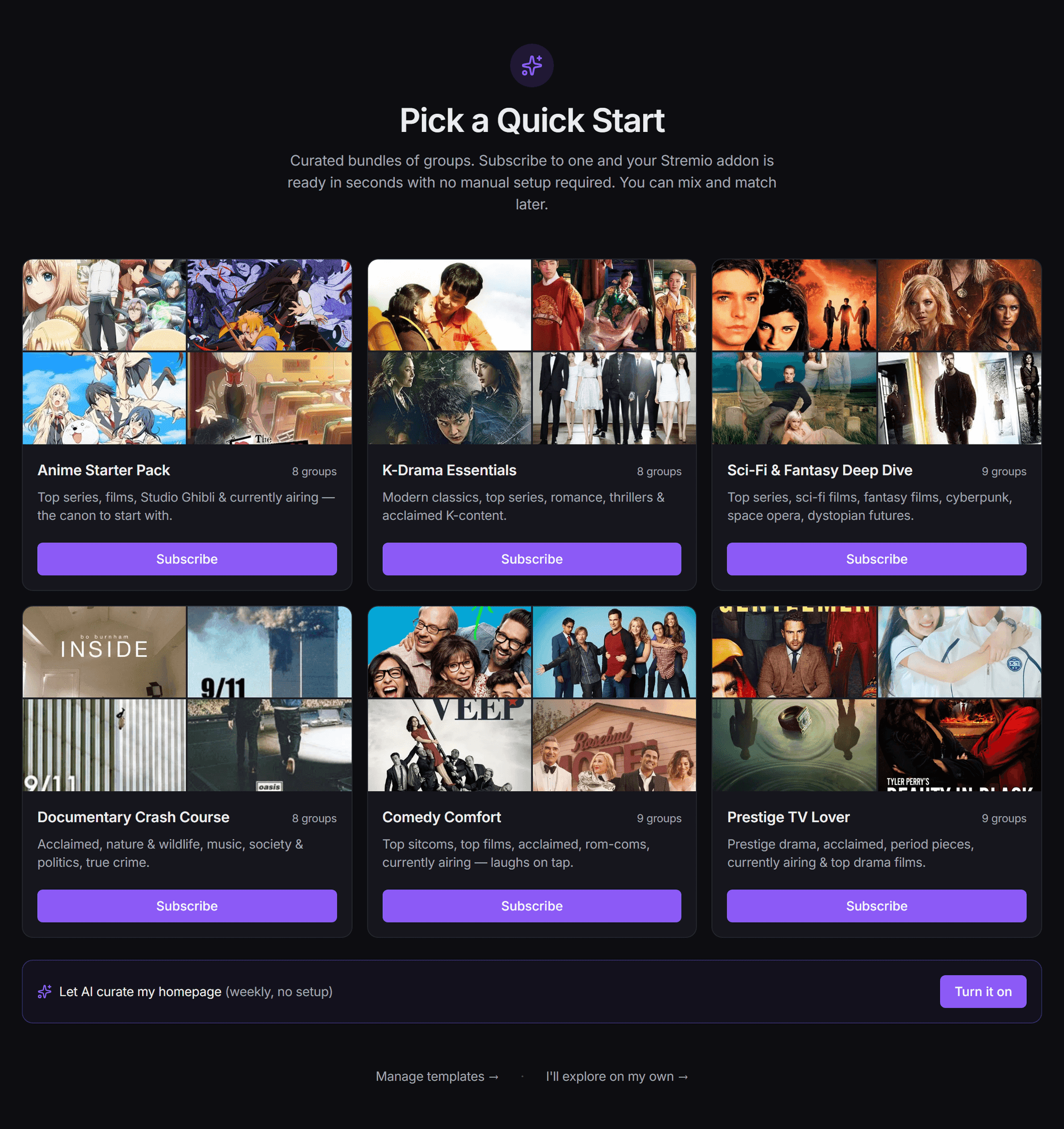
- Subscribe on a card joins you to its groups and turns them on in your add-on. A banner then offers Install your addon, which takes you straight to step 5.
- Subscribing to another pack later can swap out the groups the previous pack added. The banner tells you what changed.
- If no packs are listed, Browse all groups takes you to Discover instead.
- I'll explore on my own → skips this and takes you to your Dashboard. Carry on with step 3 to build your own group.
Beta
Below the packs you may see Let AI curate my homepage with a Turn it on button. The AI Curator builds and refreshes a set of rows for you every week, with no setup. This feature is in beta. If it's greyed out with an In beta pill, your account isn't in the beta yet. See AI Features.
You can come back to the starter packs any time from the Welcome to StremShare card on your Dashboard (Browse starter packs) while you have no groups, or by opening Pick a Quick Start directly.
3. Create your first group#
- Open My Groups in the sidebar and click Create Group. On a phone or tablet, tap the round + button at the bottom right and choose New Group.
- Type a Group Name (up to 50 characters) and, if you like, a Description.
- Click Create Group.
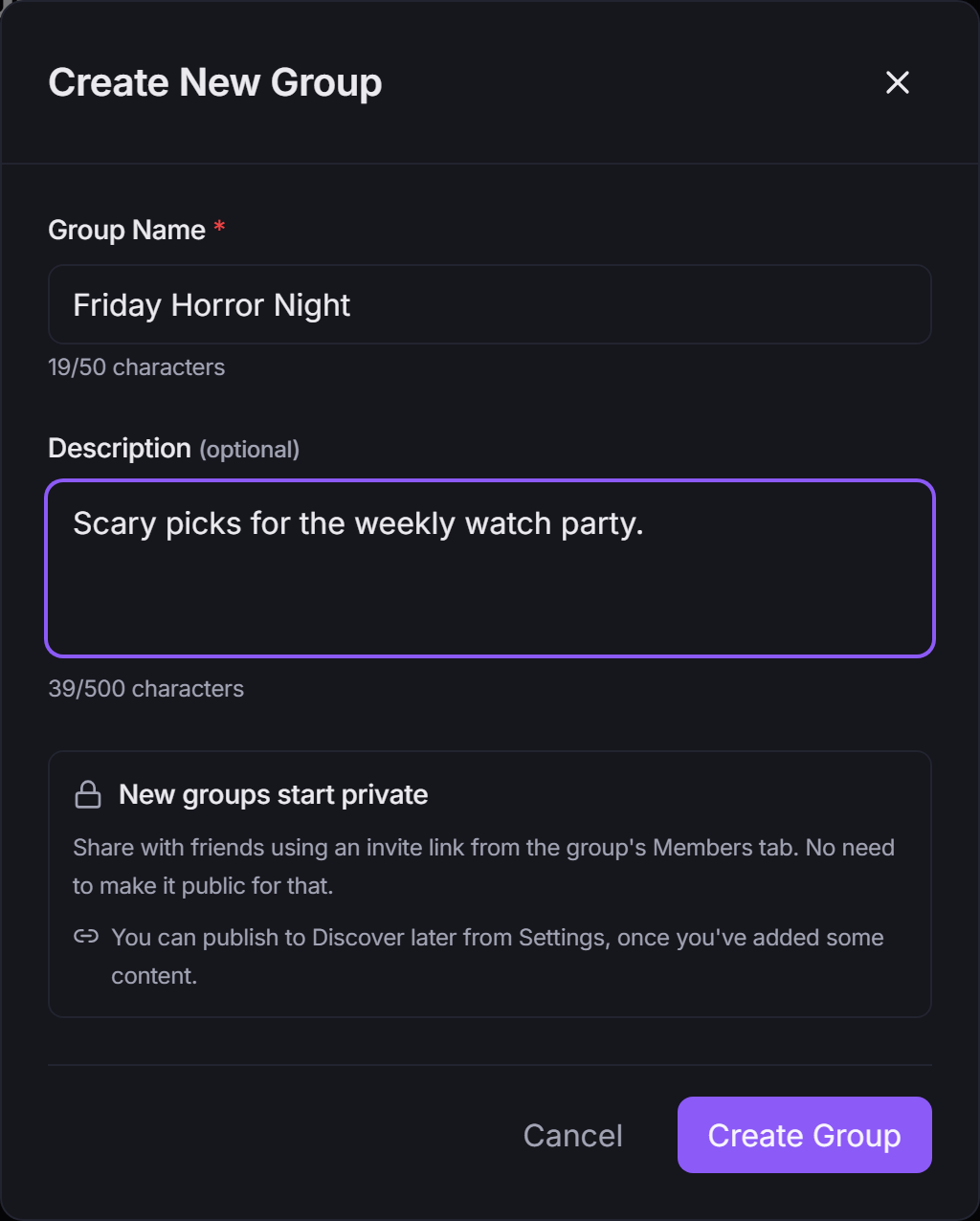
A few things worth knowing:
- New groups start private. Only people you invite can see them. You can publish a group to Discover later from its Settings tab.
- It's already in your add-on. A group you create is turned on in your add-on automatically.
- Free accounts can own a limited number of groups. The window shows where you stand (for example 3 of 50 groups). Groups you join don't count toward it.
You land on the group's page, with the tabs Activity, Items, Smart Lists, Members and Settings. More in Groups & Members.
4. Add movies and series#
On the group's Items tab you have three ways to fill it: Add Content, Import List and List Builder. On a phone or tablet, tap the round + button at the bottom right to reach the same three.

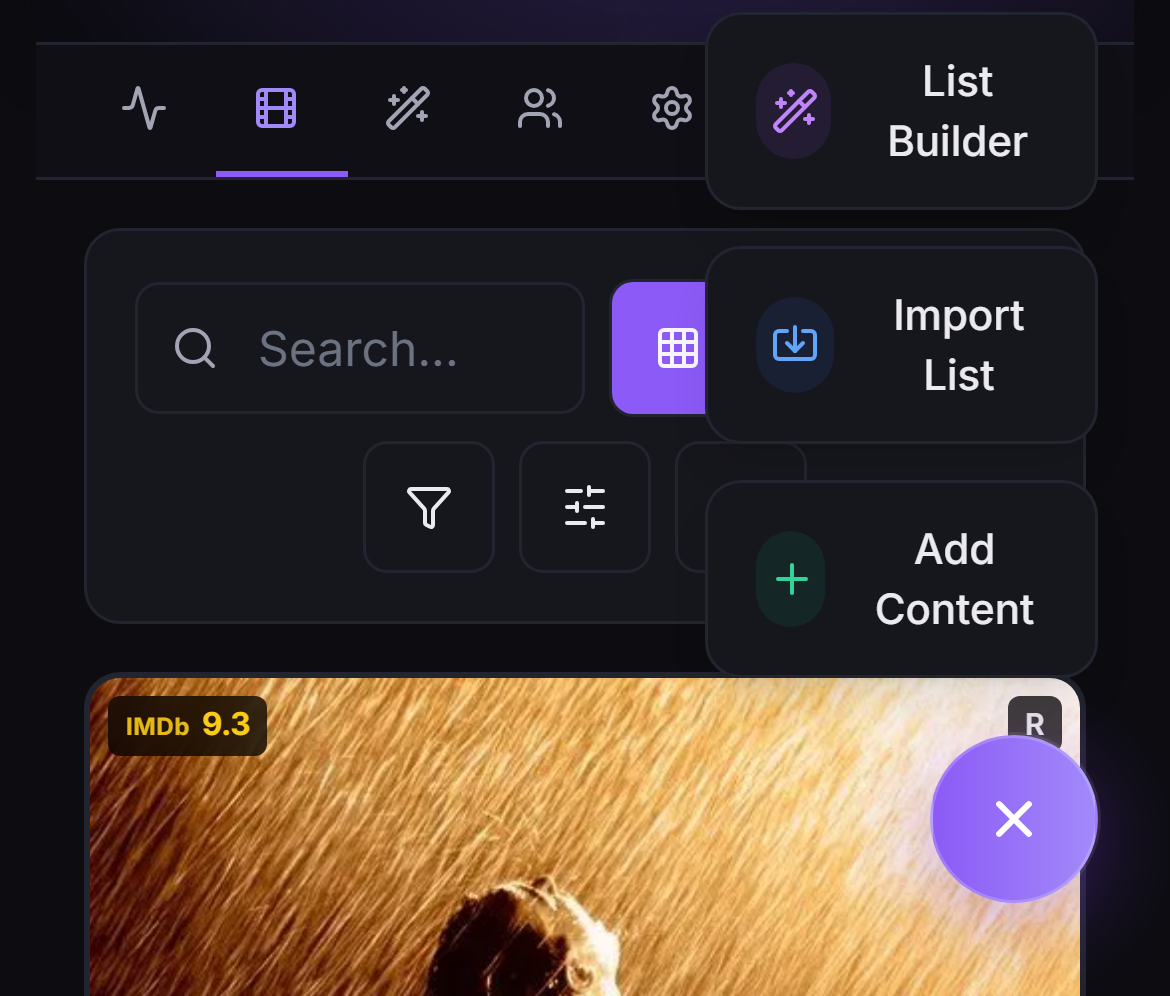
Pick titles with Add Content#
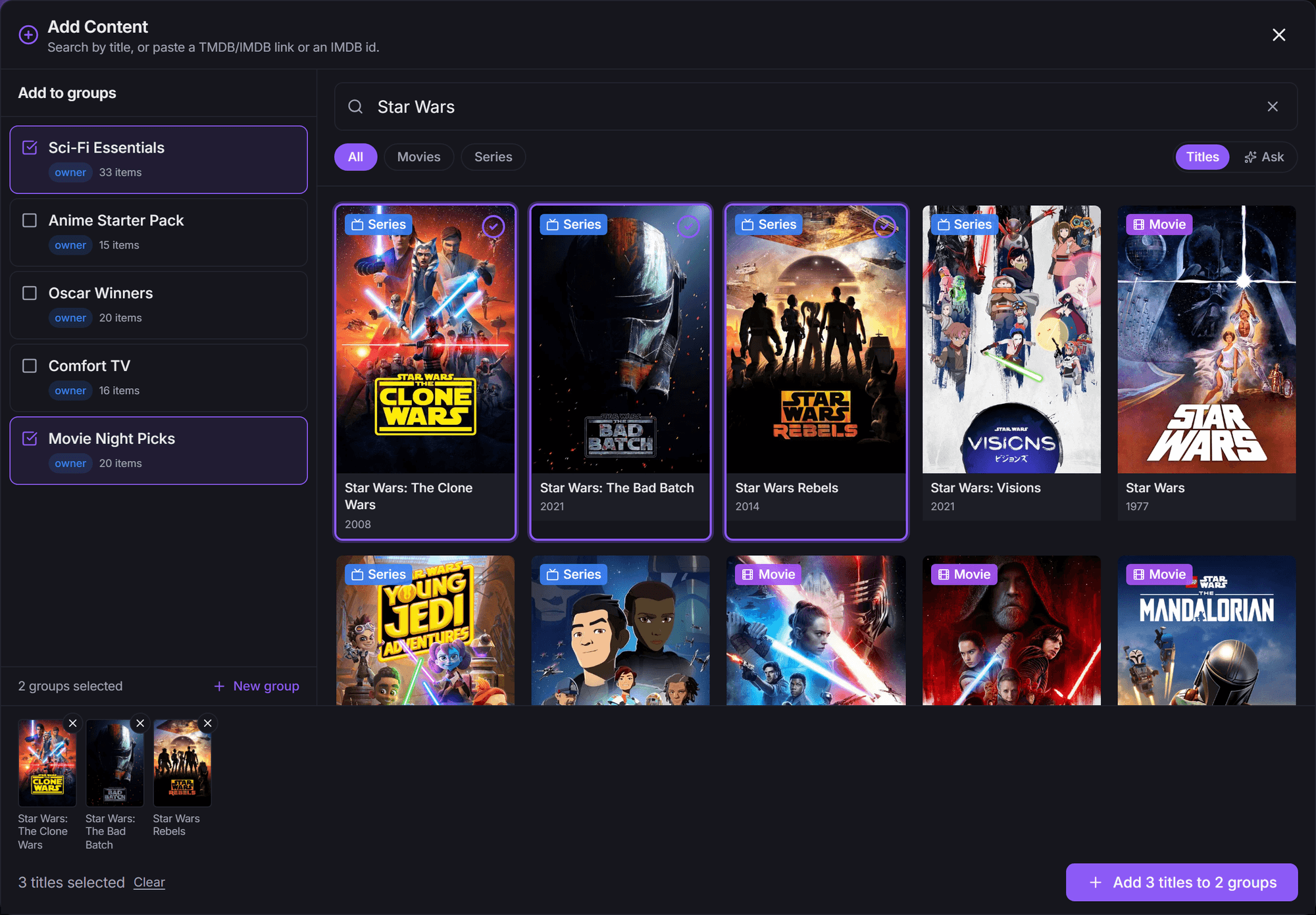
- Click Add Content and search by title. You can also paste a TMDB or IMDb link, or an IMDb id.
- Click posters to select them. You can pick several at once, and they collect in a tray.
- Under Add to groups, tick every group they should go to. The group you started from is already ticked, and New group makes another one on the spot.
- Click Add N titles to M groups (the button counts for you).
Pasted a link to a whole list (say, a Letterboxd or Trakt list)? The window spots it and offers Open the Import flow.
Beta
Switch the search from Titles to Ask to describe what you want in plain words, like "90s heist movies". This feature is in beta. If it's greyed out with an In beta pill, your account isn't in the beta yet.
Bring in a list with Import List#
Already keep lists somewhere else? Import List brings in Trakt and TMDB lists, your Stremio or Nuvio library, anime trackers (MyAnimeList, AniList, Kitsu), public Trakt and MDBList lists, JSON or CSV files, or almost any list link you paste. See Importing Lists.
Describe a list with List Builder#
List Builder makes a list from filters instead of picked titles ("highest-rated sci-fi from the 90s", "what's popular on Netflix") and keeps it fresh on its own as a smart list. See Smart Lists.
Titles you add show up in Stremio the next time it loads that row. Adding or removing titles never needs a reinstall.
5. Install your add-on#
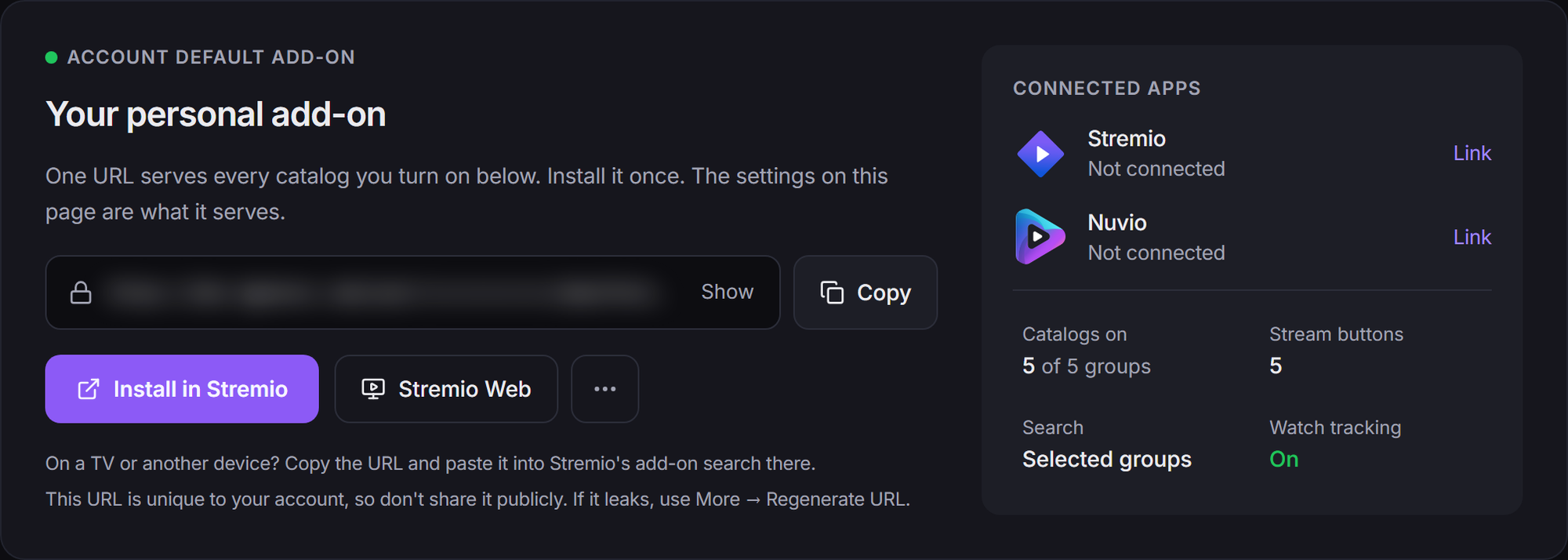
- Open Add-on Setup in the sidebar. The card at the top, Your personal add-on, holds your add-on URL.
- Click Install in Stremio to open the Stremio app, or Stremio Web for the browser version, and confirm the install in Stremio.
- On a TV or another device? Copy the URL with the copy button and paste it into Stremio's add-on search on that device.
Your groups now show up as rows on Stremio's home screen and in its Discover section.
Heads up
Your add-on URL is unique to you, so treat it like a password and don't post it publicly. If it ever leaks, open More add-on actions (the … button) and choose Regenerate URL…. The old URL stops working, so install the new one afterwards.
Tip
Link your Stremio account under Account → Connections. StremShare then updates the add-on in Stremio for you whenever your row lineup changes, so you never have to reinstall it by hand. The Connected apps panel on this card shows whether you're linked, with a Link or Manage button.
Using Nuvio? Link your Nuvio account under Account → Connections, then choose Install on your profiles to put the add-on on the Nuvio profiles you want. See App Profiles.
6. Choose what Stremio sees#
The Catalogs tab of Add-on Setup has a Configure Groups list with one row per group. Changes save as you make them.
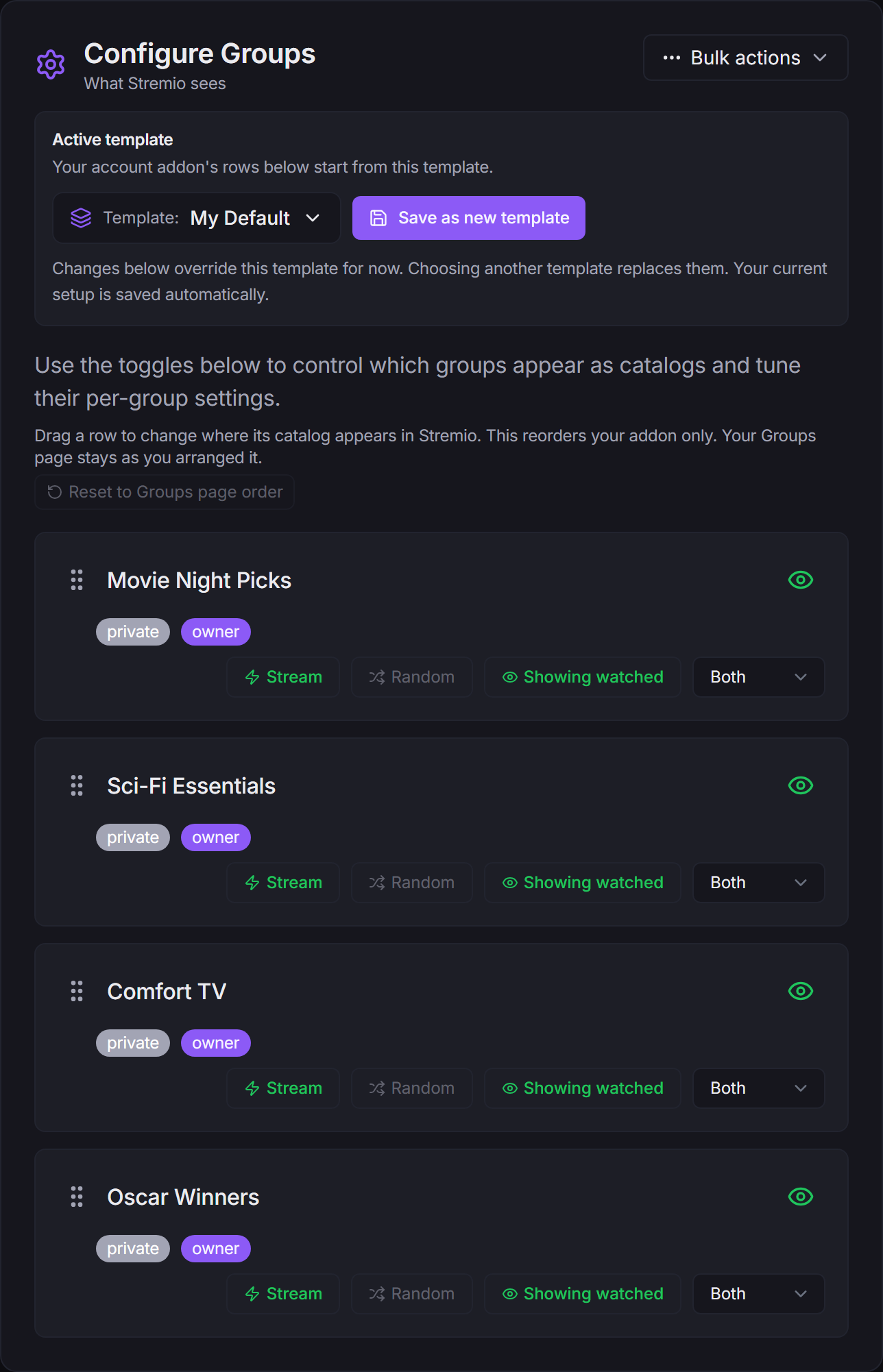
- The eye icon at the right of each row turns that group's row on or off in Stremio without leaving or deleting the group. A green eye means the row is showing.
- The type picker chooses its shape: Both (a movies row and a series row), Movies Only, Series Only, Combined (one mixed row) or Collection.
- Stream (only on groups you own or contribute to) adds a button when you open a title in Stremio, so you can save it to this group without leaving the app.
- Order: rows follow your My Groups order until you drag them here. Dragging reorders your add-on only, and Reset to Groups page order puts it back.
The other two tabs hold the rest: Watch & recommendations (watch tracking, personalized rows, hiding what you've watched) and Preferences (such as Search in Stremio). See Add-on Setup and Watch Tracking.
Note
Turning a row on or off, or changing its shape, changes your row lineup, which Stremio only reads when the add-on is installed. If your Stremio account is linked, StremShare handles this for you. If not, reinstall the add-on with the same URL. Details in When changes need a reinstall.
7. Share with friends, or join public groups#
Invite friends#
If you own a group or are a contributor, click Invite at the top of the group page, then Invite Members on the Members tab. You can:
- Invite specific users by username. They get a notification and an Accept button under Invites & requests on their Dashboard.
- Create New Invite Link to send anywhere. A link works once by default; tick Reusable link so several people can use it until it expires.
Pick a role for each invite. A Watcher can view the group and its activity. A Contributor can also add and remove titles, invite people as Watchers and remove Watchers from the group. Only the group's owner can invite contributors. Every member, whatever their role, can rate and review titles in the group. See Groups & Members and Ratings & Reviews.
Join public groups#
Open Discover in the sidebar for public groups made by the community and StremShare editors: For you, Trending this week, Official curators, Fresh starts, Collections and Browse by mood. Click Join on any group and it's turned on in your add-on right away (you join as a Watcher). See Discover.
Want your own group on Discover? Publish it from the group's Settings tab once it has a description, a category and at least 3 titles.
Troubleshooting#
The add-on isn't showing in Stremio. Make sure you copied the whole URL, including the manifest.json part, then refresh or restart Stremio.
The rows are empty. Check that at least one group is switched on under Configure Groups and that your groups have titles in them.
I changed my rows but Stremio still shows the old ones. Reinstall the add-on with the same URL, or link your Stremio account so it happens by itself.
More answers are in the FAQ & Troubleshooting guide. The (?) button beside the Add-on Setup title also opens a short troubleshooting list.
Related guides#
- FAQ & Troubleshooting: quick answers to common questions.
- Groups & Members: settings, roles, publishing and ownership.
- Adding Content: everything about the Add Content window.
- Importing Lists and Smart Lists: bring lists in and keep them fresh.
- Add-on Setup: every setting that shapes your Stremio rows.
- Watch Tracking: history, recommendations and hiding what you've seen.
- Templates: save and switch whole add-on setups.
- Discover: find and join public groups.
- Account Settings: connections, password, plan and more.