Adding Movies & Series
Add titles by search or link, fill several groups at once, add straight from Stremio, and tidy a group with edit mode.
On this page
The Add Content window is the quickest way to put hand-picked titles into your groups: search, tick what you want, choose the groups, done. This guide also covers adding from inside Stremio, and removing, hiding and reordering titles afterwards.
Adding titles needs the Owner or Contributor role in a group. Watchers can't add or remove titles (see Groups, Roles & Invites).
Open the Add Content window#
Open a group and stay on its Items tab. The toolbar has three ways to fill a group:

- Add Content: pick individual titles. Covered on this page.
- Import List: bring in a whole list from Trakt, TMDB, Letterboxd, MDBList, a file and more. See Importing Lists.
- List Builder: describe a list with filters and let it keep itself up to date. See Smart Lists.
On a phone, tap the round + button at the bottom right of the group page and choose Add Content. From My Groups on a phone, the + button offers Add Content too.
Add titles#
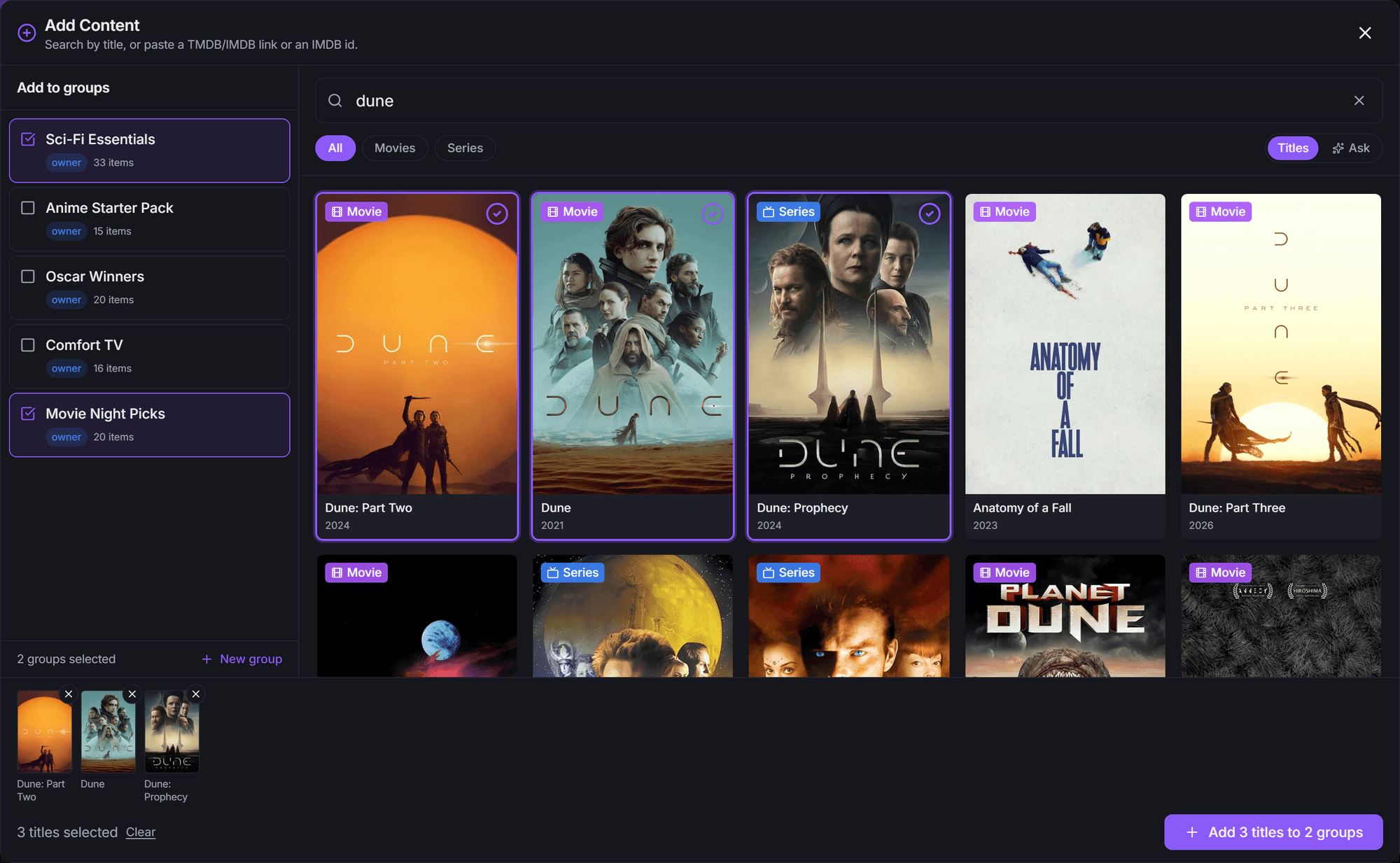
- Search. Type at least two characters in Search movies & series, or paste a link…. Narrow the results with All, Movies or Series.
- Pick titles. Click a poster to select it; click again to deselect. Your picks collect in the tray at the bottom, and you can keep searching for more. Remove one with the small × on its thumbnail, or click Clear.
- Pick groups. Under Add to groups on the left, tick every group the titles should go into. If you opened the window from a group, that group is already ticked. Only groups where you're an Owner or Contributor are listed.
- Click Add N titles to M groups.
A message confirms how many were added to each group. Titles that were already in a group are skipped and reported as "already there". Anything that didn't make it stays in the tray with a Dupe or Failed badge, so you can see what happened.
Tip
Need a new group for these titles? Click New group at the bottom of the Add to groups list, fill it in and click Create & select. It's created and ticked without leaving the window.
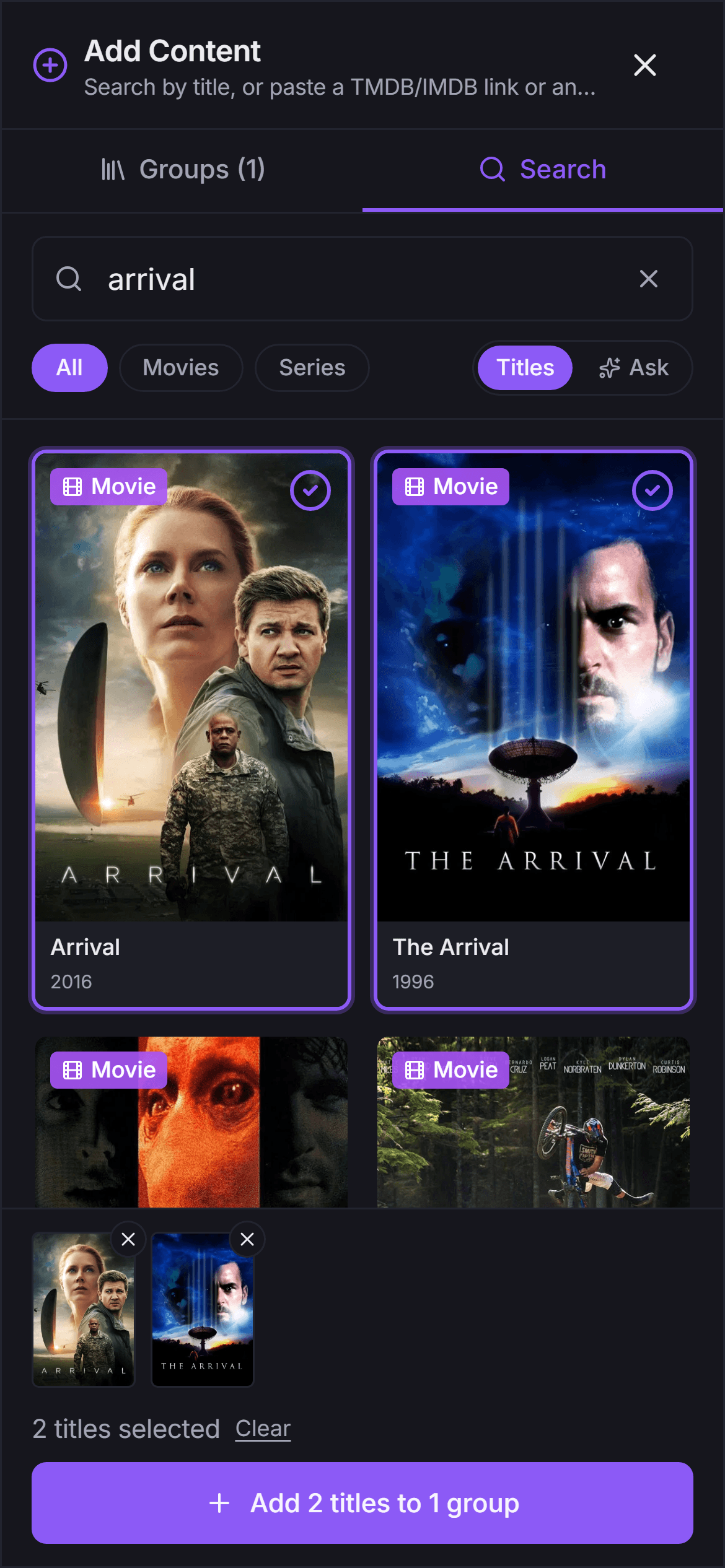
On a phone the window splits into two tabs, Groups and Search. Pick your groups on one and your titles on the other; the tray and the add button stay at the bottom.
Paste a link or ID#
Instead of searching, you can paste:
- an IMDb title link (
imdb.com/title/tt…) or a bare IMDb ID likett0816692 - a TMDB movie or TV link (
themoviedb.org/movie/…orthemoviedb.org/tv/…) - a Kitsu anime link
StremShare looks the title up and drops it straight into your tray. If it can't find anything you'll see "We couldn't find anything at that link."
Pasted a whole list?#
This window adds titles one at a time. If you paste a link to a list (a Trakt, Letterboxd or MDBList list, for example), you'll see That's a list link with a button to Open the Import flow, which brings in the whole list.

Ask: describe what you want#
Beta
This feature is in beta. If it's greyed out with an In beta pill, your account isn't in the beta yet.
Next to the type buttons there's a switch between Titles and Ask. In Ask mode you describe what you're in the mood for, like "korean thrillers on Netflix" or "90s heist movies", and press Enter. StremShare's AI turns that into a search and shows matching titles, which you select and add exactly as above.
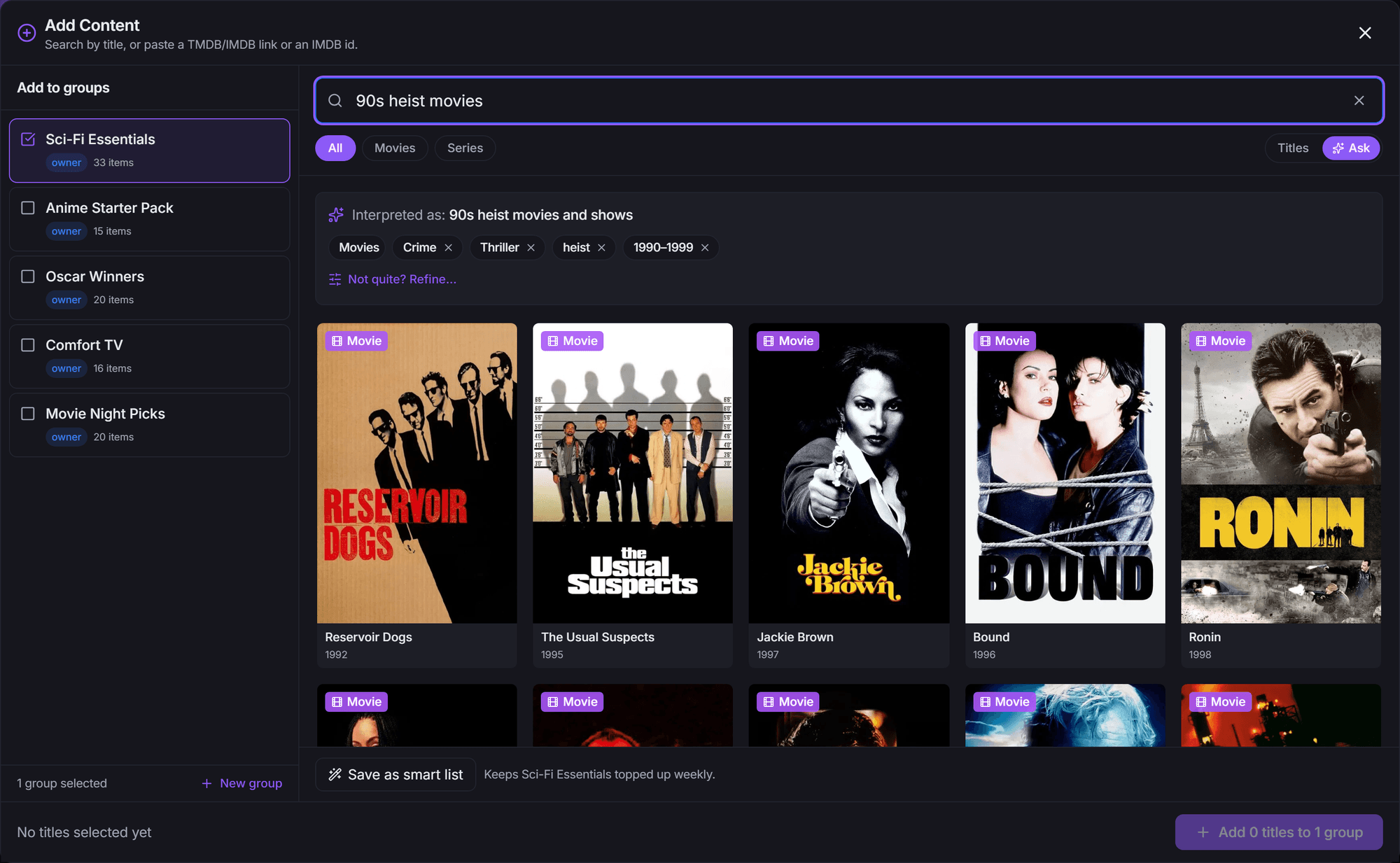
With a group ticked, Save as smart list keeps that search running and tops the group up weekly. There's a daily limit on AI searches; when you reach it, the window switches you back to Titles. Everything about the AI features is in AI Features.
Add from inside Stremio#
With the add-on installed, you can add a title to a group while you're browsing Stremio.
Set it up once: in Add-on Setup, make sure Stream is switched on for each group you want to add to. It's only offered for groups where you're an Owner or Contributor.
Then, in Stremio:
- Open a movie or series and look at its list of streams.
- You'll see one entry per group, named after the group in square brackets, with ✨ Add to Group List underneath.
- Pick the group. The title is added.
What happens next depends on the After you add something from Stremio setting in Add-on Setup:
- Confirmation page (the default) opens a page in your browser that confirms the add and jumps you back into Stremio.
- Short video in Stremio plays a quick success clip in the player instead, with no browser.
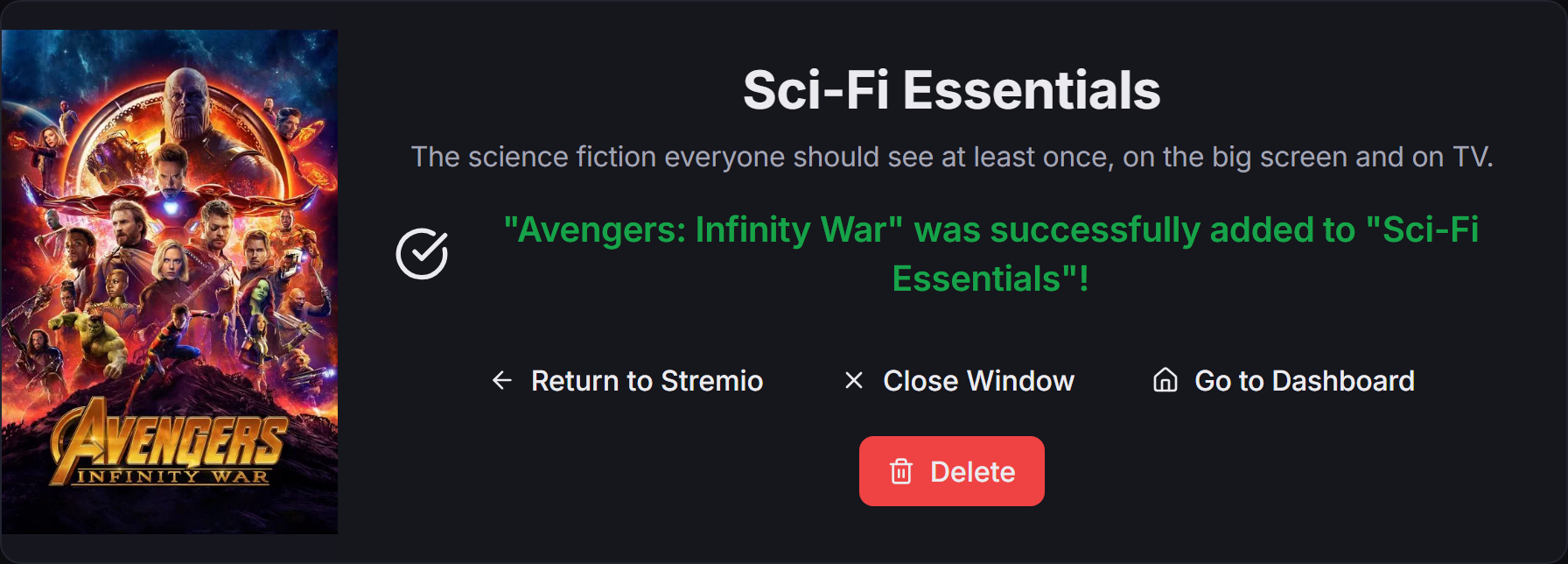
The confirmation page has Return to Stremio, Close Window, Go to Dashboard and Delete (to undo the add). It also invites you to rate and review the title (see Ratings & Reviews). If the browser isn't signed in to StremShare, the title is still added; sign in to manage it there.
If a title is already in a group, that group's entry says ✅ Already in group instead, along with the group's average rating and a few recent reviews.
Other ways to add#
- From a title's details. On a group's Items tab, click any poster to open its details, then click Add to put it into another of your groups.
- Copy titles between groups. In edit mode, select titles and click Send to Group (see below).
- Whole lists. Import a list or build one with the List Builder.
Browse a group's titles#
The Items tab shows every title in the group as a poster grid (or a list, with the view buttons on the right).
- Search content... finds titles in this group.
- Filters narrows by Type, Added By, Genre, Release Year, IMDB Rating, Group Rating, MAL Rating (Anime), MPAA Rating, and Hide watched (see Watch Tracking).
- Sort changes what you see on this page only. The Addon: chip next to it shows the order your Stremio row actually uses. To change that, see Reorder titles.
- Click a poster to open its details on the right (on a phone, in a sheet from the bottom): ratings from IMDb, TMDB and others, the synopsis and trailer, the group's ratings and reviews, and Open in Stremio.
Remove, hide and reorder titles#
Changes to what's in a group happen in edit mode. Click Edit on the Items tab. Nothing is saved until you click Save Changes, and Cancel throws your changes away.

Remove titles#
Click the × (Delete content) on a poster, then Save Changes.
- Owners can remove any title.
- Contributors can remove the titles they added themselves.
- Watchers can't remove titles.
If a title came from a smart list, removing it by hand also stops that smart list from adding it back.
Hide a title just for you#
Click the eye icon (Hide content) on a poster and save. The title disappears from your view of the group and from your own Stremio row, but stays in the group for everyone else. Every role can do this. To bring it back, enter edit mode again, where hidden titles are still shown, and click the icon again (Show content).
Reorder titles#
The order you choose here is the order the group's row shows in Stremio.
- Pick a sort: in edit mode, choose from Sort (for example Release Year, Date Added, IMDB Rating or Group Rating) and click Save Changes. Owners and Contributors change the order for everyone.
- Drag by hand: Owners can drag posters into any order. This saves as Custom Order.
- Watchers can pick a sort or drag too, but it only changes their own Stremio row. The group page itself keeps showing the shared order.
Copy titles to another group#
Tick titles in edit mode (or use Select All), then click Send to Group and pick a group, or create a new one. The titles are copied; they stay in this group too.
Good to know#
- "Cannot save with active filters". Clear the search and filters on the Items tab, then save.
- Don't see Add Content? You're a Watcher in this group. Ask the owner to promote you to Contributor.
- No "Add to Group List" entries in Stremio? Check that Stream is on for the group in Add-on Setup and that you're an Owner or Contributor there.
- Added titles not in Stremio yet? Stremio picks up new titles in an existing row the next time it loads the catalog; no reinstall is needed.