Your Profile, Following & Badges
Set up your public StremShare profile, choose what others can see, follow other curators and earn badges.
On this page
Every StremShare account has a public profile at stremshare.com/u/yourusername. It's a home for your public groups, templates and taste, it's how other people find your curation, and it's where you follow theirs.
Note
Looking for household profiles or kids limits? Those live in App Profiles, which covers the people and devices watching on your account.
Find your profile#
- Click My Profile in the sidebar, or open the menu under your avatar in the top bar and click your name.
- Anyone else's profile is one click away: click @username on any group card on Discover, or search for them in the top bar (results under People).
Profiles are public pages, so you can share the link with people who don't have an account yet.
What's on a profile#
The top of every profile shows:
- A banner made from posters in the owner's public groups.
- The avatar, display name, @username, when they joined, and their location if they added one. A Follows you tag appears when that person follows you.
- Stats: Public groups, Items curated, Followers, Following, and Watch hours if the owner chose to share it. Click Followers or Following to see the lists.
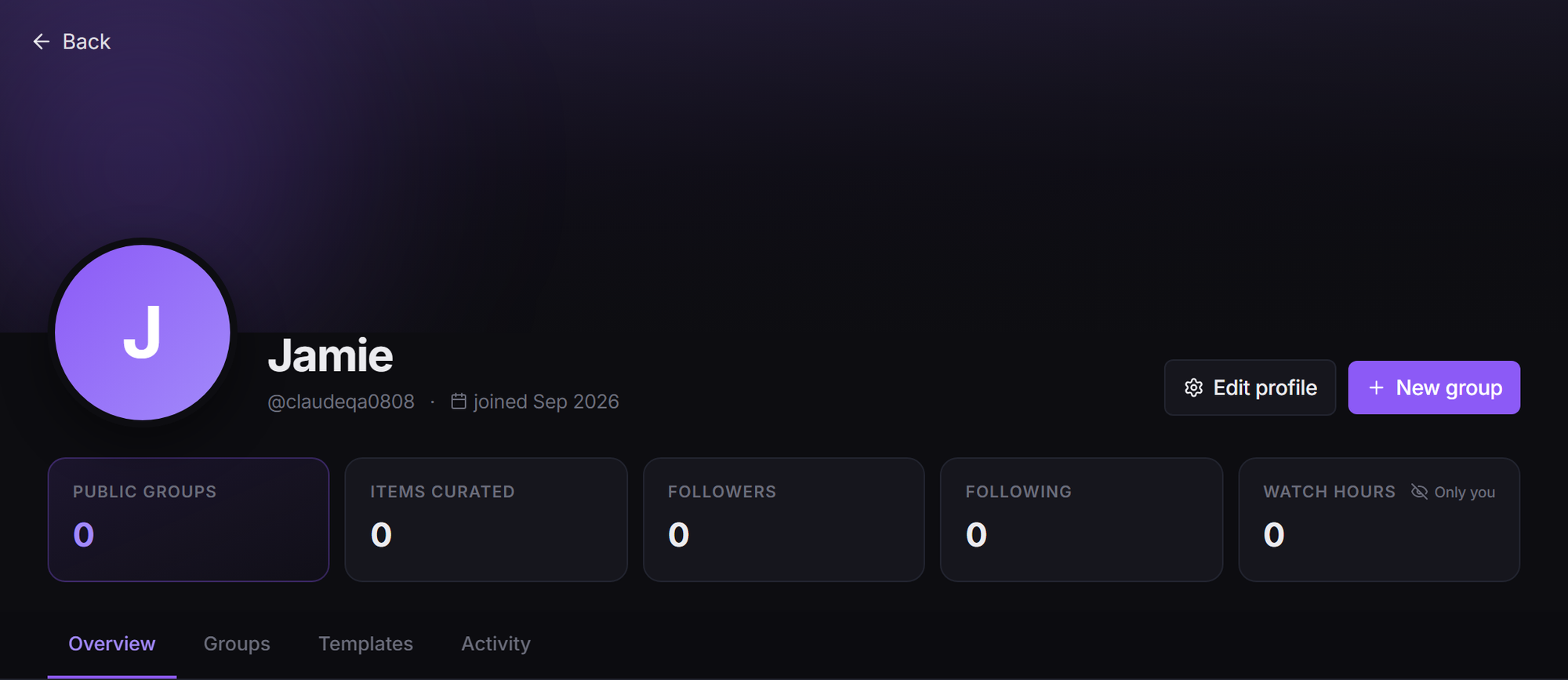
Below that, four tabs:
- Overview: an About card (bio and interest tags), a Taste fingerprint (a genre breakdown, based on what they watch if they share watch stats, otherwise on their public groups), Currently watching, Recent activity, a preview of Public groups, templates, and Badges.
- Groups: every public group the person owns, each with a Join button right on the card.
- Templates: add-on templates the owner has chosen to show, with View / Take so you can copy one. This tab only appears when the owner turns it on. See Templates.
- Activity: a full feed of their public activity (titles added, ratings, reviews, groups joined, new follows, and what they're watching if they share it), with filter chips.
A profile only ever gathers content that's already public. Private groups and anything that happens in them never appear on a profile, whatever the settings.
Edit your profile#
On your own profile, click Edit profile (or go to Account → Profile). There you can set:
- Avatar: Upload photo (JPEG, PNG or WebP, up to 5MB) or Choose avatar from the built-in set. An uploaded photo is saved straight away.
- Display name: falls back to your username when empty.
- Location: optional.
- Bio: up to 500 characters. Tell people what you curate.
- Interest tags: up to 8 short tags shown as chips under your bio. Type one and press Enter, or click a suggestion (Horror, A24, Slow cinema, Subs over dubs and more).
- Featured banner group: pick one of your public groups to feed the banner, or leave it on Automatic (all groups).
Click Save Changes when you're done.
Choose what others can see#
The Profile privacy box on the same page controls what visitors see:
- Profile visibility: Public: anyone can view your profile, or Private: hidden from others. A private profile shows visitors only your name and avatar, with a "This profile is private" message, and nobody new can follow you.
- Show watch stats: shares your watch hours, a taste fingerprint based on what you watch, and your Watching badges.
- Show currently watching: shares your Currently watching strip and watch events in your activity feed. It also lets your plays appear as "watching" and "watched" events in the Activity feed of groups you own or contribute to. With it off, or with a private profile, other people don't see your plays there.
- Show my templates on my profile: adds the Templates tab. Each template also needs its own "Show on my profile" switch, and only its public groups are ever shown.
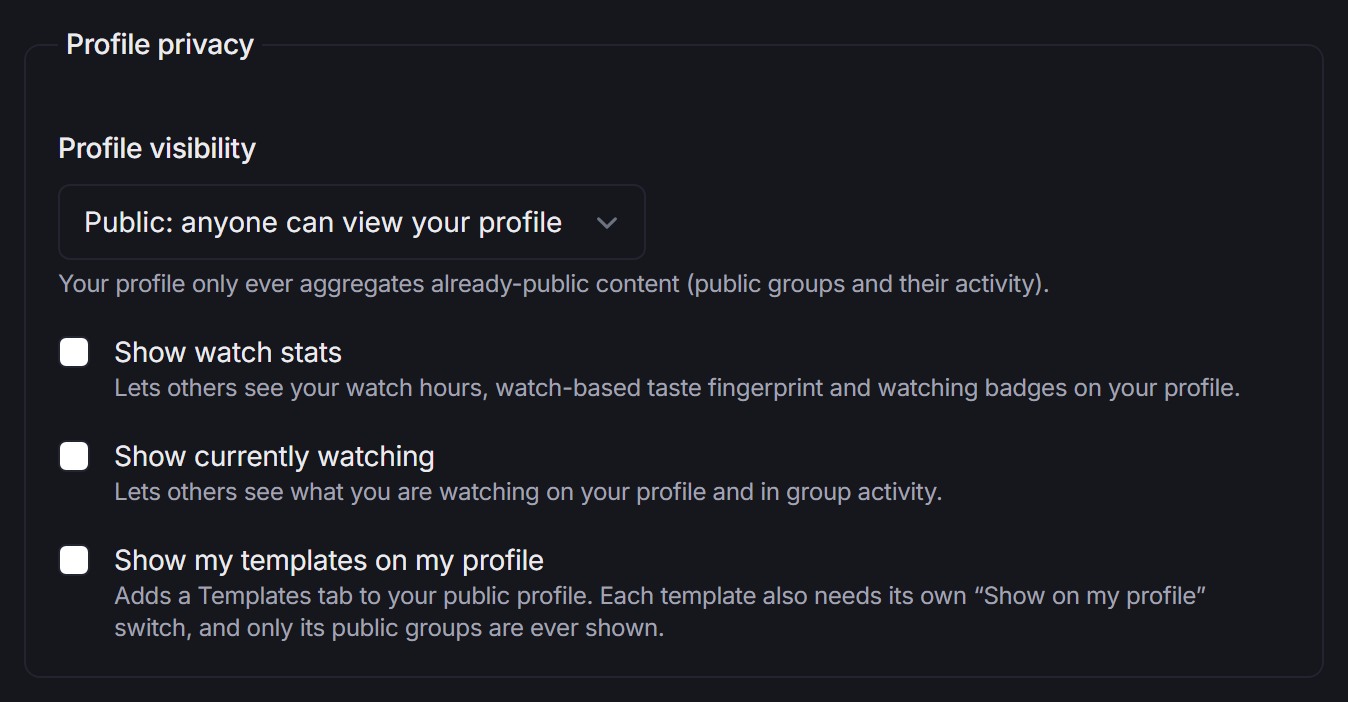
You always see everything on your own profile. Anything hidden from visitors carries a small Only you tag, so you know what others can't see.
Watch stats come from watch tracking. See Watch Tracking for how that works.
Following#
Following is a simple way to keep track of curators you like.
To follow someone
- Open their profile.
- Click Follow. The button changes to Following, and their Followers count goes up by one.
They get a notification that you started following them. To stop, click Following again. You can also follow and unfollow from inside the Followers and Following lists.
What following does
- Your follow shows in their Followers list, your Following list, and as a new follow in your activity feed.
- They see a Follows you tag on your profile.
- Followers count towards the Rising Star and Social Butterfly badges.
You can't follow a private profile. If someone you follow later makes their profile private, you can still unfollow them.
Other buttons on someone's profile
- Invite to group: invite them to a group you own or contribute to. They get an invite they can accept, and join as a Watcher. See Groups & Members.
- Share: copies the profile link.
If you're not signed in, Follow takes you to sign-up first.
Notifications#
The bell in the top bar collects your notifications, including new followers, likes on your reviews and newly earned badges. Click one to jump to it, or use Mark all read. To choose which kinds you get (for example, turn off Social to stop follower and review-like notices), go to Account → Notifications. See Account Settings.
Badges#
Badges are achievements you earn automatically as you use StremShare. There are 16 of them in five categories:
- Curation: Curator (3+ public groups), Librarian (100+ titles added to public groups), Genre Hopper (curating across 8+ genres), List Engineer (built a smart list).
- Reviews: First Impressions (your first review), Critic (10+ reviews), Crowd Pleaser (25+ likes on your reviews). Reviews count when they're on titles in public groups. See Ratings & Reviews.
- Community: Squad Member (joined a group), Team Player (contributor in someone else's group), Co-Curator (25+ titles added to groups you don't own), Rising Star (10+ followers), Social Butterfly (following 10+ curators).
- Watching: Marathoner (100+ hours watched), Century Club (100+ titles watched), Streak (a 7-day watch streak).
- Special: Early Adopter (joined in StremShare's first year).
The StremShare team can also grant three special badges by hand: Verified Curator (which adds a check mark next to your name), StremShare Staff and Founding Supporter.
On your own profile, the Badges section shows everything you've earned, plus the few you're closest to earning next. Click Show all 16 badges (the number can vary) to see the full grid sorted by category, and Show less to fold it back.
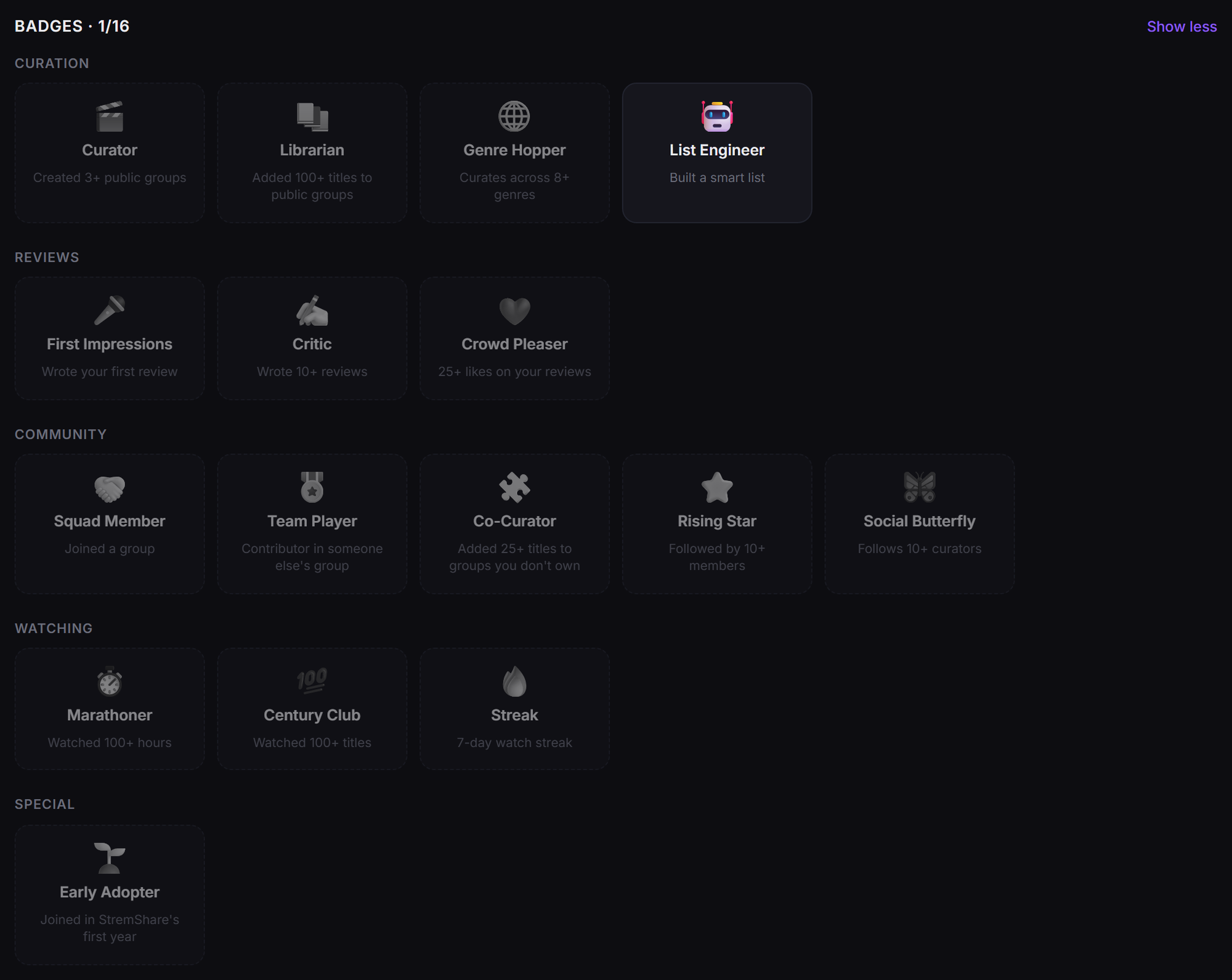
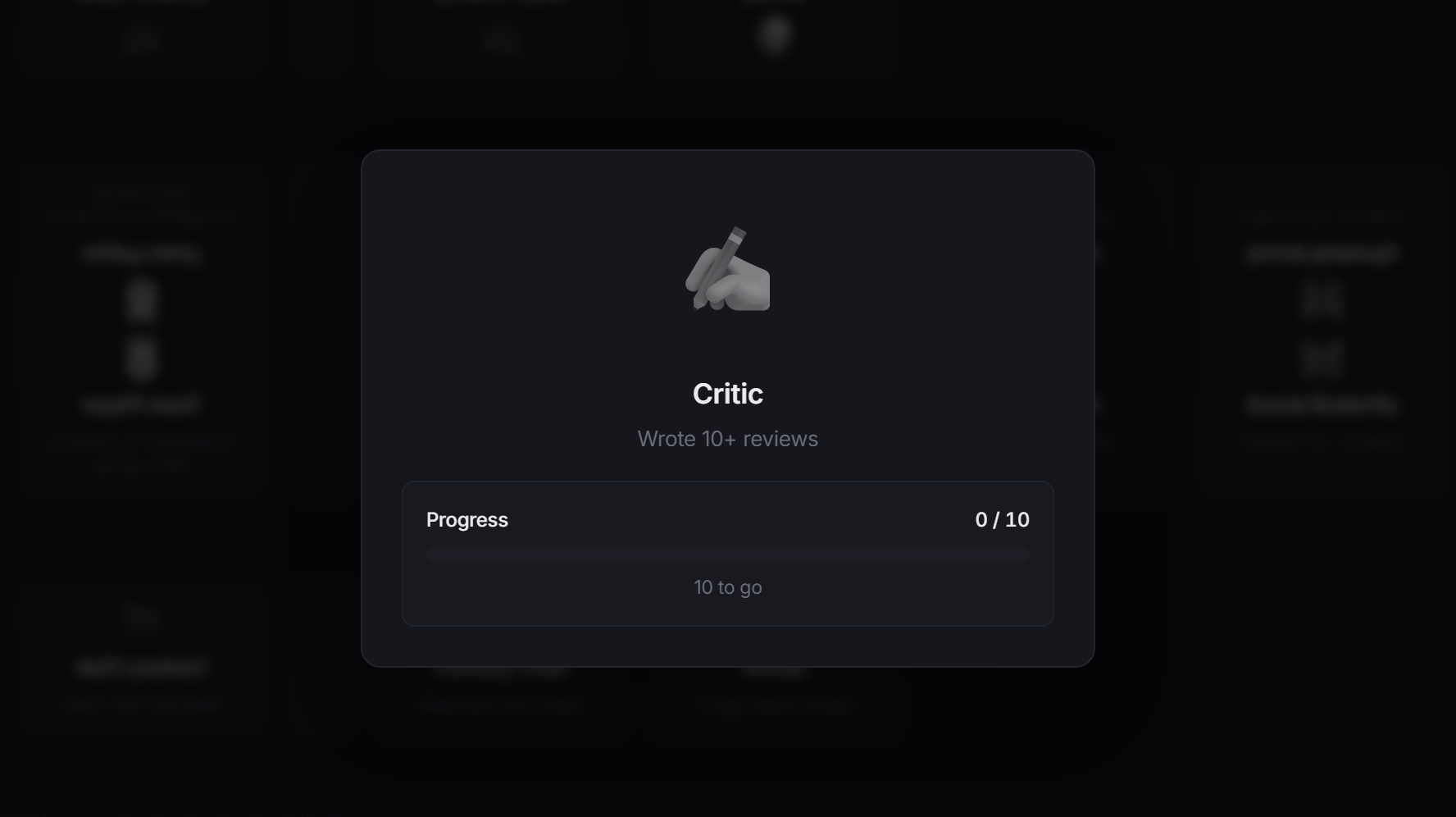
Click any badge to see its details: when you earned it, or for one you haven't earned yet, a progress bar showing how far along you are (for example "3 / 10") and how many to go.
Visitors only see the badges you've earned. Watching badges are only shown to others when Show watch stats is on.