Account, Connections & Notifications
Change your password and theme, choose which notifications you get, link Stremio, Nuvio, Trakt, MDBList and TMDB, pick a poster style, or delete your account.
On this page
Everything about your StremShare account lives on one page: your details, your plan, your notifications, the services you've linked, and the look of your posters. This guide walks through it tab by tab.
Finding your account settings#
Click Account in the sidebar (on a phone, tap the gear icon in the top bar). The page opens on Profile, with the other sections listed down the left: Profile, Plan, Password, Appearance, Notifications, Connections, App Profiles, Posters, Tools and Delete Account. On a phone they become a strip of tabs you can swipe sideways.
Each section has its own link, so you can bookmark or share one directly, for example /account?tab=connections or /account?tab=notifications.

Profile#
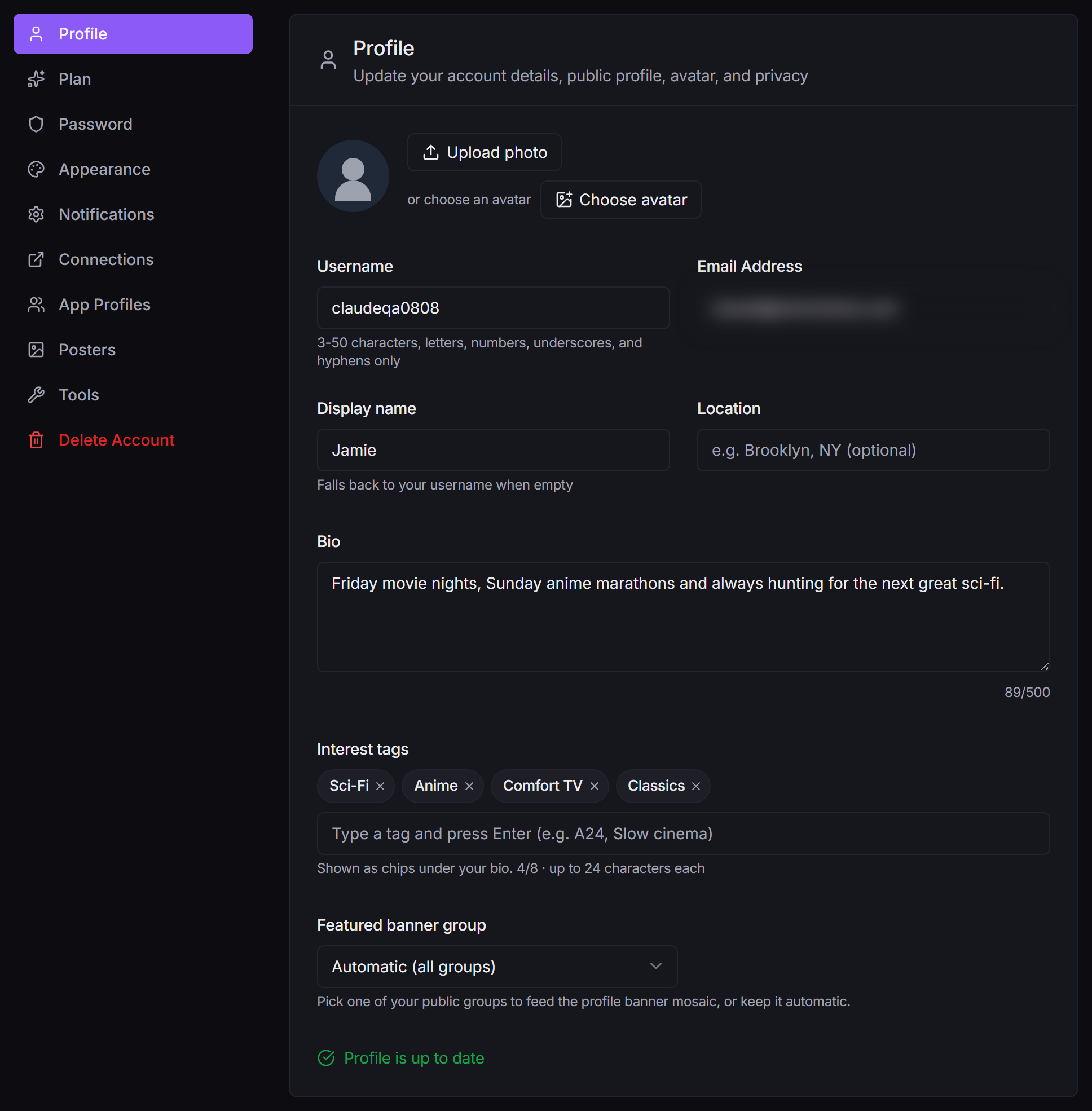
Profile holds your Username, Email Address, avatar and everything people see on your public profile: Display name, Location, Bio, Interest tags, Featured banner group and Profile visibility. Make your changes, then click Save Changes (the button appears once something has changed; until then the form reads Profile is up to date).
For what each of those does on your public page, and the privacy switches below them, see Profiles, Following & Badges.
Plan#
Plan shows which plan you're on (Free or Supporter) and a side-by-side table of what each includes.
Supporter
Supporter isn't available to buy yet. The Plan tab lists what it will include so you know what's coming, but there's nothing to purchase today.
The table is split into three parts:
- AI Curator: how often the AI picks fresh rows for your Stremio home screen (Supporter adds daily), how many rows it can add and keep pinned, different rows for mornings and evenings, a curated home screen for each profile, and planning around what's premiering this week.
- AI Search: how many AI searches you can run a day.
- Your groups: how many groups you can own. Free accounts have a limit (the tab shows the current number); Supporter has no limit.
A row that reads In beta is an AI feature your account can't use yet.
Note
Supporter and the AI beta are separate. Being a Supporter doesn't add you to the AI beta, so an AI feature can still show In beta on a Supporter account. See AI Features.
Password#
To change your password:
- Open Account → Password.
- Enter your Current Password.
- Enter a New Password and type it again under Confirm New Password. It needs at least 8 characters with an uppercase letter, a lowercase letter and a number.
- Click Change Password.
Forgot your password?#
If you can't sign in, click Forgot Password? on the sign-in page (or go to /auth/forgot-password), enter your email and click Send Reset Link. If an account uses that email, you'll get a reset link that works for 1 hour.
Appearance#
Appearance has one setting, Theme: Light or Dark. Your choice is saved on the device you pick it on, so your phone and laptop can differ.
Notifications#
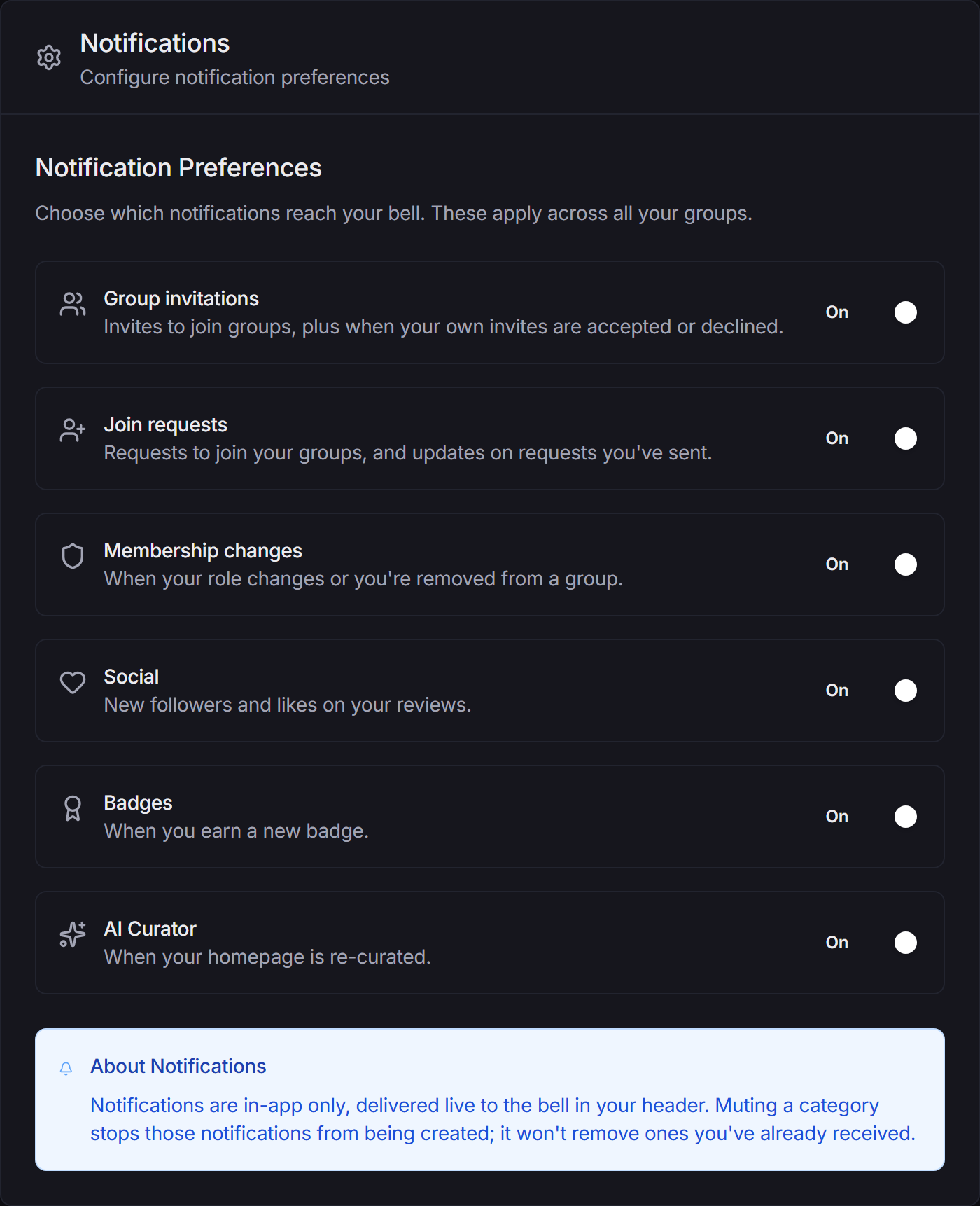
StremShare notifications are in-app only. They show up in the bell in the top bar, and nothing is emailed.
Choosing what you get#
Open Account → Notifications and switch each category On or Off:
| Category | What it covers |
|---|---|
| Group invitations | Invites to join groups, plus when your own invites are accepted or declined. |
| Join requests | Requests to join your groups, and updates on requests you've sent. |
| Membership changes | When your role changes or you're removed from a group. |
| Social | New followers and likes on your reviews. |
| Badges | When you earn a new badge. |
| AI Curator | When your homepage is re-curated. |
Switching a category off stops new notifications of that kind. It doesn't remove ones you've already received.
Using the bell#
The bell in the top bar shows a count of unread notifications. Click it to open the list, then click a notification to jump to what it's about. Mark all read clears the count in one go.
If a linked service stops working (your Stremio login expires, Trakt disconnects, MDBList rejects your key, or one Stremio profile needs its PIN again), the notification says so and takes you straight to Account → Connections to fix it.
Connections#
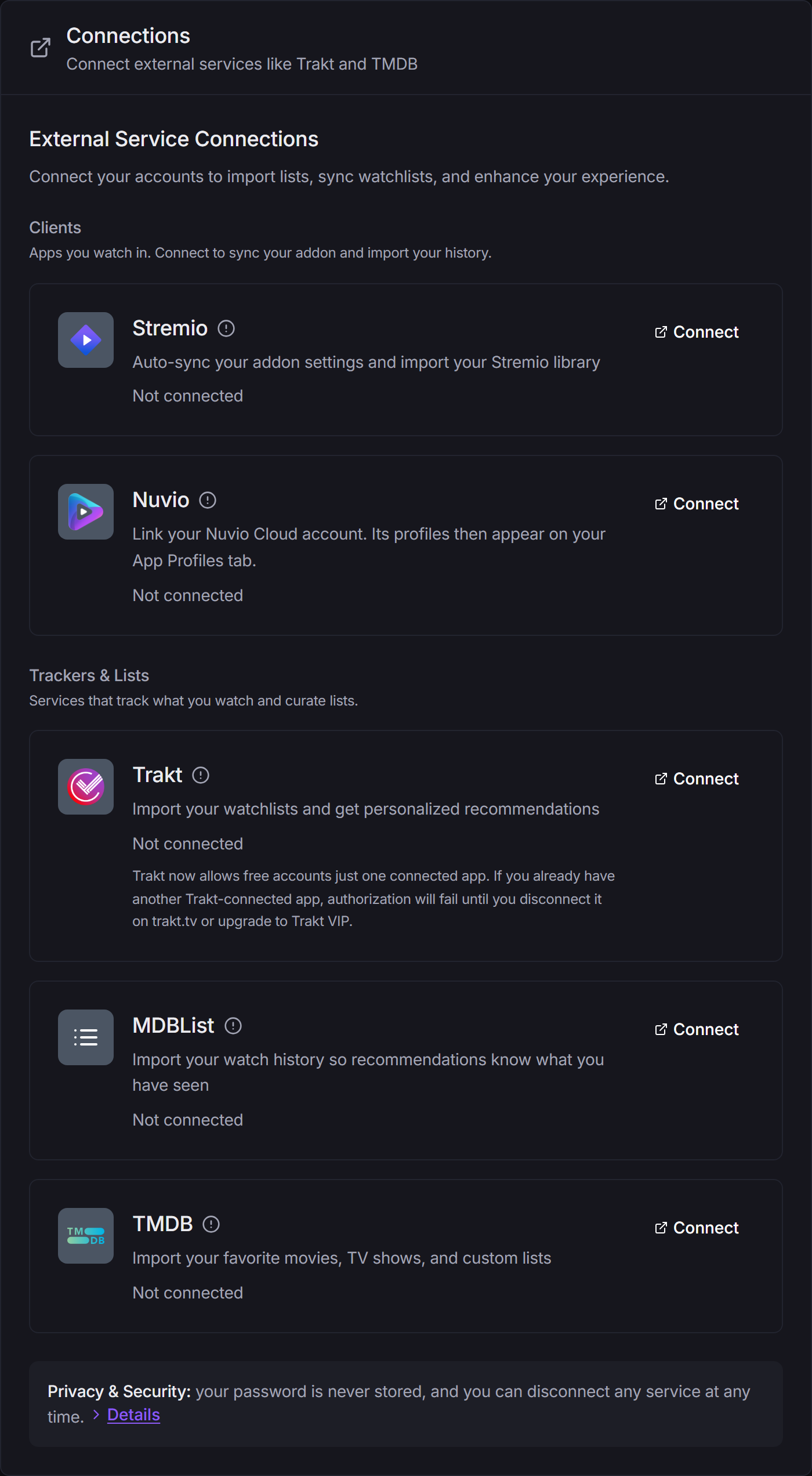
Connections is where you link the other apps and services you use. Linking is optional: StremShare works without any of them, but each one unlocks something extra.
The tab has two sections:
- Clients: apps you watch in (Stremio, and Nuvio when it's offered on StremShare).
- Trackers & Lists: services that track what you watch and keep lists (Trakt, MDBList and TMDB).
Each card says Not connected or Connected, and has a Connect or Disconnect button on the right.
Stremio#
Linking your Stremio account lets StremShare install and update your add-on for you, import your Stremio watch history, show your Stremio profiles on the App Profiles tab, and use the Tools on your Stremio account.
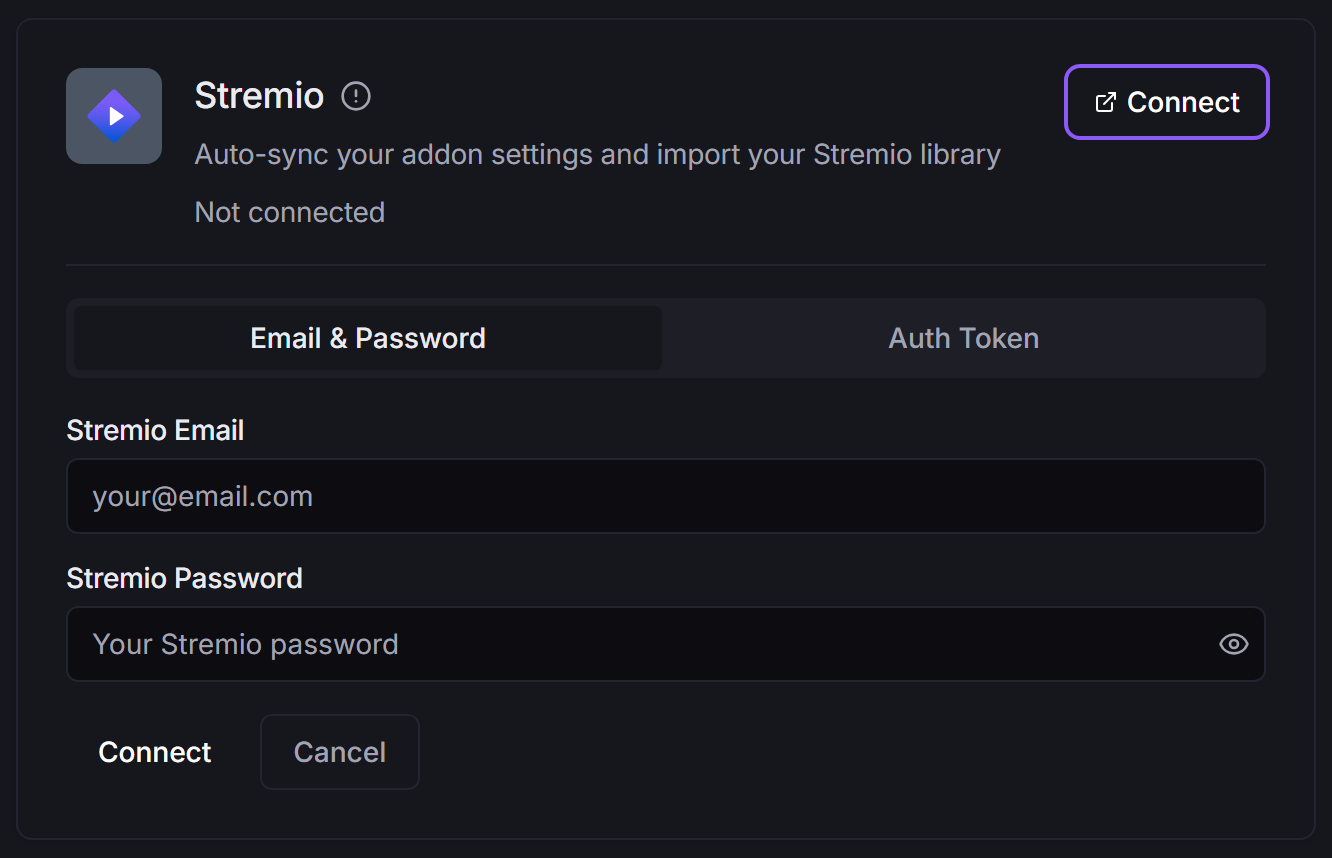
- On the Stremio card, click Connect.
- Choose Email & Password and enter your Stremio Email and Stremio Password. Or choose Auth Token and paste your Stremio auth token instead.
- Click Connect.
When it works you'll see "Successfully connected to Stremio", usually with "and addon installed" on the end. Your Stremio password is only used to sign in and is never stored.
Once connected, the Stremio card grows a Watch history panel with Import watch history and a Keep in sync automatically switch. See Watch Tracking for how imported history is used.
Nuvio#
The Nuvio card only appears when Nuvio support is switched on for StremShare. Linking your Nuvio Cloud account brings its profiles onto your App Profiles tab.
- On the Nuvio card, click Connect.
- Enter your Nuvio Email and Nuvio Password and click Connect. Your password is sent to Nuvio to sign in and is never stored.
- Linking alone doesn't put anything on your Nuvio devices. Click Install on your profiles and install the add-on on each profile you want it on. See App Profiles & Kids Limits.
Refresh re-reads your profile list from Nuvio, for example after you add a profile in the Nuvio app.
Trakt#
Connecting Trakt lets you import your Trakt lists and watchlist into groups, import your Trakt watch history, and power Trakt-based smart lists.
- On the Trakt card, click Connect.
- A Trakt window opens. Sign in and approve StremShare. If nothing opens, allow pop-ups for StremShare and try again.
Note
Trakt now allows free Trakt accounts only one connected app. If another app is already connected to your Trakt account, approving StremShare will fail until you disconnect that app on trakt.tv or upgrade to Trakt VIP.
MDBList#
MDBList connects with an API key instead of a sign-in window. Linking it lets you import your MDBList watch history so recommendations know what you've already seen.
- On the MDBList card, click Connect.
- Get a free API key from your MDBList preferences (the card links there).
- Paste it into MDBList API Key and click Connect.
TMDB#
Connecting TMDB lets you import your TMDB favorite movies, favorite TV shows and your own lists, including private ones.
- On the TMDB card, click Connect.
- Approve StremShare in the TMDB window that opens.
For the import steps themselves, see Importing Lists.
Watch history from Trakt and MDBList#
Once Trakt or MDBList is connected, its card shows the same Watch history panel as Stremio: Import watch history to bring in what you've watched, Keep in sync automatically to keep pulling new plays, and a button to remove the history StremShare imported (your history on the service itself is never touched).
When a connection expires#
Services sometimes end a sign-in on their side. When that happens the card turns amber with "Your ... session expired. Reconnect to keep importing lists and syncing." and a Reconnect button. Click it and sign in again. Nothing you imported is lost.
Disconnecting#
Click Disconnect on any connected card.
- Stremio asks you to confirm first. Your StremShare add-on stays installed in Stremio and keeps working, but changes you make in StremShare stop syncing to Stremio until you reconnect. Your Stremio profiles leave the App Profiles tab. Your Stremio library and watch history are not touched, and plays already imported stay in your StremShare history.
- Nuvio also asks first. StremShare removes its add-on from each of your Nuvio profiles, then forgets the link. Your Nuvio devices stay signed in.
- Trakt, MDBList and TMDB disconnect straight away.
App Profiles#
App Profiles lists the people and contexts that watch on your account: your Nuvio profiles, your Stremio profiles and any StremShare profiles. Each can have its own catalog, add-on URL and recommendations. It has its own guide: App Profiles & Kids Limits.
Posters#
Posters changes the poster art in your Stremio catalogs to versions with rating badges on them. The StremShare website keeps using its normal posters.
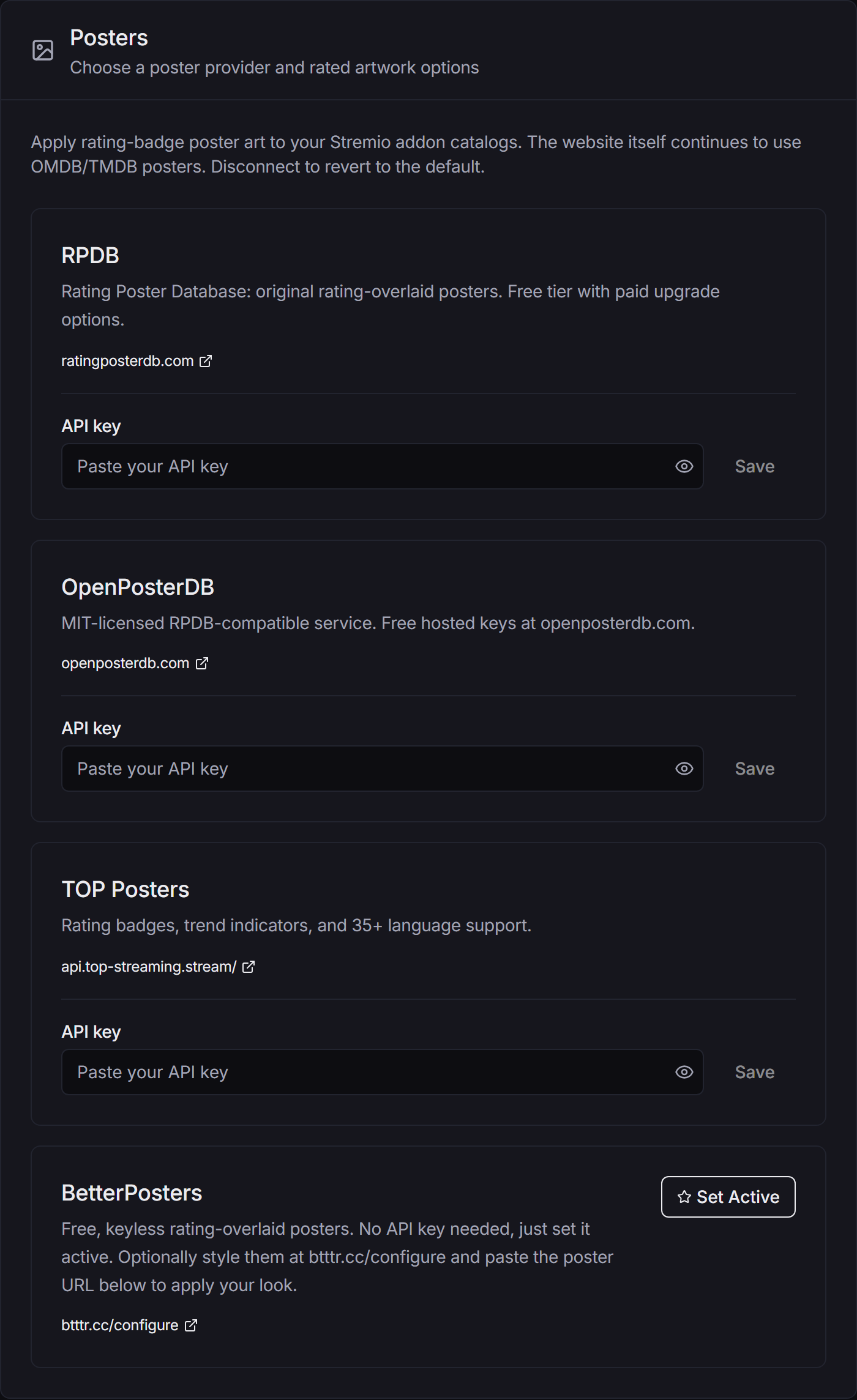
| Provider | What you need |
|---|---|
| RPDB | An API key from RPDB (free tier, with paid upgrades). |
| OpenPosterDB | An API key. Free hosted keys are available at openposterdb.com. |
| TOP Posters | An API key. Adds rating badges, trend indicators and 35+ languages. |
| BetterPosters | Nothing. No key needed; optionally paste a styled poster URL from btttr.cc/configure under Custom poster URL. |
| XRDB (eXtended Ratings) | A Base URL (the public instance or your own server), plus an optional Config UUID for your saved styling. |
| TMDB (Region) | A language, picked under Add-on Setup → Display Language. No key needed. |
To switch providers:
- Find the provider. If it needs a key, paste it into API key and click Save.
- Click Set Active. The provider gets an Active label.
- To go back to the standard posters, click Use OMDB/TMDB on the active provider.
Disconnect on a provider removes the key you saved for it.
Some providers also offer Detail-page artwork once they're active: Rated episode thumbnails (needs a TOP Posters Premium key) and Provider logos & backdrops. Each image counts against your provider's monthly quota, so leave them off if you're on a small plan.
Tools#
Tools holds utilities for the apps you watch in: managing the add-ons installed in Stremio or Nuvio, hiding Cinemeta's rows, copying watch history between apps, and exporting or importing your library. See Tools.
API Keys#
Beta
This feature is in beta. The API Keys tab only appears on accounts in the beta.
API Keys lets external tools (such as Claude Code or your own scripts) work with your StremShare account. Click New API Key, enter a Key name, tick the Scopes it needs and click Create key. The key is shown exactly once, so copy it somewhere safe straight away. For what the API can do, see the API reference.
Delete Account#
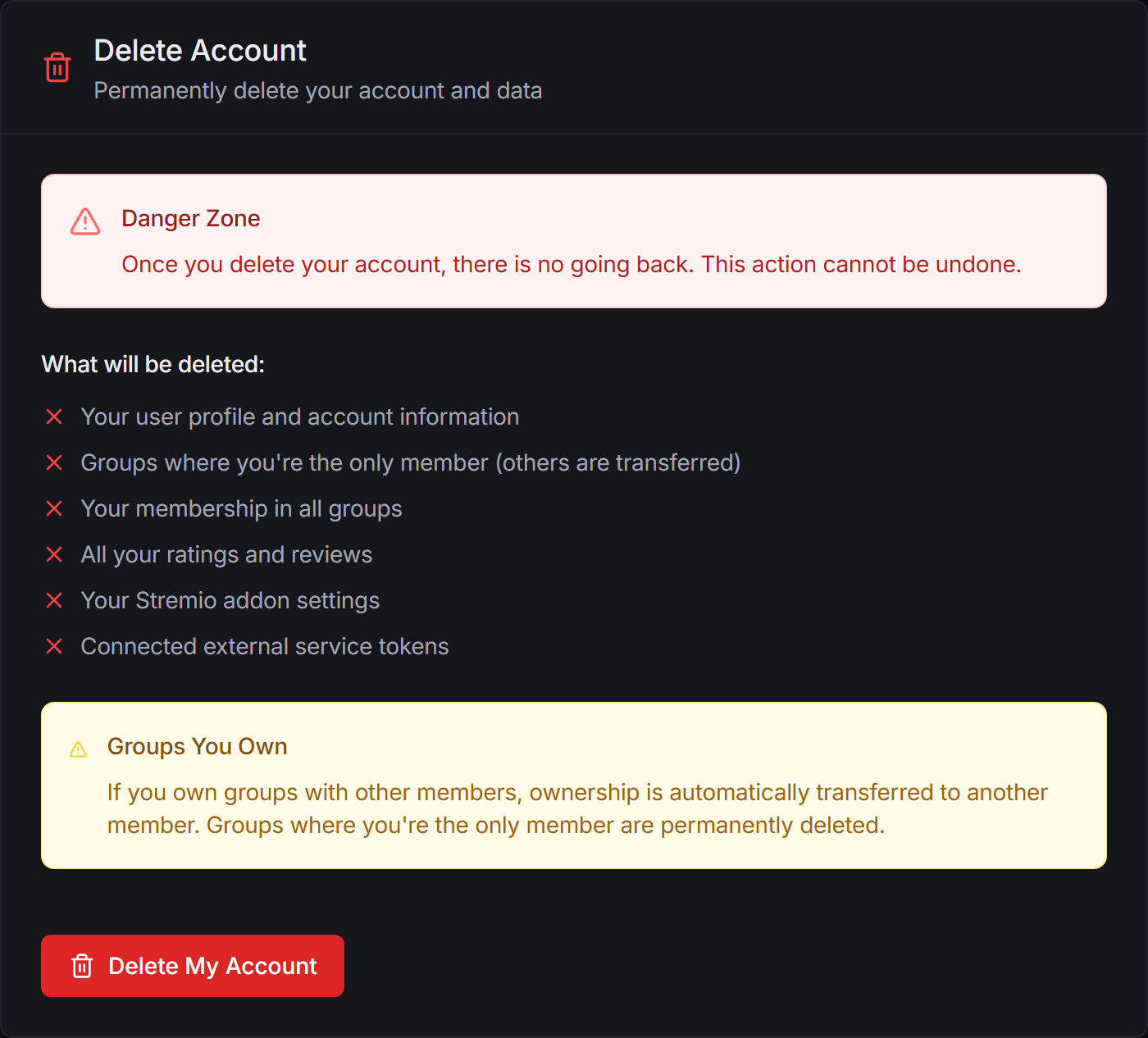
Delete Account permanently removes your account. It can't be undone.
The tab lists exactly what goes:
- Your user profile and account information
- Groups where you're the only member
- Your membership in all groups
- All your ratings and reviews
- Your Stremio addon settings
- Connected external service tokens
Groups you own that have other members aren't deleted: ownership moves to another member.
To go ahead, click Delete My Account, enter your password under Enter your password to confirm, type DELETE in the box below it, and click I understand, delete my account.
Keeping your account safe#
- Your add-on URL is private. Anyone who has it sees your catalogs and can add to your groups. Don't post it publicly. If it leaks, open the Add-on page and use More → Regenerate URL…, then reinstall the add-on. Each app profile's URL can be replaced the same way with Rotate URL (see App Profiles & Kids Limits).
- Linking a service never stores its password. StremShare keeps only the sign-in token the service hands back, and you can disconnect any service at any time.
Troubleshooting#
The Trakt or TMDB window didn't open. Your browser blocked the pop-up. Allow pop-ups for StremShare and click Connect again.
Trakt says authorization failed. You probably have another app connected to a free Trakt account. Disconnect it on trakt.tv, then try again.
"We couldn't load your connection status." That was a failed check, not a disconnection. Click Try again.
I can't see the Nuvio card or the API Keys tab. Nuvio only appears when it's offered on StremShare, and API Keys only appears on beta accounts.